
Introducing Webhooks and a flexible course outline
This week ClassroomIO learned to talk to your other tools. Webhooks send an event to any URL you choose when something happens in your organization. Course outlines also got more flexible: put a lesson or exercise outside any section, and drag things into place right in the course sidebar.
YouTube video
WebhooksGetting ClassroomIO activity into your other tools used to mean exporting it, polling the API or building a Zap. If you wanted your CRM to know the moment a student finished a course, there was no direct way to tell it.
Now there is. Open Automation, then the Webhooks tab, and click New webhook. Give it a name, paste a Payload URL, and choose Send me everything or Let me select individual events. Events come in three groups:
-
Organization: invites to your organization created, accepted and revoked.
-
Courses: course invites, students added or removed, courses completed, certificates issued, new submissions and submission status changes.
-
Learning progress: lesson and exercise completion.
When you save, ClassroomIO shows your signing secret once. Every request carries a signature made with it, so your server can check that the event really came from ClassroomIO. Use Send test event to check your endpoint before real events arrive.
See what was deliveredClick View deliveries on any webhook to see the last 30 days of events, with the HTTP status, the payload and your server's response. A failed delivery is retried twice, after 10 seconds and after 1 minute. Once you fix your server, click Redeliver to send the same event again.
The webhooks table shows each destination as Healthy, Retrying, Failing or Auto-disabled, with its error rate over the last 24 hours. If 20 deliveries in a row fail, every admin gets an email. After 100 in a row, ClassroomIO turns the webhook off and emails you again. Fix the endpoint and switch it back on.
Webhooks are available on the Early Adopter and Enterprise plans, the same as the public API. The course completed event is sent when a student earns the course certificate, so it needs certificates turned on. The Help Center guide walks through setup, and the developer docs list the payload of every event.
Flexible course outlineOnce a course used sections, every lesson and exercise had to live inside one. A welcome lesson or a final quiz needed a section of its own, and changing the order meant opening a separate reorder view.
Now a course outline can mix sections with standalone lessons and exercises, in whatever order you like. In the course sidebar, grab any section, lesson or exercise and drag it:
-
Move a section up or down. While you drag, sections fold up so you can see where it will land.
-
Drop a lesson or exercise into a section, between sections, or out of a section to stand on its own.
-
Drop content into an empty section. Empty sections start collapsed but still take drops.
Hover a lesson or exercise in the sidebar to edit or delete it. Hover a section to add content to it or delete it. These controls only show for your team, never for students.
Add content outside a sectionWhen you add a lesson or exercise, the Section menu now ends with No section. Pick it and the new item sits in the outline on its own.
Students see the same order everywhere: the course sidebar and content page, the Next button, locked content that opens in sequence, the public course page and the curriculum on your landing page. On the landing page, each standalone lesson or exercise shows as its own module.
More in the API and MCPThe public API gained 40+ new endpoints this week. If you build on ClassroomIO, or let an AI tool like Claude Code or Cursor work in your organization through MCP, here is what you can do now:
-
Course outlines: list, create, rename, move and delete sections. Read lessons with their translations, version history and comments. Reorder, lock, unlock or delete many lessons and exercises in one call.
-
Exercises and grading: create exercises and edit single questions, list and grade submissions, and read marks.
-
Student activity: mark a lesson complete or submit an exercise for a student.
-
Audience and team: list your audience and team, add audience members, and change a member's name or role.
-
Videos: upload a video file and attach it to a lesson.
Deletes that would remove student work, such as a lesson with completions, are refused unless you confirm them. The MCP package is now at version 0.2.0 with 117 tools. Update your MCP client to 0.2.0 to get them.
Fixes and improvements-
Dashboard stat cards link to their lists. Click Certificates issued, Number of courses or Total students on your dashboard to open the list behind the number. Audience has a new Certificate filter for students who have or haven't earned one. (#1322, #1329)
-
Last login is back. Student logins stopped being recorded in early September, so Last login in Audience showed Never. Logins are recorded again, and we restored recent logins where we could. (#1325)
-
Removing a student who submitted work. Removing a student who had answered an exercise failed with an error. It now works and removes their course data with them. (#1320)
-
Inviting an existing student to your team. Inviting someone who was already a student showed success but sent nothing. ClassroomIO now asks you to confirm, sends the invite, and keeps them a student until they accept. Team invite links are now separate for each role, so copying the Admin link no longer hands out the Tutor link. (#1336, #1355)
-
Deleted courses disappear right away. A deleted course used to stay on the Courses page until you reloaded, and the delete dialog could stay stuck open on a second delete. (#1363)
-
Copy new API and MCP keys from a dialog. When you create or rotate a key, it opens in a dialog with a Copy button and a How to use this key link, instead of a banner that stayed on the page until you left. (#1372)
-
Filter your widgets. The Widgets page has search and a Filters popover for status, layout type and selection mode. (#1249)
-
Check my answers on public exercises. The button now works for star rating, word bank, matching and hotspot questions. (#1324)
-
Public course pages show every lesson. Lessons and exercises from some course templates were missing from public course pages. They all show now. (#1324)
-
Previous and next on short pages. On a short lesson or exercise, the previous and next links show without scrolling. (#1324)
Share live session recordings, grading and editor improvements, Italian and more
Live classes got a proper ending this week: share the recording, keep a list of past sessions, and decide when students get reminded. Tutors can now review the files students submit for projects, and the text editor has callouts for tips and warnings. ClassroomIO also speaks Italian now.
YouTube video
Live sessionsA live session used to look live forever. The red live icon stayed on the lesson after the class was over, the Join button stayed too, and there was nowhere to share the recording with students who missed it.
In a lesson's Settings, the Live session section now has two new fields: Expected session length (minutes) and Recording link. In the course sidebar, an upcoming session now shows a grey live icon, which turns red while the session is running. Once it ends, the icon goes away, the session shows Session ended and a Watch recording button, and students only see the recording link from that point on. Ended sessions also collect in a Past sessions list at the top of the course content page, newest first, so students can catch up on anything they missed.
Sessions without a length are treated as 60 minutes long, as before. These changes apply to courses set up as a live class.
Choose when students get remindedStudents on a live class course used to get reminder emails 24 hours and 1 hour before each session, and you couldn't change that or see whether a reminder went out.
Course Settings now has a Session email reminders card. Add up to five reminders, anywhere from 15 minutes to 7 days before a session, or use the quick add options for 1 day, 6 hours, 1 hour or 30 minutes. Remove every reminder to turn them off. Courses you don't touch keep the 1 day and 1 hour reminders.
Click View logs to see the Delivery log, with every reminder and whether it was sent, queued, failed or skipped. A student who enrolls after a reminder's time has passed doesn't get that reminder late. The time in the email now shows in the session's own timezone instead of GMT.
Grading project submissionsWhen a student submitted a file, the tutor reviewing it saw an upload control or a file name that didn't open. The Summary tab didn't say who had sent which file either.
Each submitted file now has View and Download buttons on the Individual tab. The Summary tab lists every file with the student's name and submission time, and links straight to that attempt.
Students can also submit CSV (.csv) and Jupyter Notebook (.ipynb) files. They are new options in a file upload question's Accepted types. If you leave Accepted types empty, every supported type is allowed, including these two. If you picked specific types, tick the new ones to accept them. Files that don't match a question's accepted types are now rejected when the student uploads them.
Filter the submissions boardThe course Submissions page now has Student and Exercise filters with search, so you can grade one student or one exercise at a time. A count shows how many submissions match. The filters stay in the page address, so they are still applied after you grade a submission and you can share the view with another tutor.
Cohort tutors can gradeTutors you added to a cohort couldn't open the submissions of the cohort's courses unless they were also an admin of your organization. They saw a permission message instead.
Now admins and tutors of a cohort can grade the courses in that cohort. Linking a course to a cohort adds the cohort's admins and tutors to the course as tutors, and tutors you add to a cohort later get access to its courses too. Anyone who can't grade a course sees who to ask for access.
Callouts in the editorSometimes a paragraph needs to stand out: a tip, a warning before a tricky step, or a note students should not skip.
The editor toolbar has a new Callout style button. Place your cursor in a paragraph and choose Info, Tip, Important, Warning or Highlight to turn it into a colored callout with an icon. Choose Default to turn it back into a normal paragraph. You can also type /callout, or a style name such as /warning.
Callouts work everywhere you write with the editor, including lesson notes, exercise descriptions, news feed posts, community posts and your course landing page. Students see them with the same styling.
Change a teammate's roleA teammate's role used to be fixed once you invited them. To make a tutor an admin, you had to remove them and invite them again.
In Settings > Teams, admins can now switch any teammate between Admin and Tutor. ClassroomIO asks you to confirm the change, and pending invites update too. Your organization always keeps at least one admin, and you can't change your own role. Changing roles is available on paid plans.
ItalianClassroomIO is now available in Italian. Choose it in Settings > Account > Language, or set it as your academy's default language in Settings > Customize LMS. If you enforce Italian for your students, the emails they receive, from course invitations to completion messages, go out in Italian too.
Fixes and improvements-
Courses created from a template save their settings again. Courses made from the AI Fluency, ChatGPT Work, HubSpot Sales Hub and Salesforce CPQ templates could not save Course Settings. They now save normally. (#1248)
-
Feedback on graded exercises is easier to read. Your feedback now sits in its own block under the score, keeps its line breaks, and long feedback opens in full with Show more. (#1250)
-
Clearer video upload errors. A video that is too big now shows your actual upload limit instead of 30 MB, and an unsupported file gets its own message. (#1257)
-
Forms react as you type. Buttons enable and errors clear while you type, not after you leave a field. Clearing a number field no longer snaps it to 0, and percentage fields in Course Settings only accept values from 0 to 100. (#1251, #1259)
-
Collapse the course content tree. The arrow next to Content in the course sidebar now shows or hides the list of lessons and exercises without leaving the page. (#1253)
-
No more empty reviews on landing pages. Reviews you leave completely empty are dropped when you save the course landing page. If a review is only partly filled in, the editor takes you to it so you can fix it. (#1256)
Set Academy Language, Exercise improvements and more
You can now enforce one language across your organization. Your academy and every email your students receive use that language, and you can rewrite those emails in your own words. Exercises got a lot of attention too: students can see your screenshots properly, get back to your instructions at any point, and ask the AI tutor to explain a result.
YouTube video
Academy languageStudents used to see ClassroomIO in whatever language their own account was set to, and every email they received was in English. For an organization that teaches everyone in one language, that meant a mix of languages no matter what you did.
In Settings > Customize LMS, a new Language section lets you pick a default language for your academy. Turn on Enforce this language for students and every student sees that language, including sign-in, restricted pages and course landing pages. The emails they receive, from course invitations to grading updates, go out in that language too. Your course content stays exactly as you wrote it.
With enforcement off, students keep their own language preference in the academy, and their emails go out in English. Emails to admins and tutors stay in English either way. Turkish is also now available across the dashboard and your academy.
Edit the emails your students receiveThe default wording is a starting point. The new Settings > Emails page lists all 12 emails your students can receive, in your organization's language. Pick one to edit its subject and body. You can insert placeholders such as the course name or student name, add an action link on emails that have one, preview the result, and send yourself a test. Edited emails are marked Edited, and you can reset any of them to the default wording.
Translated and edited student emails are available on paid plans. If an organization moves to the Free plan, its students get the default English emails again.
Instructions are always one click awayMany exercises start with a brief: a scenario, a few screenshots, and what the student needs to work out. Until now, that brief only appeared on the start screen. Once a student clicked Start, there was no way back to it.
Every question now has an Instructions button in the progress row whenever the exercise has a description. On a wide screen it opens beside the question and stays open as the student moves between questions. On smaller screens it slides in from the right.
Screenshots students can readQuestion images used to show as small cropped squares, and so did images on multiple-choice options. That is fine for a photo, but a screenshot of the software you teach became unreadable.
Images now show in full without cropping. One image fills the width of the question, and several sit in a two-column grid. Students can click any image to open it full screen, zoom up to 300%, and step through the rest with the arrow keys. This works for images in the exercise description and question descriptions too.
Richer question descriptions for tutorsThe question description used to be a plain text box. It is now the same rich-text editor you use elsewhere, so you can add formatting and images. An Expand button next to the Description label opens a larger editor when you have a lot to write. Descriptions you wrote before this change still show as they did, one paragraph per line.
The AI tutor can see exercise submissionsBefore, a student who asked the AI tutor about their exercise result got a general answer, because the tutor could not see what they had submitted.
Now the AI tutor can read the student's own submissions: their answers, which questions they missed, their score, and your feedback once it is available. It uses the latest attempt by default, and the student can ask about an earlier one. On an exercise page, it already has the current submission, so "what did I miss?" gets a direct answer. Answers you haven't graded yet aren't treated as wrong, and the tutor never shows students the answer key.
Fixes and improvements-
Questions no longer disappear after a reload. If a student reloaded the page partway through an exercise, they could see "No question added for this exercise". Their answers and place in the exercise now come back correctly.
-
Filter, sort and share people lists. The course People page now loads one page at a time and can be filtered by role, progress, certificate, last login and join date, with ready-made views such as Not started and Never logged in. Every column sorts, and the filters stay in the page address so you can share a view. The cohort People page gets the same controls.
-
A clear message when your academy is full. Students who can't join because your plan's student limit is reached now see your academy's name, a note that it is full right now, and that their account is fine. Before, they only saw "Failed to join the organization". The join page also no longer shows an error on first load.
-
Pressing Enter in the image viewer or instructions panel no longer skips ahead to the next question.
-
Clearer way out of a course. The sidebar now says "Exit this course" or "Exit this cohort".
-
Next lesson shows a loading state while it finds the next item you haven't completed.
-
Onboarding for new organizations. The setup questionnaire now shows your progress through each step. Going back to the first step and continuing no longer fails with "site name already exists" or creates a second organization.
-
New getting started guides in the Help Center. Six new guides cover what ClassroomIO is, comparing plans, usage limits, managing organizations, billing, and previewing your academy as a student.
-
Public API: the course students list is now paginated.
GET /courses/:courseId/studentsreturns 20 students per page by default, up to 100, with apaginationobject in the response. If your integration expects the full list in one call, passpageandlimitand loop through the pages.
Course templates, course members, cohorts and certificates in the API, and more
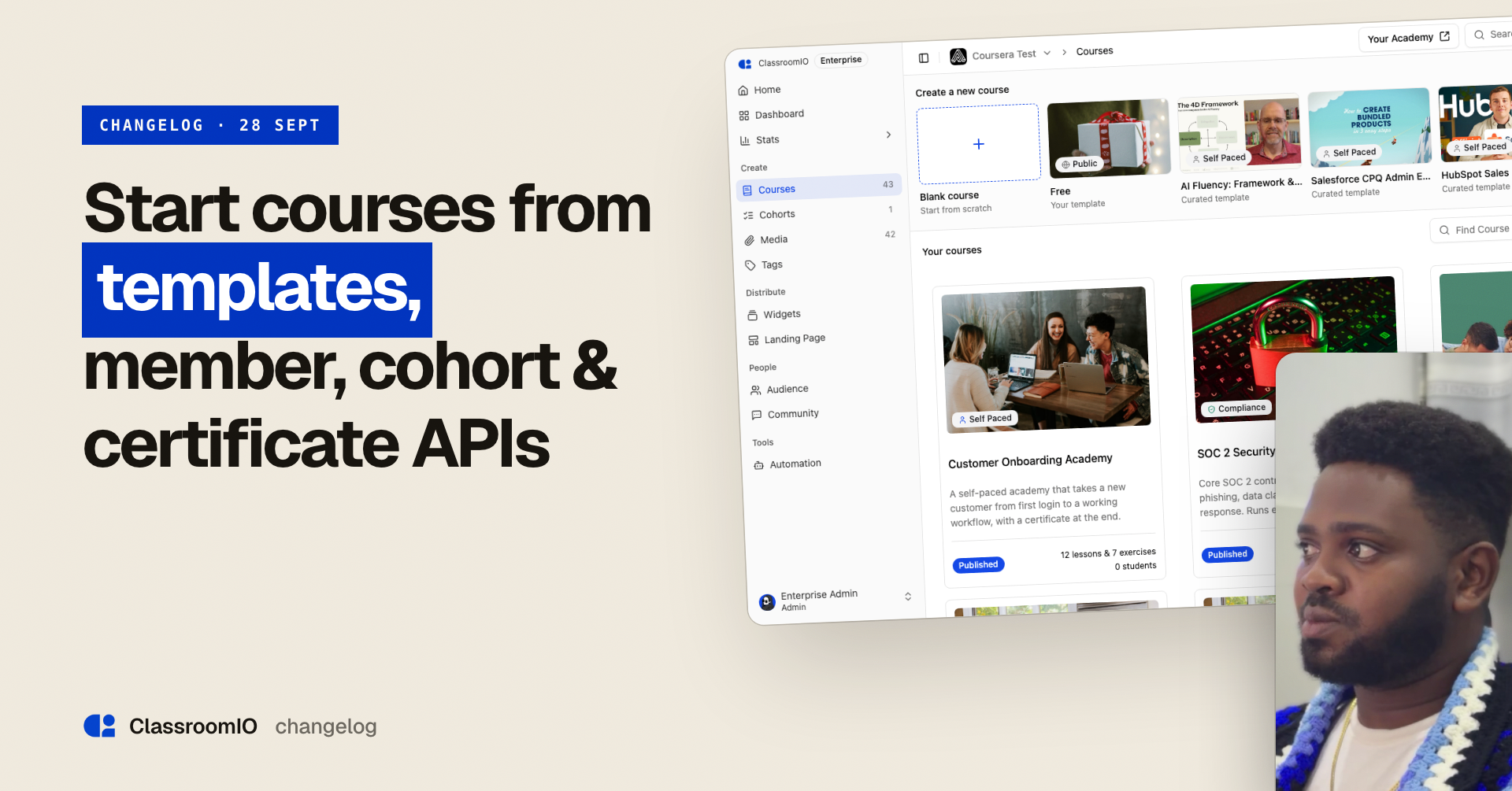
You can now start a course from a template instead of a blank page, and keep every course made from it up to date.
That matters most when you teach the same thing more than once. A software company teaching customers its product can keep one onboarding course as a template and create a course for each new customer account, each with its own students and progress. When the product changes, you update the lesson in the template once. Every course made from it then shows the change as an update, and you pull it in from each course's settings rather than rewriting the lesson in every copy.
Training teams and consultants work the same way. Keep your workshop as a template, create a fresh course for each client or cohort, and pull improvements into the runs that need them. A pull never deletes anything and never changes an exercise that already has submissions, so a cohort in progress keeps its work and grades.
If you are starting from zero, ClassroomIO's seven curated templates give you a working course to adapt: customer onboarding, a power user path for your product, a free public course that ends with a book a demo call to action, and courses on AI fluency, ChatGPT, HubSpot and Salesforce CPQ for teams learning those tools.
The public API also gained course members, cohorts and certificates, and students can no longer open a course before you publish it.
YouTube video
Start a course from a templateEvery new course used to start empty. If your team runs the same kind of course again and again, you rebuilt the outline, exercises and settings each time.
Courses now opens with a Create a new course row: Blank course, then up to five templates, with your organization's first. Click a template to preview its outline, how many sections, lessons and exercises it has, and, for ClassroomIO templates, which features it shows off. Give the course a name and click Use template.
You get a complete copy: sections, lessons in every language with their videos, slides and documents, exercises and questions, course settings, the landing page, the certificate and the AI tutor. The new course starts unpublished and without students, and reviews from the template's landing page are not copied. Uploaded files are copied into your organization's own storage, and YouTube videos are added to your Media library.
To see everything, open Template gallery. Filter by All templates, My templates or ClassroomIO, or search by name. Home also has an Or start from a template section under the AI course creator, and the AI prompt cards there are now labelled Or start with a prompt.
Only admins can create a course from a template. Tutors can browse the gallery and open previews. See Create a course from a template.
Seven ClassroomIO templates to start fromEvery organization gets seven curated templates, ready to use:
-
AI Fluency: Framework & Foundations
-
Salesforce CPQ Admin Essentials
-
HubSpot Sales Hub Essentials
-
Getting Started with ChatGPT Work
-
Customer Education 101, a free public course that ends with a call to action
-
Customer Onboarding Academy
-
Product Training: Power User Path
The first four are built on public video series from Anthropic, Salesforce, HubSpot and OpenAI. Each lesson pairs a video with a written summary, and each course ends with a final exam that mixes question types. The others show off features you may not have tried yet, such as sequential progression, a hint-only AI tutor, and certificate rules.
ClassroomIO templates never count toward your plan's template limit. You can preview and use them, but not edit them.
Save your own course as a templateOpen a course's 3 dotted menu, on its card or in the course header, and choose Save as template…. You have two options:
-
Save a copy as template makes a new template and leaves the course, its students and its settings untouched.
-
Convert this course turns the course itself into a template. A converted course is unpublished and cannot have students, so this option is disabled for a course that has students.
A template opens like any course, with a Template badge. Sections that only make sense for a live course, such as People, Submissions, Marks and Analytics, are hidden.
Plans include 1 template on Free, 25 on Early Adopter, and no limit on Enterprise. Only admins can save, convert, duplicate or delete templates. See Save a course as a template.
Pull template updates into your courseWhen you improve a template, the courses you already made from it do not change on their own. That protects anything you customized in them.
When a template has changes, the course's Content page shows how many, with a link to Settings. In Settings, the Template section shows when you last pulled. Click Review updates to see new and updated sections, lessons and exercises, plus settings where the template now differs from your course. Nothing is selected until you choose. Tick what you want and click Pull.
A few things are protected:
-
Pulling never deletes anything from your course.
-
The course title, link, publish state, course type and students never change.
-
An exercise that already has student submissions is locked, so grades and submitted work are safe.
-
If you edited an item in your course, the row warns you before your version is replaced.
See Update a course from its template.
Manage members, cohorts and certificates from the APIThe public API and MCP tools cover much more of what you do in the dashboard. Every call runs as the person who created the API key, with the same permissions they have in the dashboard.
-
Course members and invites: add, update and remove members, reset a student's progress, read a member's analytics, and create or revoke invites.
-
Cohorts: create and manage cohorts, their members, invites and linked courses, post to the cohort newsfeed, and set and evaluate goals.
-
Certificates: read and update a course's certificate settings and design, list who earned the certificate, and download an earned certificate as PDF or PNG.
-
Course image: updating a course's cover image through the API or MCP now saves it. Before, the request succeeded but the image was quietly dropped.
-
Students can no longer open a course before it is published. They see a not found page instead, and admins and tutors still have access. PR
-
On your academy, the not found page's Go Home button now goes to your academy's home page instead of classroomio.com, with a Continue Learning link to the student dashboard. PR
-
Creating a section, adding a lesson and then opening it no longer blanks the course outline, and moving to the next lesson no longer undoes completion in sequential courses. PR
-
Courses page filters, sorting and search are saved in the page address, so a reload or the back button keeps your view. The published and unpublished filter now filters the list. PR
-
The 3 dot menu on a course card shows on hover again. PR
-
Course information on landing pages keeps its formatting in every theme, including headings, numbered and nested lists, links and emphasis. Theme previews no longer respond to clicks, and Command-B or Control-B in the landing page editor formats text instead of toggling the sidebar. PR
-
Signed-in students see their account menu on your academy's landing page, course landing pages and course catalog. PR
-
Public lessons that allow copying as Markdown now have a predictable
.mdaddress, which the Open in ChatGPT and Claude prompts use. PR -
Automatic captions now carry a proper language code, so the caption menu shows the right language. This applies to transcripts generated from now on. PR
-
Regenerating a video's thumbnails no longer loses its 1080p status. PR
-
Cropped images upload as smaller WebP files. If cropping fails, the dialog stays open so you can try again. PR
-
Add content and Upload Document dialogs no longer stretch across the whole screen on desktop. PR
-
The AI course creator prompt box scrolls once a long prompt fills it, so the send button stays in view. PR
-
Each course settings section heading is now a link you can share, and "Allow learners to copy lesson pages as Markdown" sits at the end of Access. PR PR
-
The report dialog and lesson comment menu show their labels again instead of raw text keys, and the sidebar add content button shows its keyboard shortcut. PR
Keyboard Shortcuts, Multi-Deck Slides, and Content Reporting
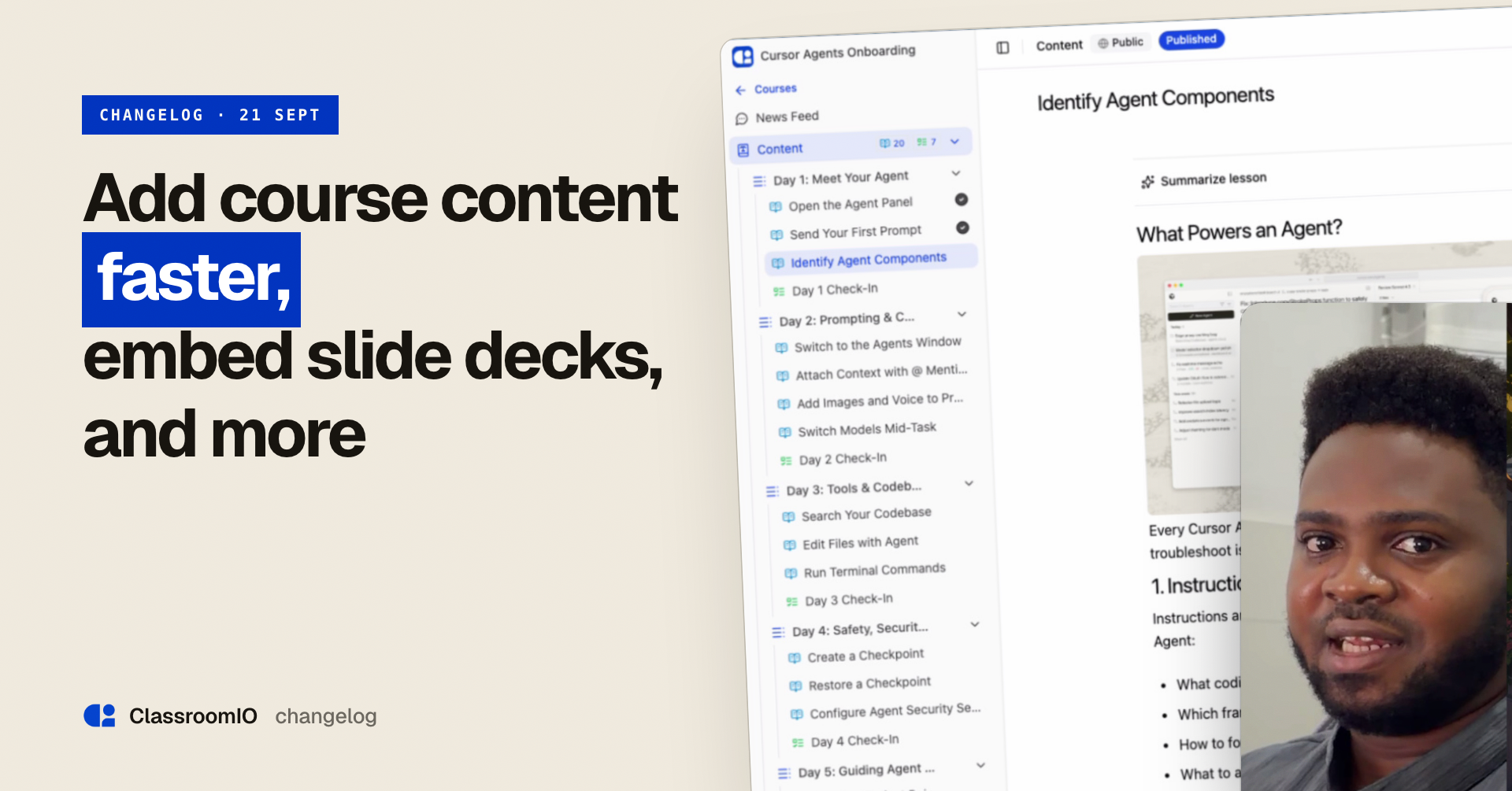
We've been focusing on making it faster to build your courses and easier for your community to stay safe. From keyboard shortcuts for course outlines to better slide embeds and image handling, here’s what’s new in ClassroomIO.
YouTube video
Add several lessons from the keyboardBuilding an outline used to mean opening Add content, creating one item, and getting sent into the editor. To add the next lesson you had to come back and start again.
Press Command-Shift-N on Mac, or Control-Shift-N on Windows, while you are in a course. Add content opens. Type a title and press Enter. The dialog stays open, names what you created, and offers Create another of the same type. Repeat until the outline is in place, then open an item when you actually want to write it.
After a section, you can add a lesson or exercise into that section without closing. Later, Escape, or the close control leaves you on the outline with the new rows already there.
Embed slide decks in a lessonThe Slide tab used to be a single unlabeled URL field that named Google Slides and Canva. The wrong paste failed silently, and there was no way to add a second deck.
You now click Add slide, choose the tool, and paste the full iframe embed code (not only a share link). ClassroomIO extracts the player URL and shows every deck at a consistent 16:9 size. A lesson can include more than one deck.
Supported tools: Google Slides, Canva, PowerPoint, Keynote, Figma, Prezi, Pitch, Gamma, SlideShare, and Beautiful.ai. Help for each tool is at Embed slides in a lesson. Existing single-deck lessons still play.
Some hosts require the deck to be public. Work or school OneDrive PowerPoint embeds may ask the student to sign in to Microsoft.
Report posts, comments, and profilesSigned-in organization members can report content they can see and did not write. That covers course and cohort newsfeed posts and comments, community questions and answers, lesson comments, and user profiles.
You pick a reason (spam, harassment, hate speech, sexual content, violence, misinformation, privacy, or other) and can add details. ClassroomIO staff get the report. Submitting again for the same item is blocked while that report is still open.
Reporting does not hide or delete the content. There is no organization-admin moderation queue in this version.
Copy public lessons as MarkdownStudents already paste lesson text into ChatGPT or Claude. Selecting the page by hand pulled in layout noise and video chrome.
For a public course, open Settings, go to Access, and turn on "Allow learners to copy lesson pages as Markdown". It is off by default. Unlocked public lessons then show Copy Page, View as Markdown, and Open in ChatGPT or Claude. Videos are stripped from the Markdown. Turning the setting on also publishes a public Markdown URL for each unlocked lesson, so leave it off if you do not want that.
Public lessons also have Share on Facebook, LinkedIn, X, and Instagram next to the title.
This is for public lesson pages only, not the dashboard, course landing pages, or exercises.
Upload and resize images in the editorInserting an image used to mean pasting a URL. A large file could overflow the editor and force horizontal scrolling.
The image control is now a dialog with upload and link tabs. After the image is in the editor, select it and drag the left or right edge to resize. The image stays within the editor width. This applies wherever the text editor is used, including lesson notes, course descriptions, community posts, and the newsfeed.
Fixes and improvements-
The organization audience list is limited to admins. Tutors invite students by email and no longer browse the full roster. https://github.com/classroomio/classroomio/pull/978
-
When you switch a course to Public, you are taken to the exercises that still have questions that cannot be auto-graded, so you can fix those before the switch completes. https://github.com/classroomio/classroomio/pull/991
-
Course settings are grouped into cards titled General, Course type, Content, Access, and Delete Course. Lesson and course download controls now live under Access. https://github.com/classroomio/classroomio/pull/1139
-
Help Center navigation is reorganized into ten sections. Some destinations are still being written and point to the closest existing guide. https://github.com/classroomio/classroomio/pull/1128
-
The three-dot menu on a course card opens the menu instead of the course page. https://github.com/classroomio/classroomio/pull/1136
-
Academy nav links that point at a landing-page section, such as Contact, now take you to that section from a course details page. https://github.com/classroomio/classroomio/pull/1014
-
Video watch completion only tracks uploaded videos. YouTube and other embeds cannot complete the lesson, and students cannot mark it complete by hand. Lesson settings now warn you if you pick Video watch without an uploaded video. https://github.com/classroomio/classroomio/pull/1135
-
Course generation no longer shows empty rows while it is getting ready, and the wording says generation rather than run. https://github.com/classroomio/classroomio/pull/1100
-
Form dialogs are wider on desktop. https://github.com/classroomio/classroomio/pull/1142
YouTube + AI Chat, bulk student actions, Vimeo embed and more
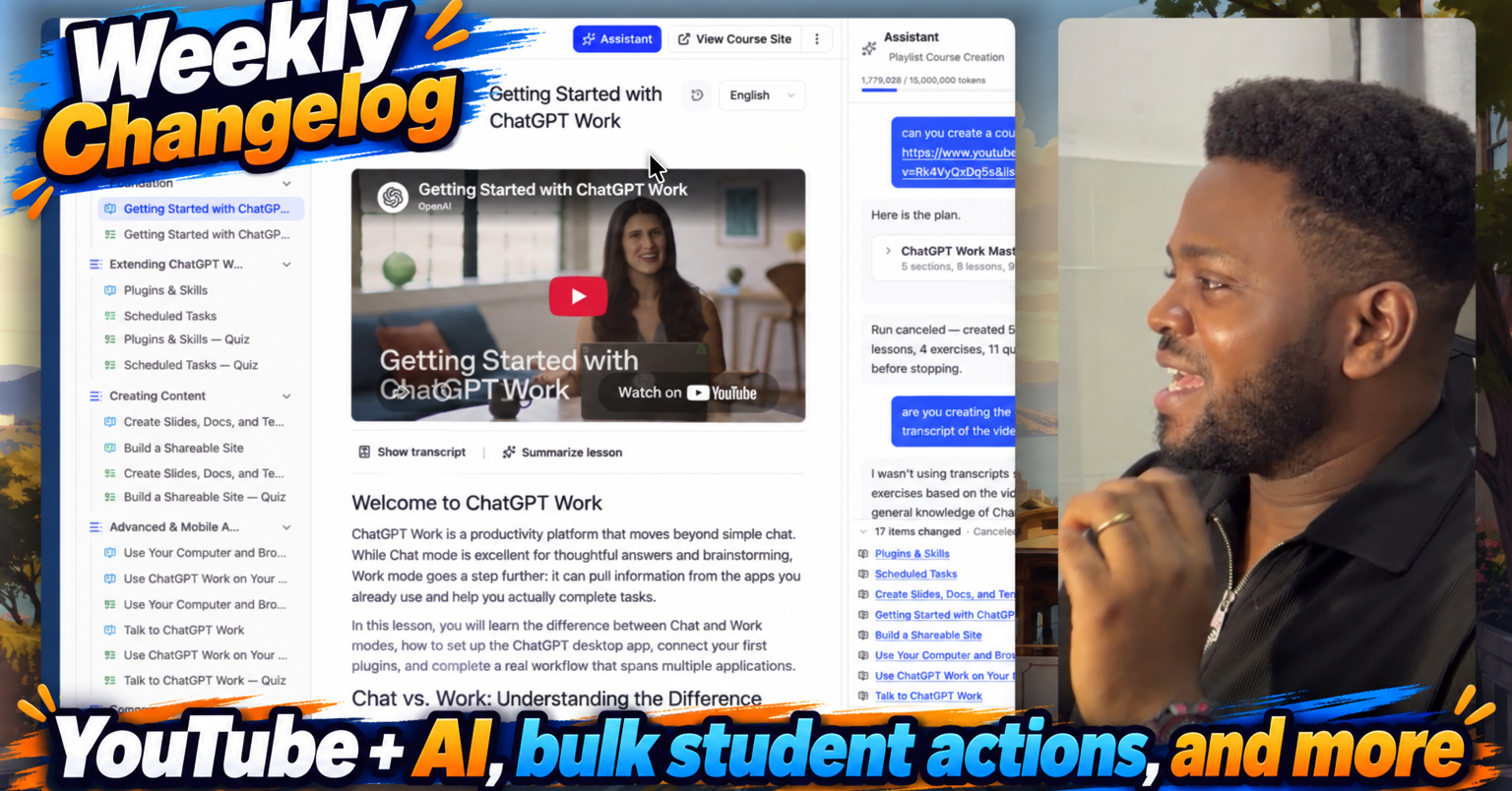
You can now paste a YouTube link into a lesson and the Assistant will know what the video says. That is a game changer if you already teach from YouTube. You keep the videos you use today, and you get 10x the leverage: a transcript, an Assistant that can help you build from the spoken content, an AI tutor students can ask about the video, and no need to upload or re-record the file.
Audience also covers a full admin loop this week: filter, export, act in bulk, and upload students from a CSV.
YouTube video
YouTube + AI: paste a video, get a lesson 🚀Most teams already teach from YouTube. Until this week, ClassroomIO could play the video and that was it. The Assistant could read your notes, but it could not use the video. Students asking the AI tutor "what did they say about X?" got a guess, a refusal, or an answer from the notes alone.
That gap is closed. When you embed a YouTube video, captions are fetched and stored. They show up in the same transcript panel as uploaded videos. The Assistant can work from the spoken content, and so can the AI tutor on the student side.
The 10x is the workflow you no longer need. You do not upload the file. You do not transcribe it by hand. You do not rewrite the lesson so the AI has something to read. You paste the URL you were going to use anyway, and the video becomes something students can search, quote, and ask questions about.
This is available on paid plans. Free organizations see an upgrade prompt when the AI needs a YouTube transcript. Transcripts that were already fetched stay available if you later move to a free plan. Uploaded-video transcripts are unchanged for every plan. If a video has no captions, we do not invent one.
Filter Audience by usage 🔍Audience now shows last login, last activity, enrollment, and progress for every student. You can filter by those columns, plus membership status and invite status. Filters combine, and the current view lives in the page address, so you can bookmark it or send it to a colleague.
Saved views cover the usual questions in one click: never logged in, inactive 90 or 180 days, enrolled but never started, and archived.
Time filters find people you have not heard from. No login in 90 days means no login in 90 days, not people who were recently active. Recent joiners are left out by default, so a batch of invites you sent last week will not appear in a 90-day list. You can turn that toggle off when you want the newest people included.
Export the list on screen 📤Once you have the right list, export it. Export as CSV is the default. The dropdown also offers Excel, PDF, and HTML.
The file follows what you have on screen. Filter first, then export, and you get that exact set. Tick specific rows and you get only those. The Audience export includes name, email, status, courses enrolled, courses completed, progress, last login, last activity, and date joined.
PDF is available up to 2,000 rows. Above that, use CSV or Excel. Audience export is capped at 20,000 students.
The same export control is also on a student's profile (one row per course) and on course Marks.
Bulk deactivate, archive, and delete 🗄️After you review the list, you can act on the people you ticked, or on everyone matching the current filter, including when that is thousands of people.
Action Access Record kept Plan seat Deactivate Removed Yes Kept Archive Removed Yes Freed Delete Removed No Freed
Archive is the usual action when someone is no longer using the platform. It is reversible and it gives you the seat back. Deactivate is better when you expect the person to return, such as staff on leave. Delete is permanent, only works on students who are already archived, and asks you to type the count to confirm.
You can add a reason when you confirm. It is stored against every student in the run.
Undo is available for 15 minutes after an archive or deactivate, and it applies to the students who actually changed, not a re-run of the filter. Leaving or reloading the page clears the undo offer. Delete cannot be undone.
Runs of more than 1,000 students continue in the background. Keep the tab open to see the result. There is no undo on those larger runs.
Bulk upload students 📥You can add students in bulk from Audience with Import Users. Upload a UTF-8 CSV, or paste addresses. There is a template to download on the import screen.
The file needs an email column. name is optional. The limit is 1,000 students and 5 MB per file, so split larger lists and run them in parts.
Nothing is created until you approve the preview. Each row is marked Ready, already in audience, invalid, or duplicate. You can also assign courses and cohorts on that same screen before you submit.
New students receive an invitation email. If some rows fail, you can download just those rows, fix them, and upload again. The button is disabled once you reach your plan's audience limit.
See a student's courses and grades 🎓Opening a student from Audience or from course People now shows a profile with their courses and grades. You can export that student's progress as CSV. From a grade, you can open the exercise and land on that student's submission.
Average grades now only include work that has been graded and has points. A missing grade shows as empty, not as 0%. The Activity tab is visible but not filled in yet.
Embed Vimeo videos in lessons 🎬You can now add a Vimeo URL to a lesson the same way you add YouTube. The player uses the video's title, thumbnail, and duration when Vimeo provides them.
Fixes and improvements 🐛-
Students who can open a course Marks page now see only their own scores. Tutors and admins still see the full gradebook.
-
Academy landing-page links no longer accept unsafe URL schemes.
-
Public academy pages no longer expose billing details or other internal organization settings.
-
Callout button links on the academy landing page no longer turn into page fragments when you paste a full URL.
-
Course cards on the Quartz academy theme now show a cover image, including on the public courses list.
-
You can click the Courses section to edit it on every academy landing-page theme.
-
The Open Academy button in the dashboard header now opens your academy.
-
Creating a course now takes you straight to the courses page.
-
Checkboxes on the compliance Students tab now stay in sync with the selected count.
-
After you archive or deactivate students, you can dismiss the undo banner without losing the change.
-
Dashboard notifications now have a close button.
-
The sidebar upgrade prompt now shows current student usage against your plan limit, and turns red at 80%.
-
Signed-in visitors hitting the default academy hero button now go to the learning home instead of the login page.
-
A cancelled or past-due subscription no longer removes access until the subscription is actually revoked.
Course Restores & Shareable Invite Links
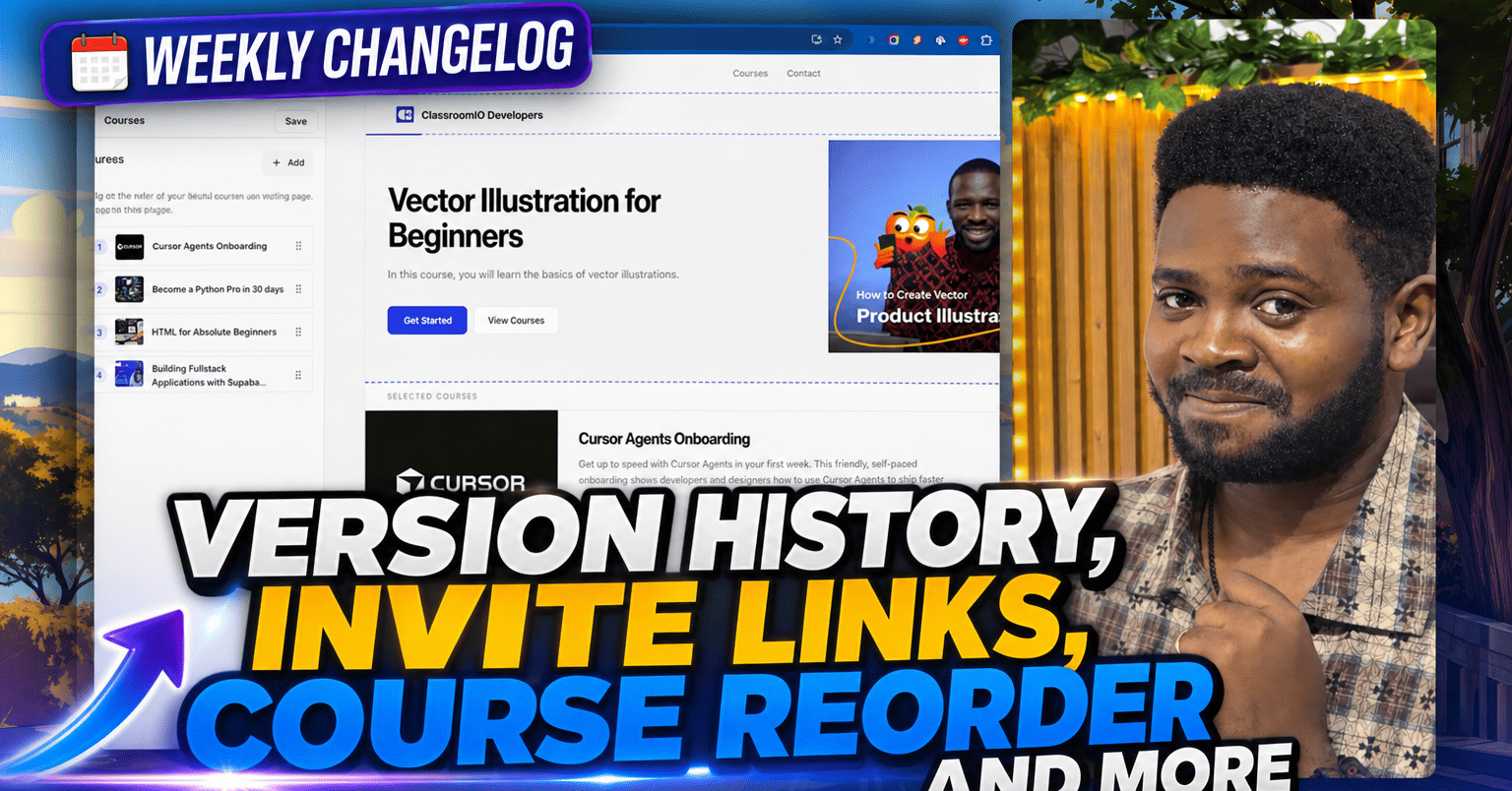
This week, we shipped updates that give you more control over your courses and academy, while making everyday admin work clearer for tutors and students.
YouTube video
Restore earlier versions of a courseYou can now edit a course and restore an earlier version when you need to. If an edit or accidental deletion changes something you did not intend to change, you can go back to an earlier version instead of rebuilding the content from scratch.
This also makes it safer to experiment with a new course structure, rewrite a lesson, or reorder course content.
Invite students with a shareable linkYou can now generate a single invite link and share it in email, WhatsApp, or other channels. This gives students a faster way to join without adding every email address one at a time.
You can turn a link off when you no longer want new signups through it. You can also see how many students joined through each link.
Choose which courses appear on your academyYou can choose which published courses appear on your organization's public academy landing page. This lets you feature the courses that are most relevant to visitors instead of showing your entire catalog by default.
Certificates handle longer textCertificates now resize signatory names, footers, and course titles so longer text does not overlap other elements. Students get a clean certificate even when a name or course title is longer than usual.
See which courses get the most viewsAnalytics now include a ranked list of your top courses by page views. You can see which courses attract the most attention and decide which ones to promote or improve.
Fixes and improvements-
Fixed a database migration issue that could prevent courses from being edited or created.
-
Refreshed dashboard state after onboarding so information does not remain stale.
-
Simplified the analytics trend bar to make the page easier to scan.
-
Reorganized the documentation by purpose and audience.
Invite Links: Onboard learners faster than ever
Let’s be honest: manually typing out every single student's email address is nobody's idea of a good time. Whether you’re launching a new cohort or opening up a self-paced course, you should be focusing on teaching, not data entry.
We’ve heard your feedback loud and clear, and we’re excited to roll out Invite Links! Now, getting your learners into ClassroomIO is as simple as sharing a single URL.
What’s new:
-
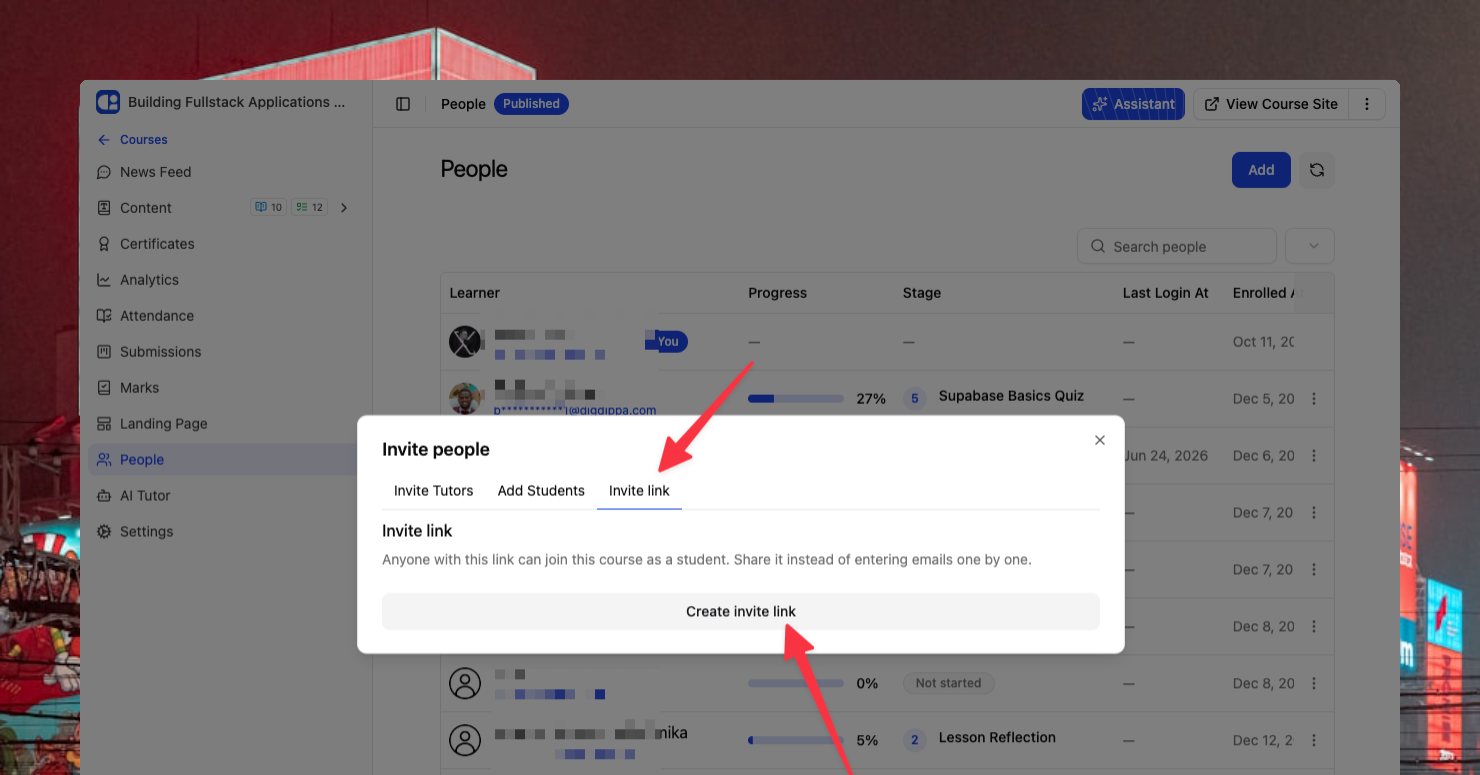
One link to rule them all: You can now generate a unique invite link for any Cohort or Course. Just copy, paste, and share it via your social channels, email, or Slack.
-
Easy to find: Head over to the People tab, click Add, and you’ll see the brand-new Invite Link tab waiting for you.
-
Full control: If you’ve reached your student limit or want to close registrations, you can disable the link at any time with a single toggle.
Track your growth: You can now see exactly how many people have joined your organization through that specific link.
We built this to save you time and make the onboarding process seamless for your students. No more typos, no more missed invites. Just a smooth start for everyone.
Go ahead and grab your first link today. We can’t wait to see your classrooms grow!
Custom Favicons & Personalised OG Images
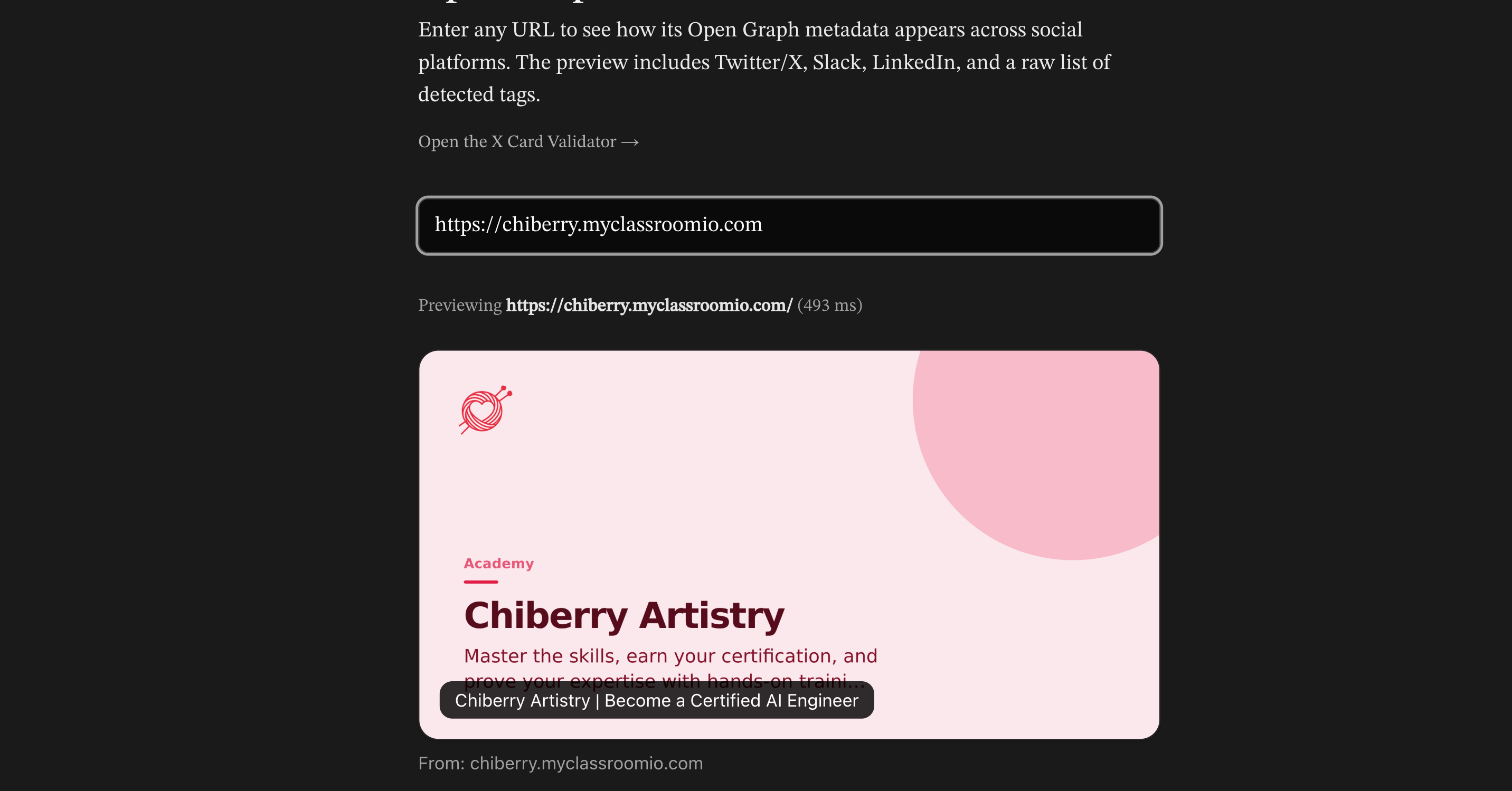
We know how important it is for your academy to feel like yours. That's why we've made it easier to white-label your brand presence, both on your site and when sharing links across social media.
What's new:
-
Custom Favicons: You can now upload a specific favicon for your academy. If you don't set one, don't worry—we'll automatically use your academy logo so you're never stuck with a generic icon.
-
Organization-Specific Open Graph (OG) Images: When you share your academy link on Twitter, LinkedIn, or Slack, it will now show a preview image specific to your organization. No more one-size-fits-all previews!
Ready to give your academy a fresh look? Visit academy.new to launch a new one, or log in to your dashboard to update your existing settings.
FAQs What are the recommended sizes for my favicon and OG image?To keep things looking crisp, we recommend a square 32x32 pixel image for your favicon (PNG or ICO format work best). For your OG image—the preview that appears when you share links—the sweet spot is 1200x630 pixels. This ensures your brand looks great whether it's in a browser tab or a social media feed.
Where can I find these new settings?You’ll find these options right where you’d expect them! Just head over to Settings > Organization > Custom Domain > Custom Favicon. From there, you’ll see the new upload slots for your favicon and OG image.
I updated my OG image, but the old one still shows on social media. Why?Don't worry, your changes are live! Platforms like LinkedIn, X, and Facebook often "cache" (save) the old image for a few days to save loading time. If you want to force an update immediately, you can use tools like the LinkedIn Post Inspector to clear their memory.
Do I need to be on a specific plan to use custom branding?Organization-specific OG images are available on all plans (with a ClassroomIO watermark). If you'd like to remove the watermark or upload a custom favicon, those features are available on our paid plans. We want every academy to feel unique, so jump in and start customizing!
DemoYouTube video
Students Learning Progress
Big things are happening! We’ve been working around the clock on some exciting new updates to make ClassroomIO even better for you and your students.
Track Your ProgressStaying motivated is much easier when you can see exactly how far you’ve come on your learning journey.
We’ve rolled out a brand-new progress tracker that lets students see their course completion in real-time. Whether they're halfway through a tough module or just a few minutes away from a certificate, your students will always know their standing.
-
Visual Progress Bars: Students get a bird's-eye view of their entire course at a glance.
-
Real-Time Updates: As soon as a student finishes a lesson, their stats update automatically.
-
Stay Organized: Learners can easily pick up right where they left off without missing a beat.
We know students are often learning on the move. That’s why we’ve optimized the progress tracker to look and work beautifully on mobile devices. Whether they’re on the bus or waiting for coffee, tracking their growth is just a tap away.
Your students can now jump back into their lessons and watch those percentages climb!