
Keyboard Shortcuts, Multi-Deck Slides, and Content Reporting

We've been focusing on making it faster to build your courses and easier for your community to stay safe. From keyboard shortcuts for course outlines to better slide embeds and image handling, here’s what’s new in ClassroomIO.
Add several lessons from the keyboard
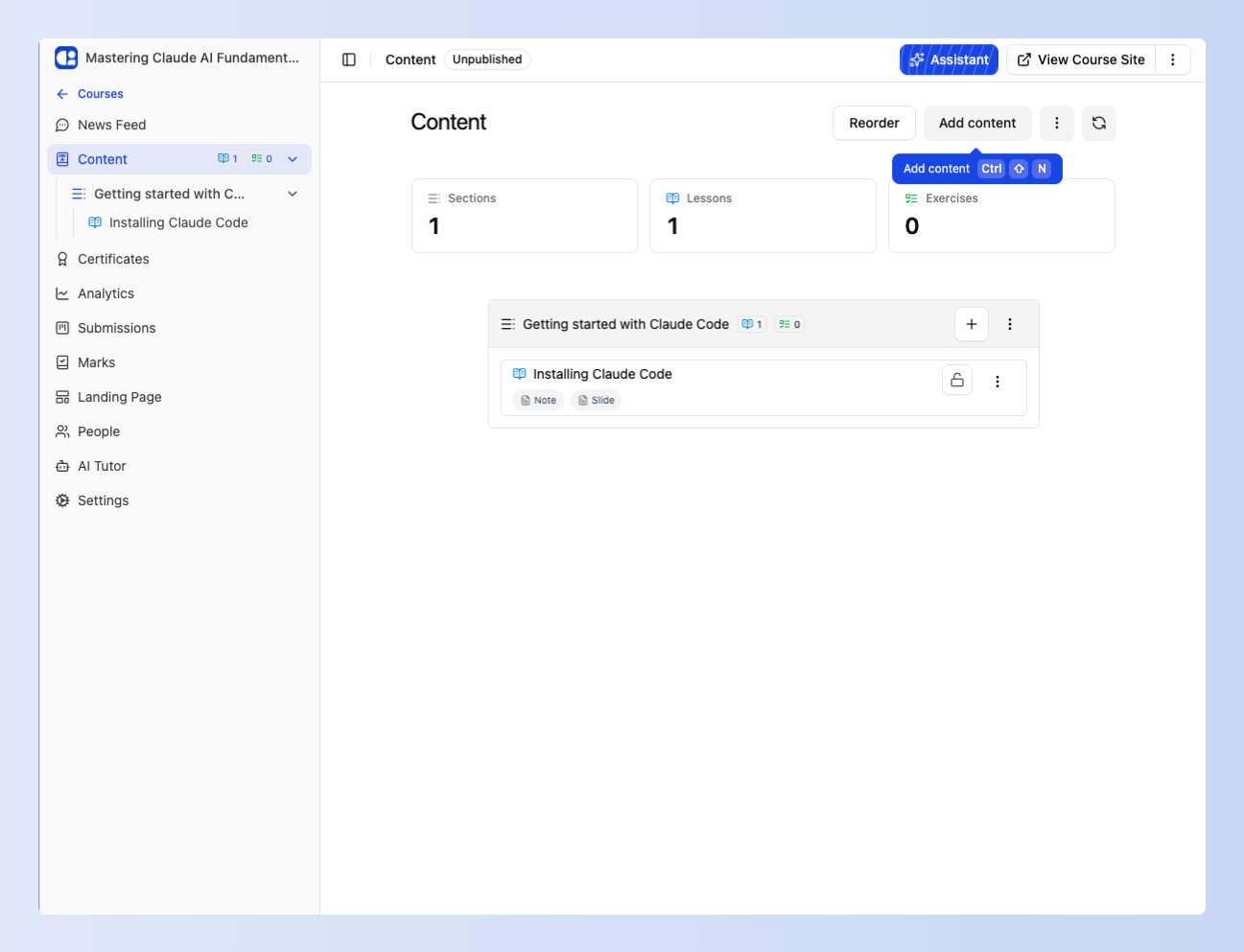
Building an outline used to mean opening Add content, creating one item, and getting sent into the editor. To add the next lesson you had to come back and start again.
Press Command-Shift-N on Mac, or Control-Shift-N on Windows, while you are in a course. Add content opens. Type a title and press Enter. The dialog stays open, names what you created, and offers Create another of the same type. Repeat until the outline is in place, then open an item when you actually want to write it.
After a section, you can add a lesson or exercise into that section without closing. Later, Escape, or the close control leaves you on the outline with the new rows already there.
Embed slide decks in a lesson
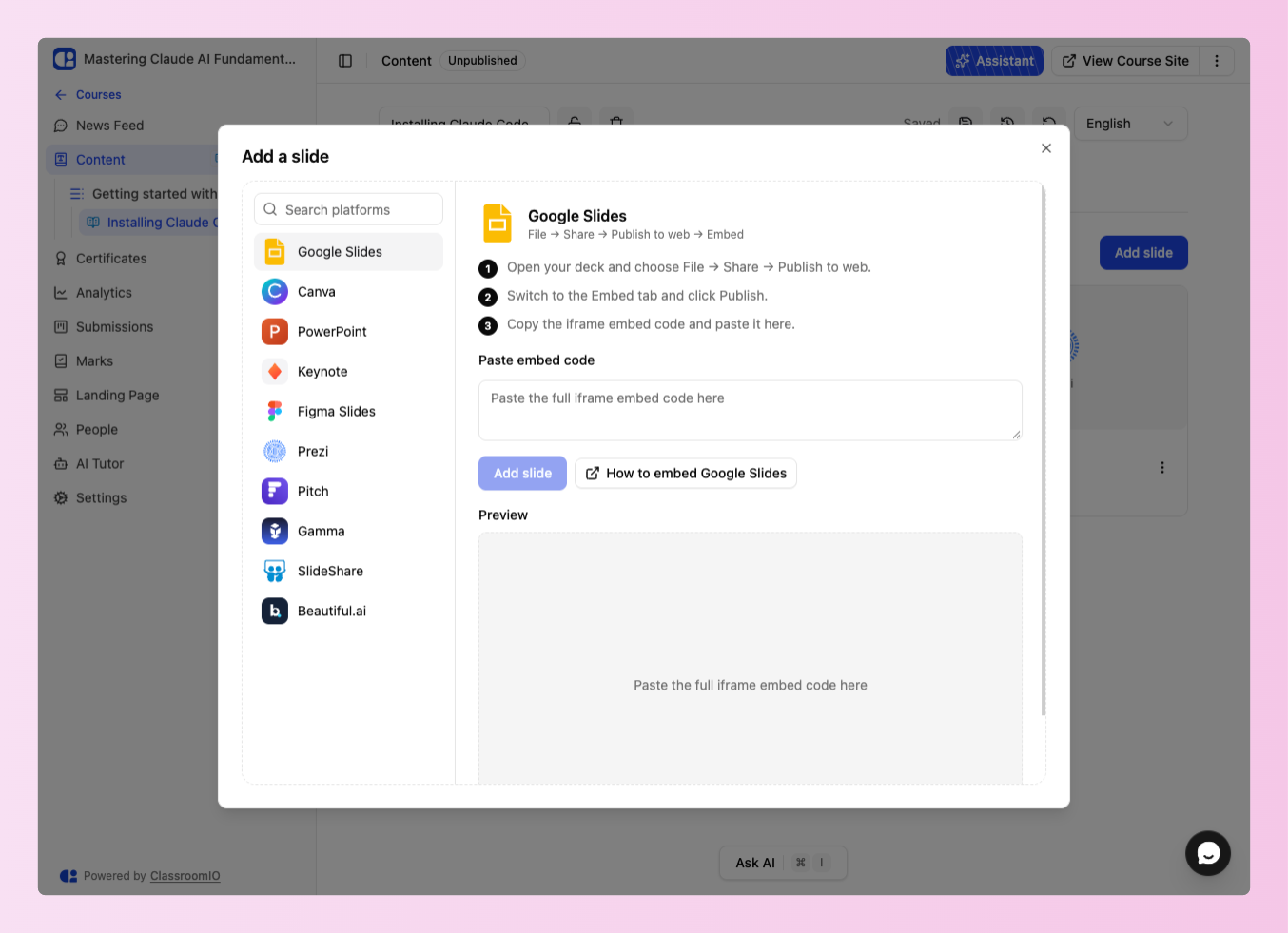
The Slide tab used to be a single unlabeled URL field that named Google Slides and Canva. The wrong paste failed silently, and there was no way to add a second deck.
You now click Add slide, choose the tool, and paste the full iframe embed code (not only a share link). ClassroomIO extracts the player URL and shows every deck at a consistent 16:9 size. A lesson can include more than one deck.
Supported tools: Google Slides, Canva, PowerPoint, Keynote, Figma, Prezi, Pitch, Gamma, SlideShare, and Beautiful.ai. Help for each tool is at Embed slides in a lesson. Existing single-deck lessons still play.
Some hosts require the deck to be public. Work or school OneDrive PowerPoint embeds may ask the student to sign in to Microsoft.
Report posts, comments, and profiles
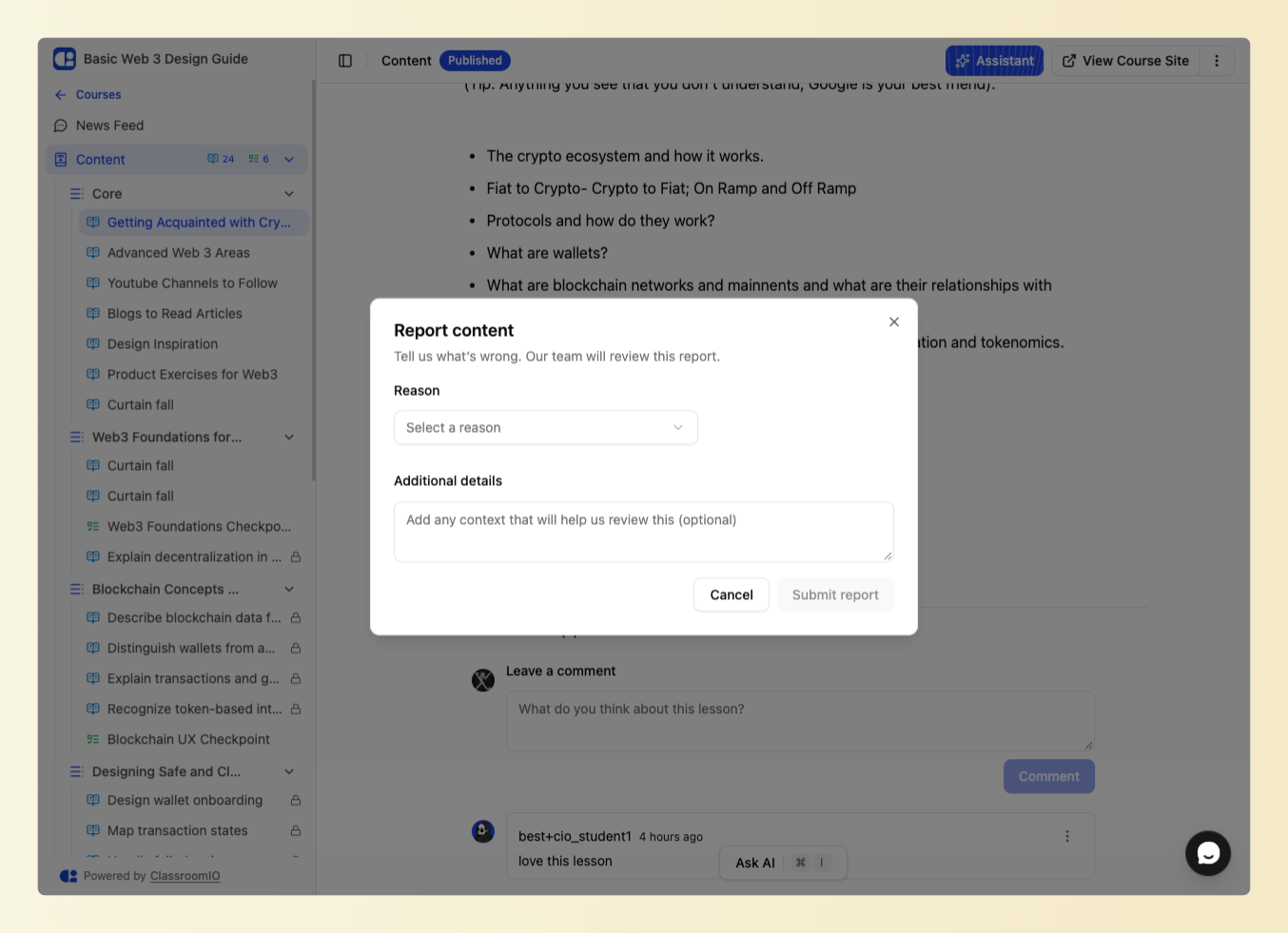
Signed-in organization members can report content they can see and did not write. That covers course and cohort newsfeed posts and comments, community questions and answers, lesson comments, and user profiles.
You pick a reason (spam, harassment, hate speech, sexual content, violence, misinformation, privacy, or other) and can add details. ClassroomIO staff get the report. Submitting again for the same item is blocked while that report is still open.
Reporting does not hide or delete the content. There is no organization-admin moderation queue in this version.
Copy public lessons as Markdown
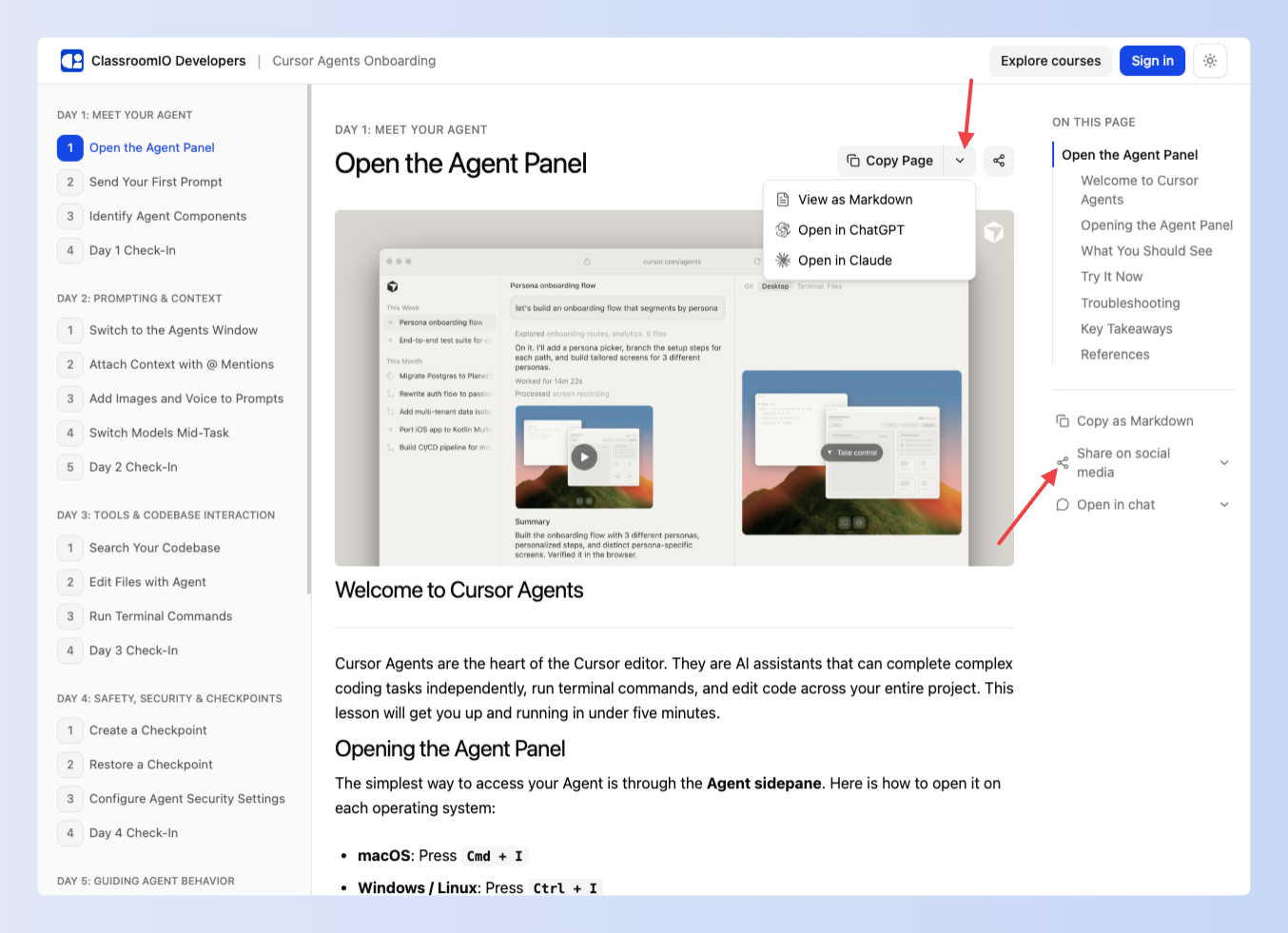
Students already paste lesson text into ChatGPT or Claude. Selecting the page by hand pulled in layout noise and video chrome.
For a public course, open Settings, go to Access, and turn on "Allow learners to copy lesson pages as Markdown". It is off by default. Unlocked public lessons then show Copy Page, View as Markdown, and Open in ChatGPT or Claude. Videos are stripped from the Markdown. Turning the setting on also publishes a public Markdown URL for each unlocked lesson, so leave it off if you do not want that.
Public lessons also have Share on Facebook, LinkedIn, X, and Instagram next to the title.
This is for public lesson pages only, not the dashboard, course landing pages, or exercises.
Upload and resize images in the editor
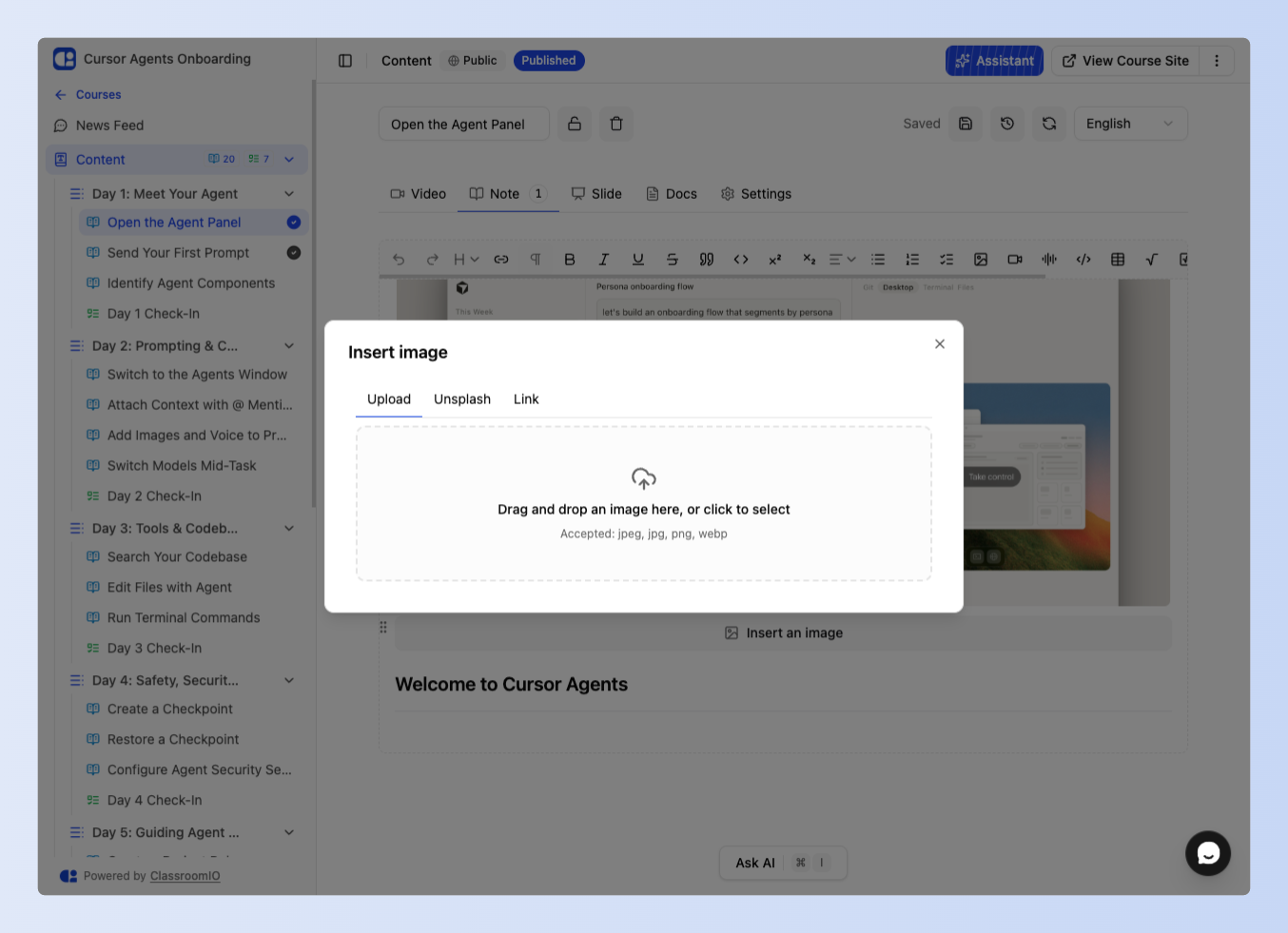
Inserting an image used to mean pasting a URL. A large file could overflow the editor and force horizontal scrolling.
The image control is now a dialog with upload and link tabs. After the image is in the editor, select it and drag the left or right edge to resize. The image stays within the editor width. This applies wherever the text editor is used, including lesson notes, course descriptions, community posts, and the newsfeed.
Fixes and improvements
-
The organization audience list is limited to admins. Tutors invite students by email and no longer browse the full roster. https://github.com/classroomio/classroomio/pull/978
-
When you switch a course to Public, you are taken to the exercises that still have questions that cannot be auto-graded, so you can fix those before the switch completes. https://github.com/classroomio/classroomio/pull/991
-
Course settings are grouped into cards titled General, Course type, Content, Access, and Delete Course. Lesson and course download controls now live under Access. https://github.com/classroomio/classroomio/pull/1139
-
Help Center navigation is reorganized into ten sections. Some destinations are still being written and point to the closest existing guide. https://github.com/classroomio/classroomio/pull/1128
-
The three-dot menu on a course card opens the menu instead of the course page. https://github.com/classroomio/classroomio/pull/1136
-
Academy nav links that point at a landing-page section, such as Contact, now take you to that section from a course details page. https://github.com/classroomio/classroomio/pull/1014
-
Video watch completion only tracks uploaded videos. YouTube and other embeds cannot complete the lesson, and students cannot mark it complete by hand. Lesson settings now warn you if you pick Video watch without an uploaded video. https://github.com/classroomio/classroomio/pull/1135
-
Course generation no longer shows empty rows while it is getting ready, and the wording says generation rather than run. https://github.com/classroomio/classroomio/pull/1100
-
Form dialogs are wider on desktop. https://github.com/classroomio/classroomio/pull/1142