
Course templates, course members, cohorts and certificates in the API, and more

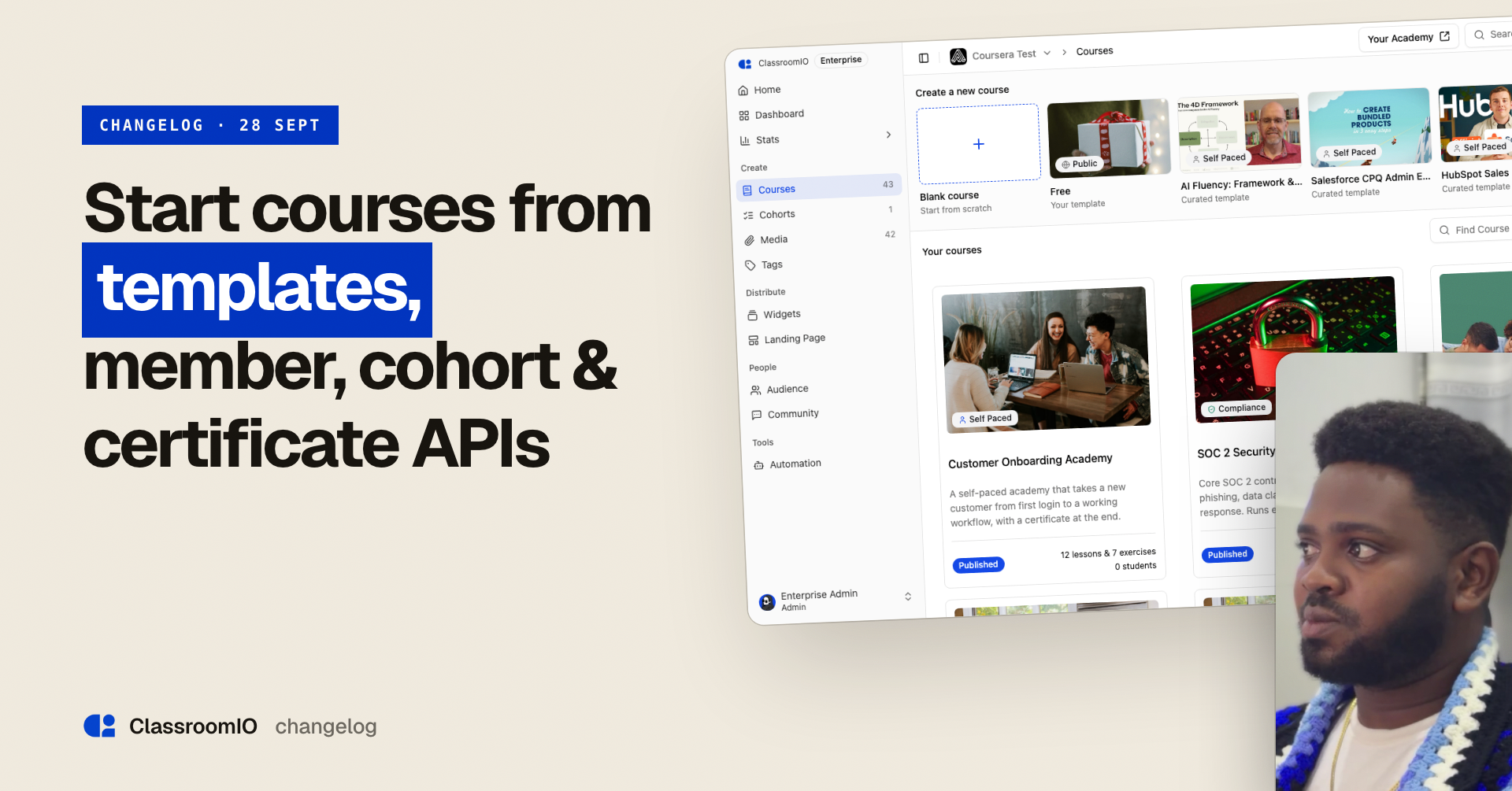
You can now start a course from a template instead of a blank page, and keep every course made from it up to date.
That matters most when you teach the same thing more than once. A software company teaching customers its product can keep one onboarding course as a template and create a course for each new customer account, each with its own students and progress. When the product changes, you update the lesson in the template once. Every course made from it then shows the change as an update, and you pull it in from each course's settings rather than rewriting the lesson in every copy.
Training teams and consultants work the same way. Keep your workshop as a template, create a fresh course for each client or cohort, and pull improvements into the runs that need them. A pull never deletes anything and never changes an exercise that already has submissions, so a cohort in progress keeps its work and grades.
If you are starting from zero, ClassroomIO's seven curated templates give you a working course to adapt: customer onboarding, a power user path for your product, a free public course that ends with a book a demo call to action, and courses on AI fluency, ChatGPT, HubSpot and Salesforce CPQ for teams learning those tools.
The public API also gained course members, cohorts and certificates, and students can no longer open a course before you publish it.
Start a course from a template
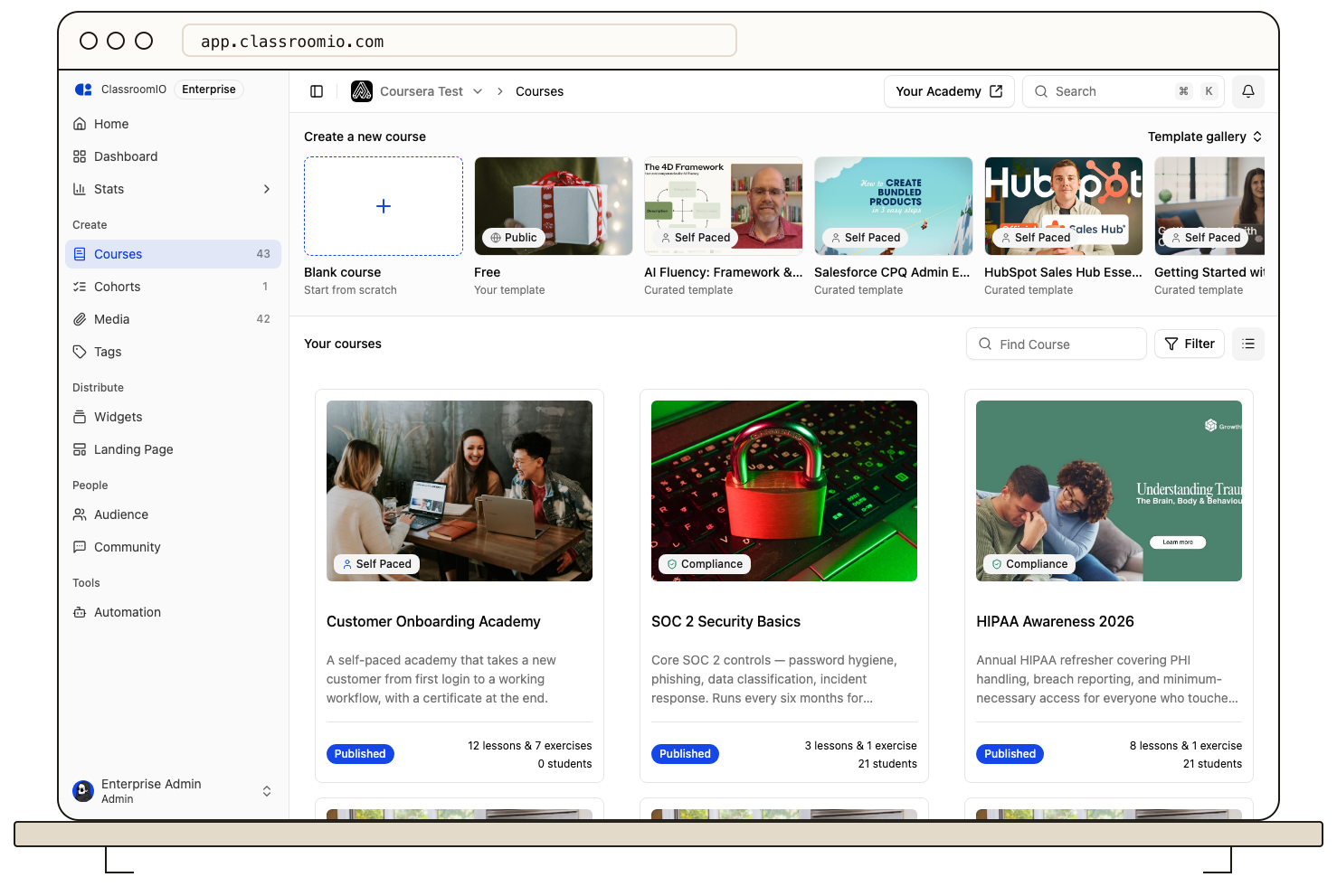
Every new course used to start empty. If your team runs the same kind of course again and again, you rebuilt the outline, exercises and settings each time.
Courses now opens with a Create a new course row: Blank course, then up to five templates, with your organization's first. Click a template to preview its outline, how many sections, lessons and exercises it has, and, for ClassroomIO templates, which features it shows off. Give the course a name and click Use template.
You get a complete copy: sections, lessons in every language with their videos, slides and documents, exercises and questions, course settings, the landing page, the certificate and the AI tutor. The new course starts unpublished and without students, and reviews from the template's landing page are not copied. Uploaded files are copied into your organization's own storage, and YouTube videos are added to your Media library.
To see everything, open Template gallery. Filter by All templates, My templates or ClassroomIO, or search by name. Home also has an Or start from a template section under the AI course creator, and the AI prompt cards there are now labelled Or start with a prompt.
Only admins can create a course from a template. Tutors can browse the gallery and open previews. See Create a course from a template.
Seven ClassroomIO templates to start from
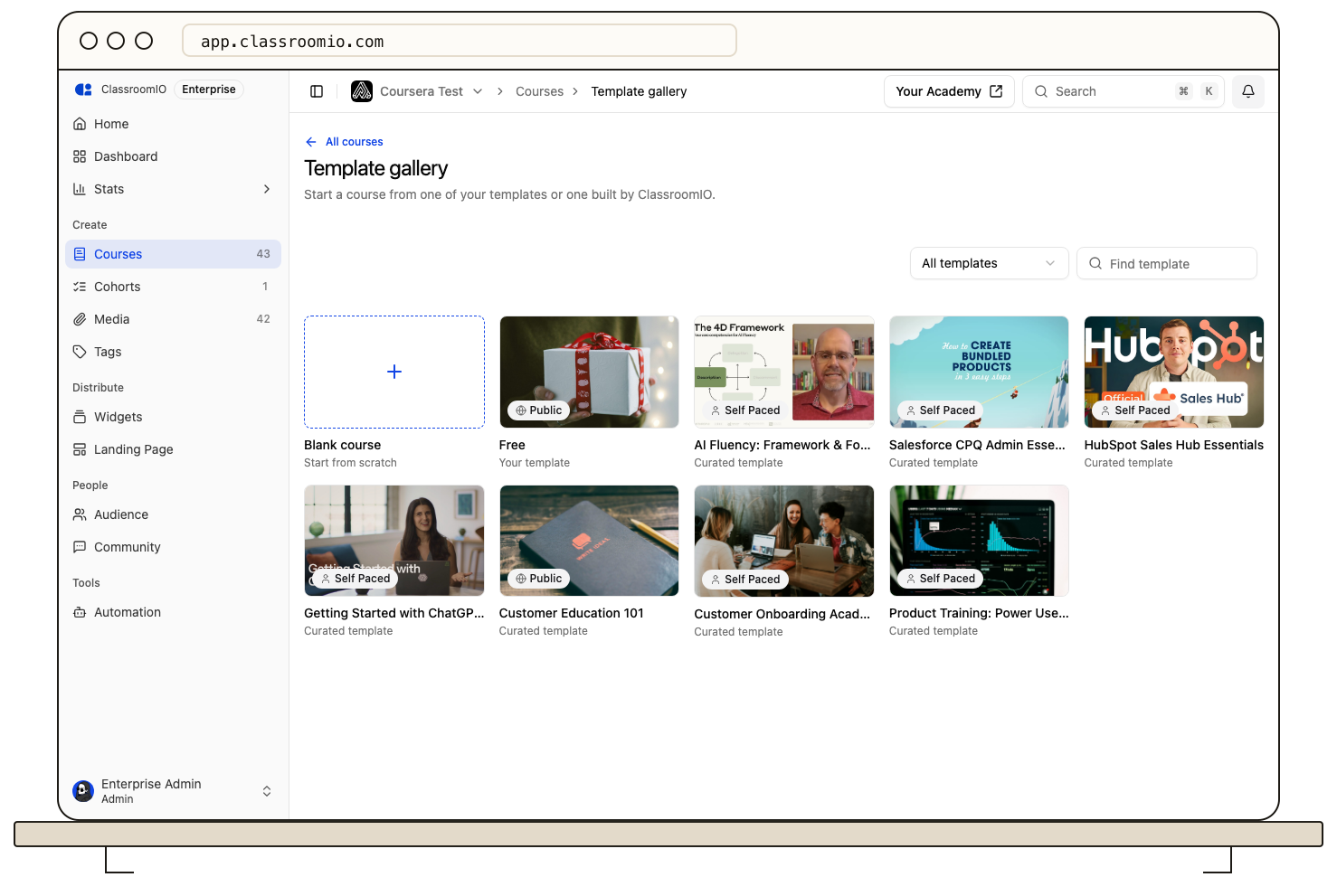
Every organization gets seven curated templates, ready to use:
-
AI Fluency: Framework & Foundations
-
Salesforce CPQ Admin Essentials
-
HubSpot Sales Hub Essentials
-
Getting Started with ChatGPT Work
-
Customer Education 101, a free public course that ends with a call to action
-
Customer Onboarding Academy
-
Product Training: Power User Path
The first four are built on public video series from Anthropic, Salesforce, HubSpot and OpenAI. Each lesson pairs a video with a written summary, and each course ends with a final exam that mixes question types. The others show off features you may not have tried yet, such as sequential progression, a hint-only AI tutor, and certificate rules.
ClassroomIO templates never count toward your plan's template limit. You can preview and use them, but not edit them.
Save your own course as a template
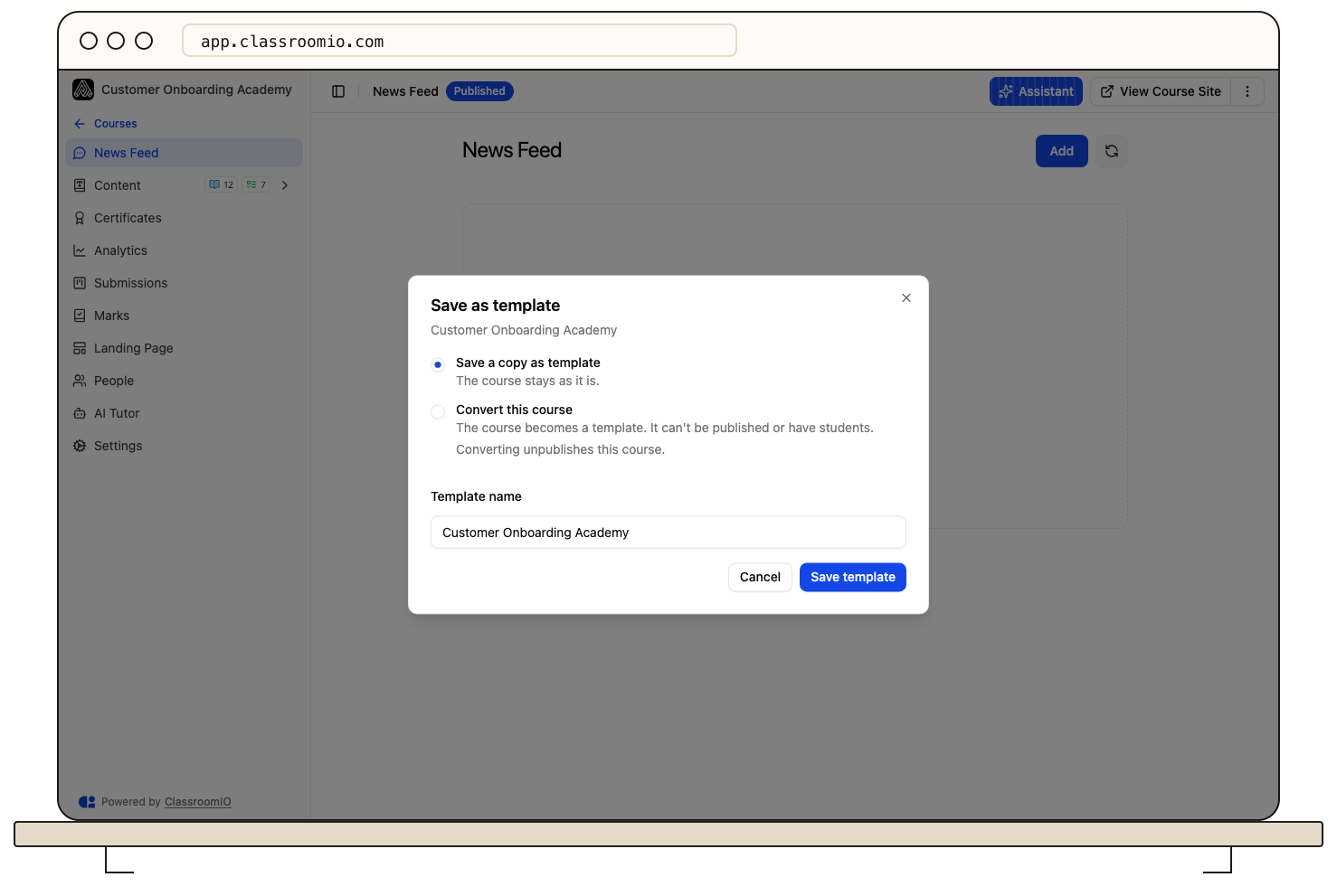
Open a course's 3 dotted menu, on its card or in the course header, and choose Save as template…. You have two options:
-
Save a copy as template makes a new template and leaves the course, its students and its settings untouched.
-
Convert this course turns the course itself into a template. A converted course is unpublished and cannot have students, so this option is disabled for a course that has students.
A template opens like any course, with a Template badge. Sections that only make sense for a live course, such as People, Submissions, Marks and Analytics, are hidden.
Plans include 1 template on Free, 25 on Early Adopter, and no limit on Enterprise. Only admins can save, convert, duplicate or delete templates. See Save a course as a template.
Pull template updates into your course
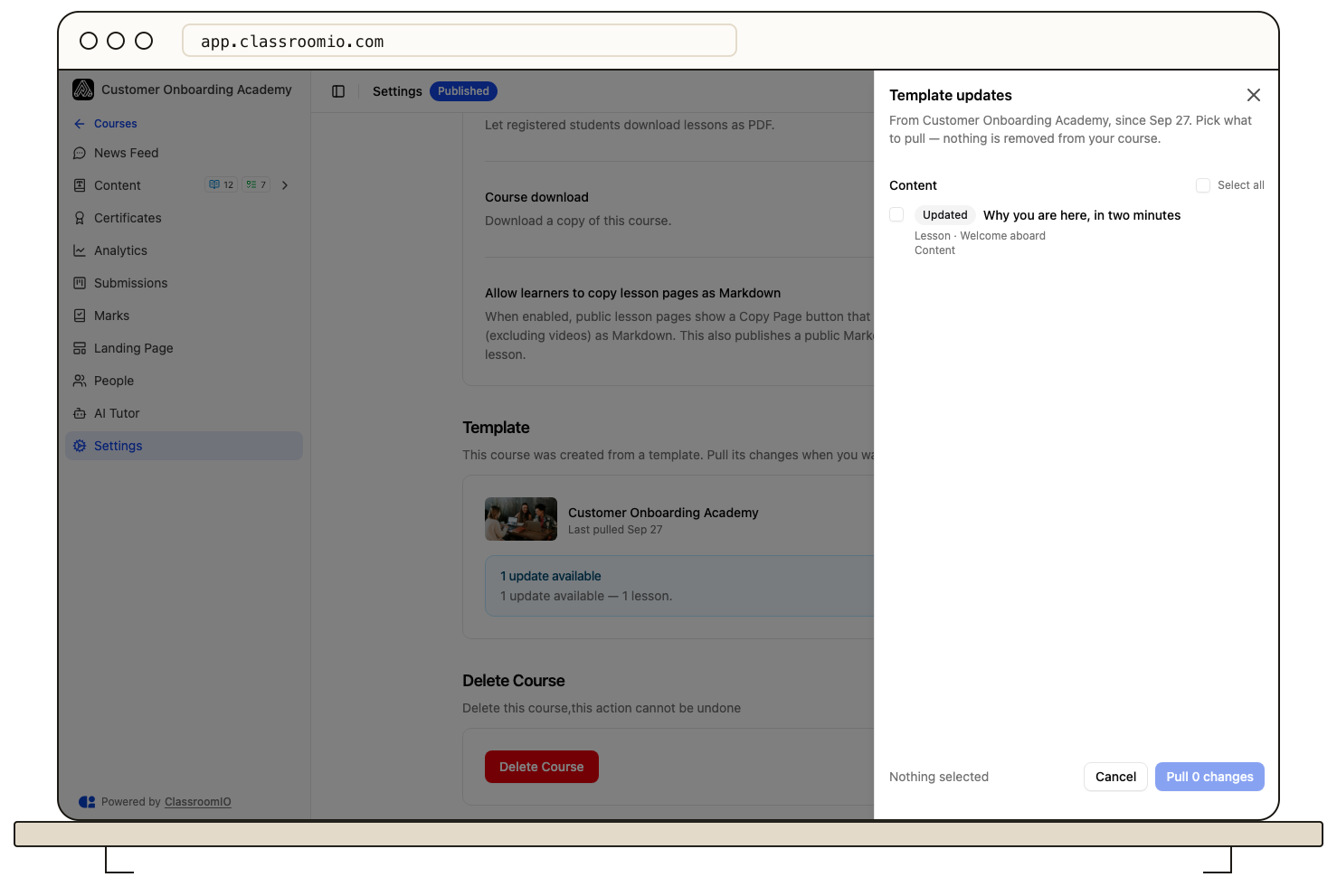
When you improve a template, the courses you already made from it do not change on their own. That protects anything you customized in them.
When a template has changes, the course's Content page shows how many, with a link to Settings. In Settings, the Template section shows when you last pulled. Click Review updates to see new and updated sections, lessons and exercises, plus settings where the template now differs from your course. Nothing is selected until you choose. Tick what you want and click Pull.
A few things are protected:
-
Pulling never deletes anything from your course.
-
The course title, link, publish state, course type and students never change.
-
An exercise that already has student submissions is locked, so grades and submitted work are safe.
-
If you edited an item in your course, the row warns you before your version is replaced.
See Update a course from its template.
Manage members, cohorts and certificates from the API
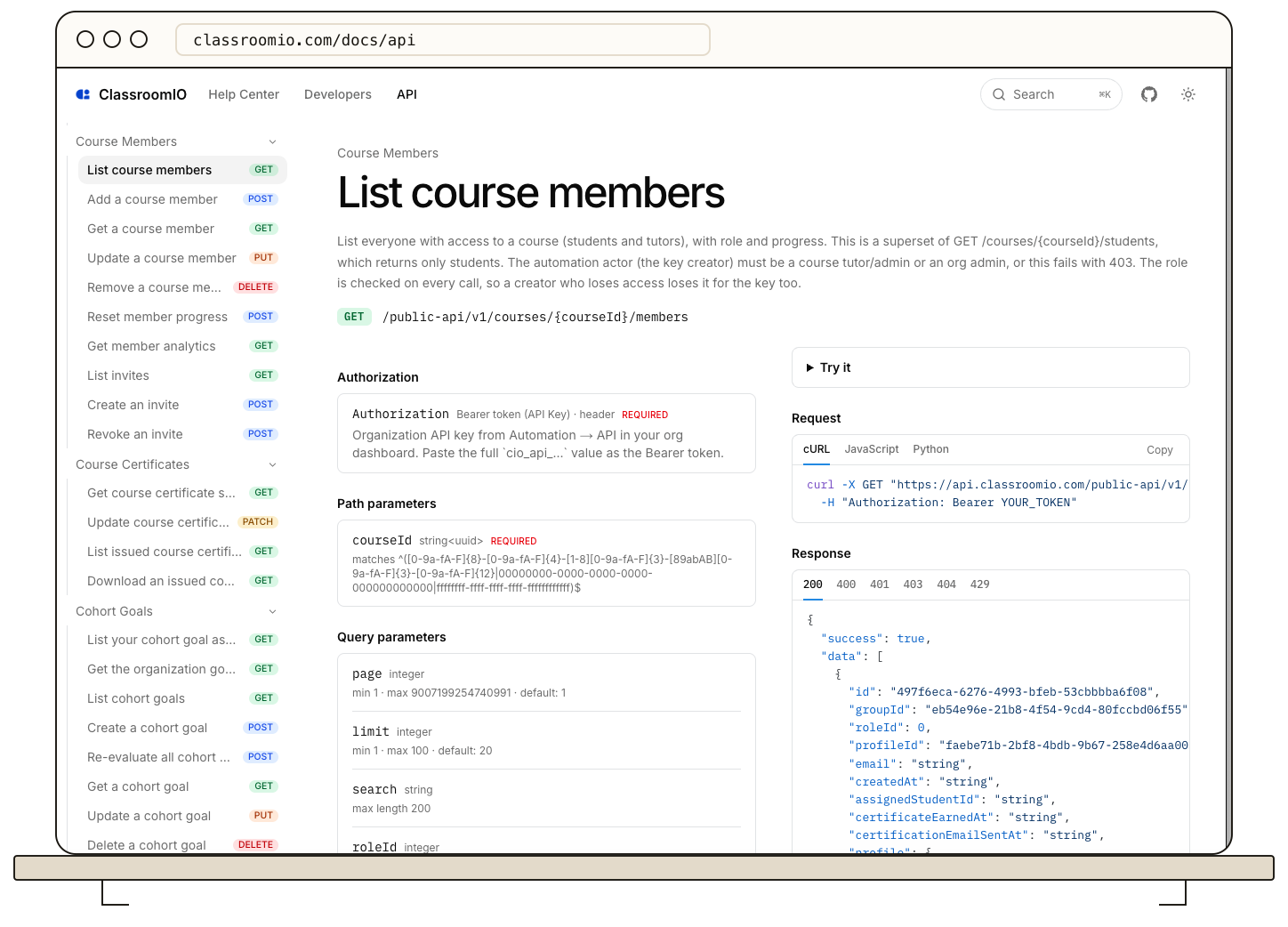
The public API and MCP tools cover much more of what you do in the dashboard. Every call runs as the person who created the API key, with the same permissions they have in the dashboard.
-
Course members and invites: add, update and remove members, reset a student's progress, read a member's analytics, and create or revoke invites.
-
Cohorts: create and manage cohorts, their members, invites and linked courses, post to the cohort newsfeed, and set and evaluate goals.
-
Certificates: read and update a course's certificate settings and design, list who earned the certificate, and download an earned certificate as PDF or PNG.
-
Course image: updating a course's cover image through the API or MCP now saves it. Before, the request succeeded but the image was quietly dropped.
Fixes and improvements
-
Students can no longer open a course before it is published. They see a not found page instead, and admins and tutors still have access. PR
-
On your academy, the not found page's Go Home button now goes to your academy's home page instead of classroomio.com, with a Continue Learning link to the student dashboard. PR
-
Creating a section, adding a lesson and then opening it no longer blanks the course outline, and moving to the next lesson no longer undoes completion in sequential courses. PR
-
Courses page filters, sorting and search are saved in the page address, so a reload or the back button keeps your view. The published and unpublished filter now filters the list. PR
-
The 3 dot menu on a course card shows on hover again. PR
-
Course information on landing pages keeps its formatting in every theme, including headings, numbered and nested lists, links and emphasis. Theme previews no longer respond to clicks, and Command-B or Control-B in the landing page editor formats text instead of toggling the sidebar. PR
-
Signed-in students see their account menu on your academy's landing page, course landing pages and course catalog. PR
-
Public lessons that allow copying as Markdown now have a predictable
.mdaddress, which the Open in ChatGPT and Claude prompts use. PR -
Automatic captions now carry a proper language code, so the caption menu shows the right language. This applies to transcripts generated from now on. PR
-
Regenerating a video's thumbnails no longer loses its 1080p status. PR
-
Cropped images upload as smaller WebP files. If cropping fails, the dialog stays open so you can try again. PR
-
Add content and Upload Document dialogs no longer stretch across the whole screen on desktop. PR
-
The AI course creator prompt box scrolls once a long prompt fills it, so the send button stays in view. PR
-
Each course settings section heading is now a link you can share, and "Allow learners to copy lesson pages as Markdown" sits at the end of Access. PR PR
-
The report dialog and lesson comment menu show their labels again instead of raw text keys, and the sidebar add content button shows its keyboard shortcut. PR