
Share live session recordings, grading and editor improvements, Italian and more

Live classes got a proper ending this week: share the recording, keep a list of past sessions, and decide when students get reminded. Tutors can now review the files students submit for projects, and the text editor has callouts for tips and warnings. ClassroomIO also speaks Italian now.
Live sessions
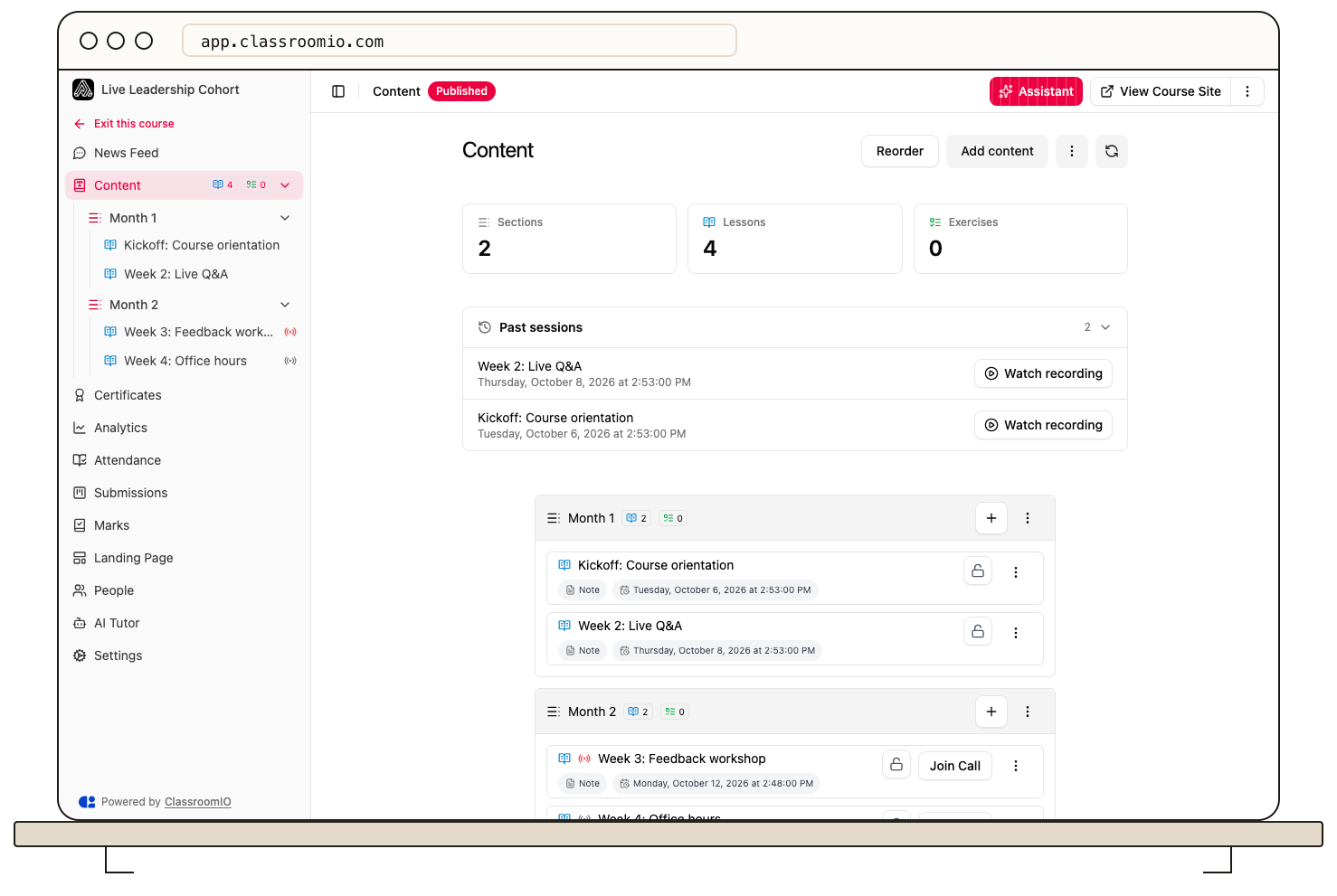
A live session used to look live forever. The red live icon stayed on the lesson after the class was over, the Join button stayed too, and there was nowhere to share the recording with students who missed it.
In a lesson's Settings, the Live session section now has two new fields: Expected session length (minutes) and Recording link. In the course sidebar, an upcoming session now shows a grey live icon, which turns red while the session is running. Once it ends, the icon goes away, the session shows Session ended and a Watch recording button, and students only see the recording link from that point on. Ended sessions also collect in a Past sessions list at the top of the course content page, newest first, so students can catch up on anything they missed.
Sessions without a length are treated as 60 minutes long, as before. These changes apply to courses set up as a live class.
Choose when students get reminded
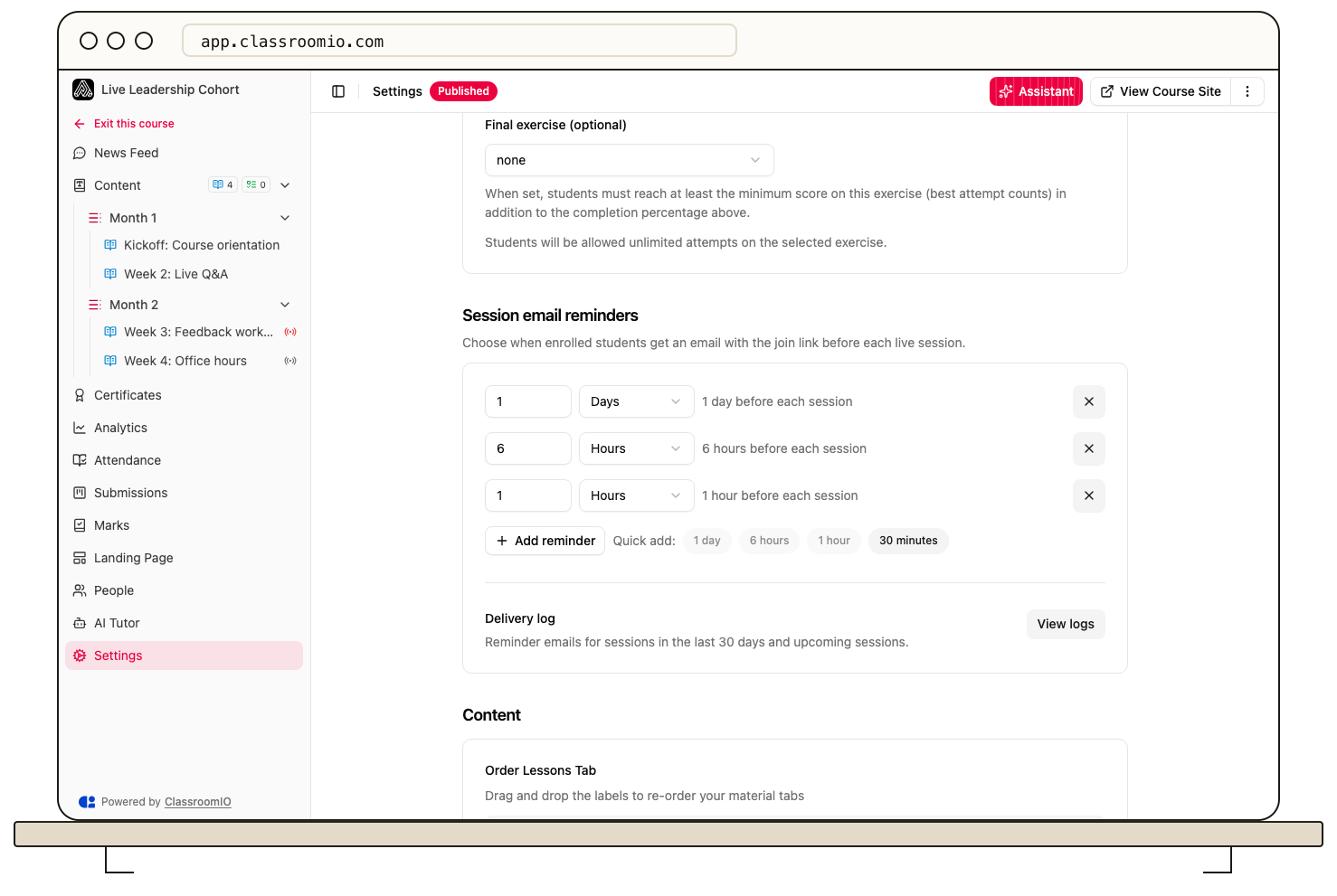
Students on a live class course used to get reminder emails 24 hours and 1 hour before each session, and you couldn't change that or see whether a reminder went out.
Course Settings now has a Session email reminders card. Add up to five reminders, anywhere from 15 minutes to 7 days before a session, or use the quick add options for 1 day, 6 hours, 1 hour or 30 minutes. Remove every reminder to turn them off. Courses you don't touch keep the 1 day and 1 hour reminders.
Click View logs to see the Delivery log, with every reminder and whether it was sent, queued, failed or skipped. A student who enrolls after a reminder's time has passed doesn't get that reminder late. The time in the email now shows in the session's own timezone instead of GMT.
Grading project submissions
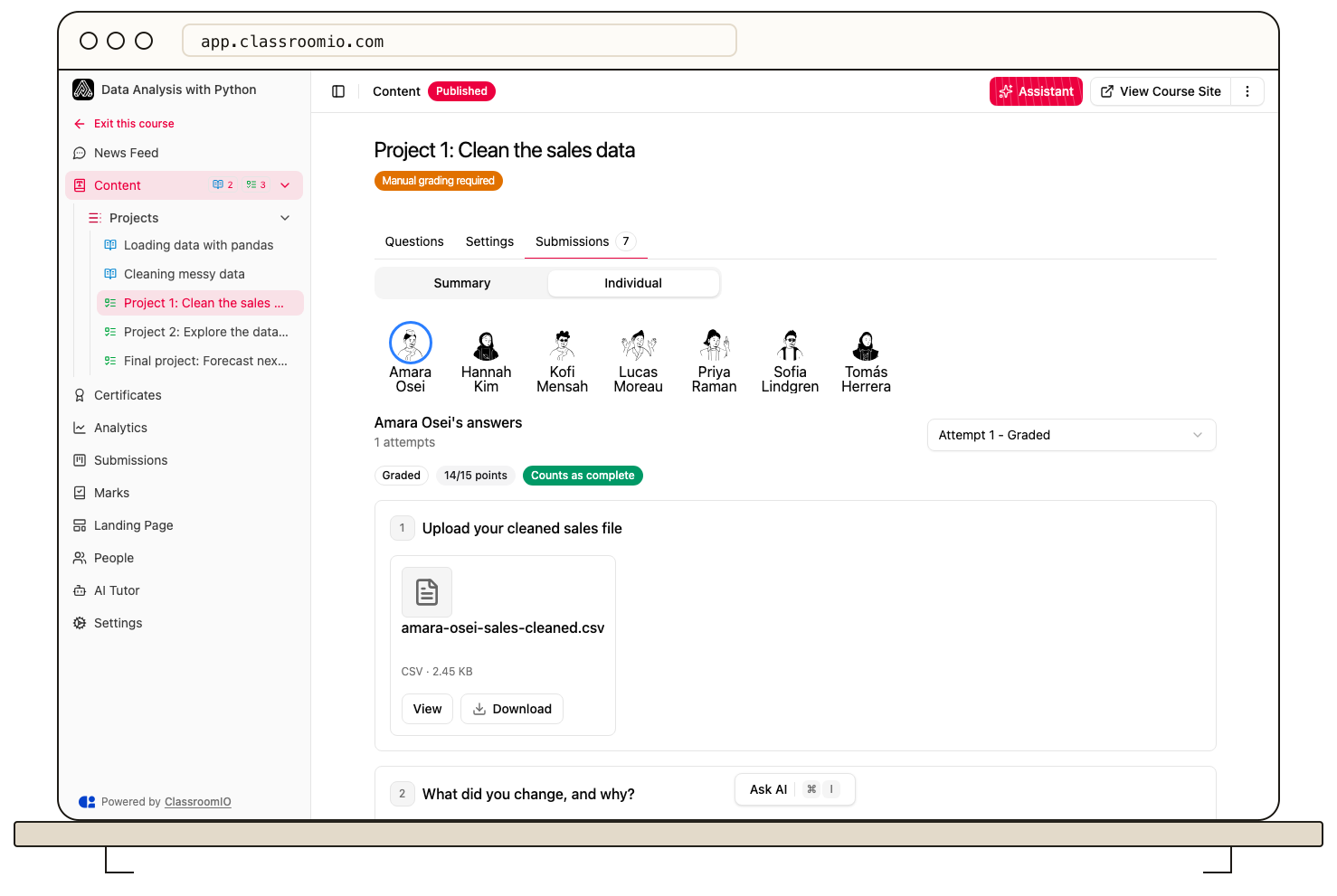
When a student submitted a file, the tutor reviewing it saw an upload control or a file name that didn't open. The Summary tab didn't say who had sent which file either.
Each submitted file now has View and Download buttons on the Individual tab. The Summary tab lists every file with the student's name and submission time, and links straight to that attempt.
Students can also submit CSV (.csv) and Jupyter Notebook (.ipynb) files. They are new options in a file upload question's Accepted types. If you leave Accepted types empty, every supported type is allowed, including these two. If you picked specific types, tick the new ones to accept them. Files that don't match a question's accepted types are now rejected when the student uploads them.
Filter the submissions board
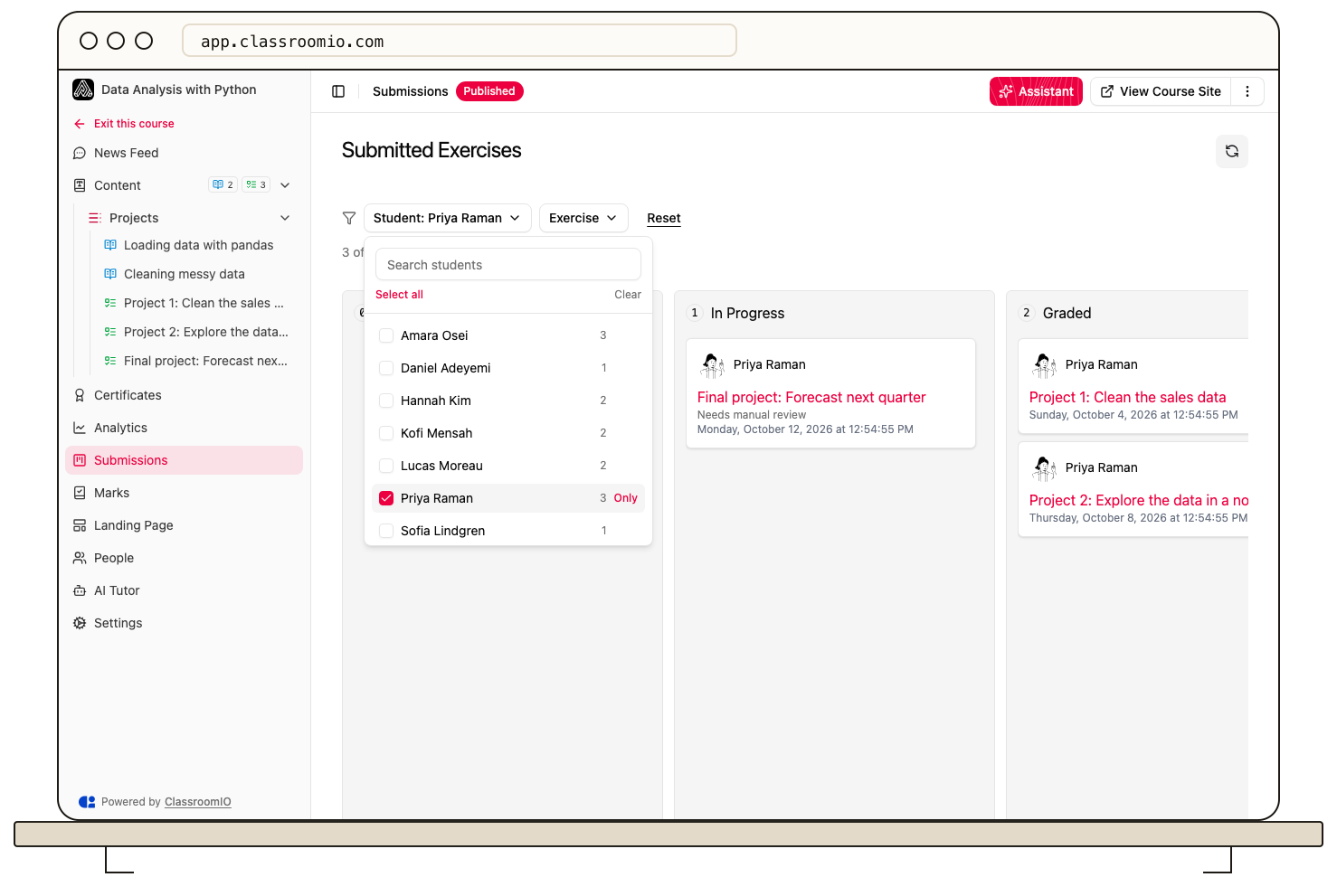
The course Submissions page now has Student and Exercise filters with search, so you can grade one student or one exercise at a time. A count shows how many submissions match. The filters stay in the page address, so they are still applied after you grade a submission and you can share the view with another tutor.
Cohort tutors can grade
Tutors you added to a cohort couldn't open the submissions of the cohort's courses unless they were also an admin of your organization. They saw a permission message instead.
Now admins and tutors of a cohort can grade the courses in that cohort. Linking a course to a cohort adds the cohort's admins and tutors to the course as tutors, and tutors you add to a cohort later get access to its courses too. Anyone who can't grade a course sees who to ask for access.
Callouts in the editor
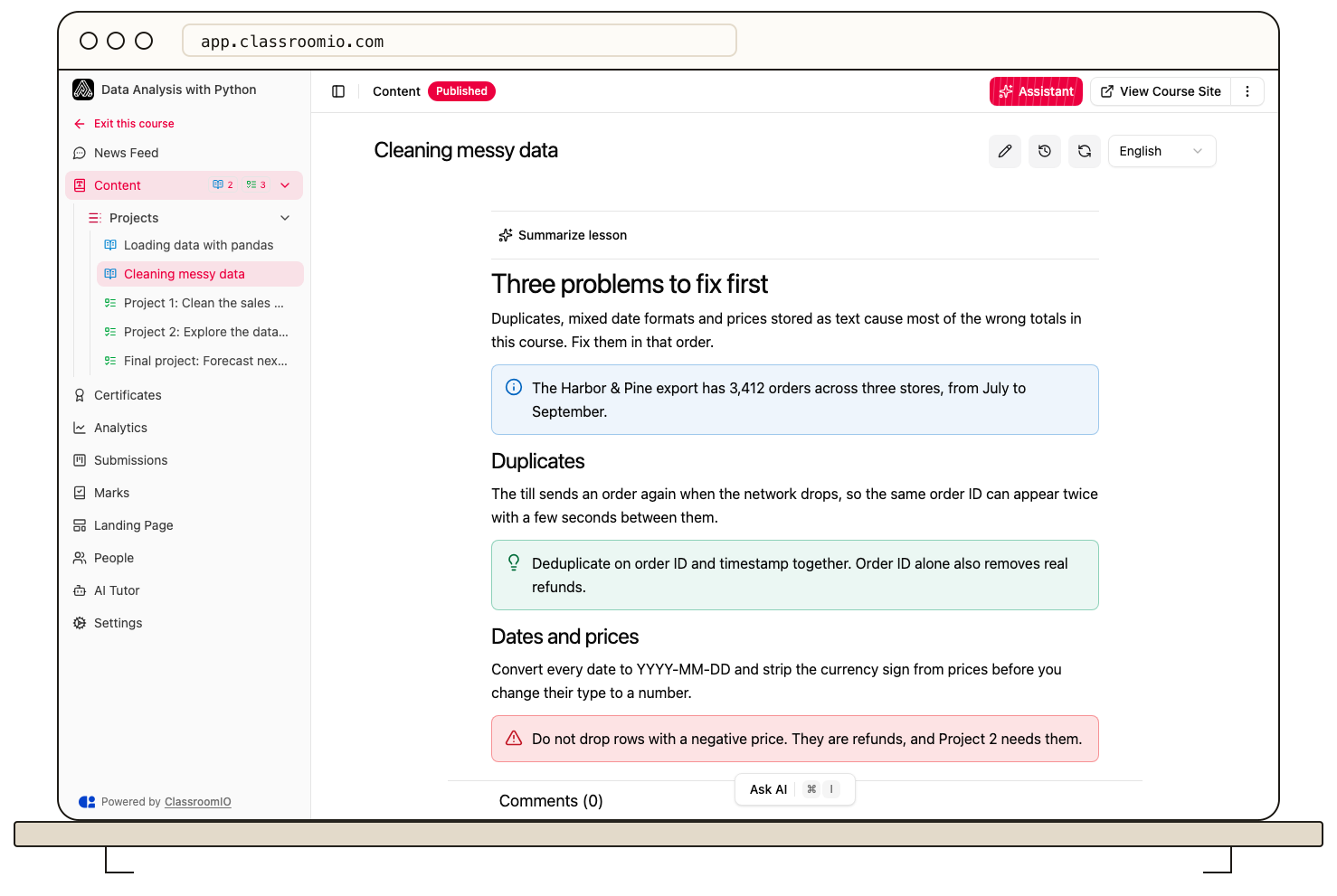
Sometimes a paragraph needs to stand out: a tip, a warning before a tricky step, or a note students should not skip.
The editor toolbar has a new Callout style button. Place your cursor in a paragraph and choose Info, Tip, Important, Warning or Highlight to turn it into a colored callout with an icon. Choose Default to turn it back into a normal paragraph. You can also type /callout, or a style name such as /warning.
Callouts work everywhere you write with the editor, including lesson notes, exercise descriptions, news feed posts, community posts and your course landing page. Students see them with the same styling.
Change a teammate's role
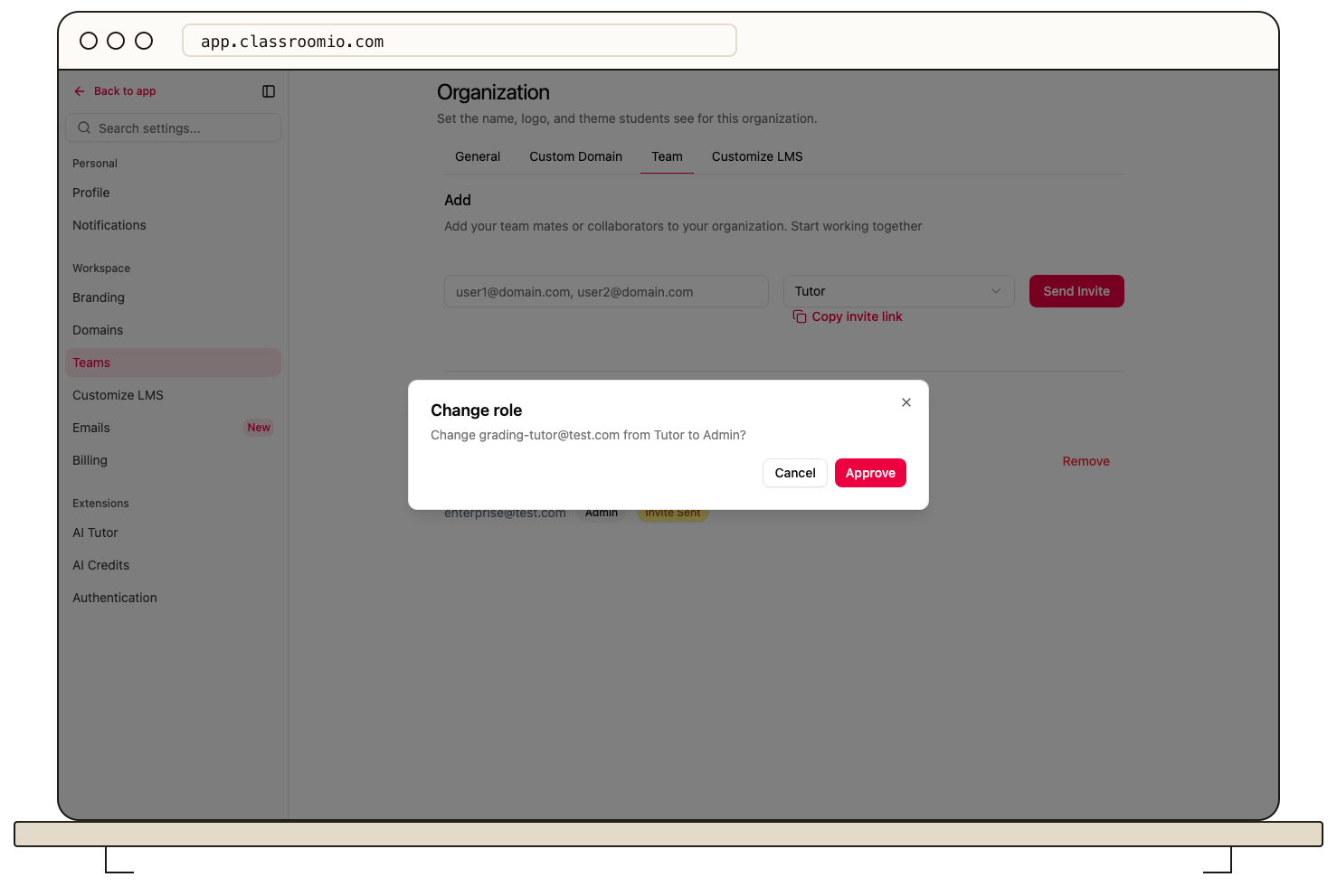
A teammate's role used to be fixed once you invited them. To make a tutor an admin, you had to remove them and invite them again.
In Settings > Teams, admins can now switch any teammate between Admin and Tutor. ClassroomIO asks you to confirm the change, and pending invites update too. Your organization always keeps at least one admin, and you can't change your own role. Changing roles is available on paid plans.
Italian
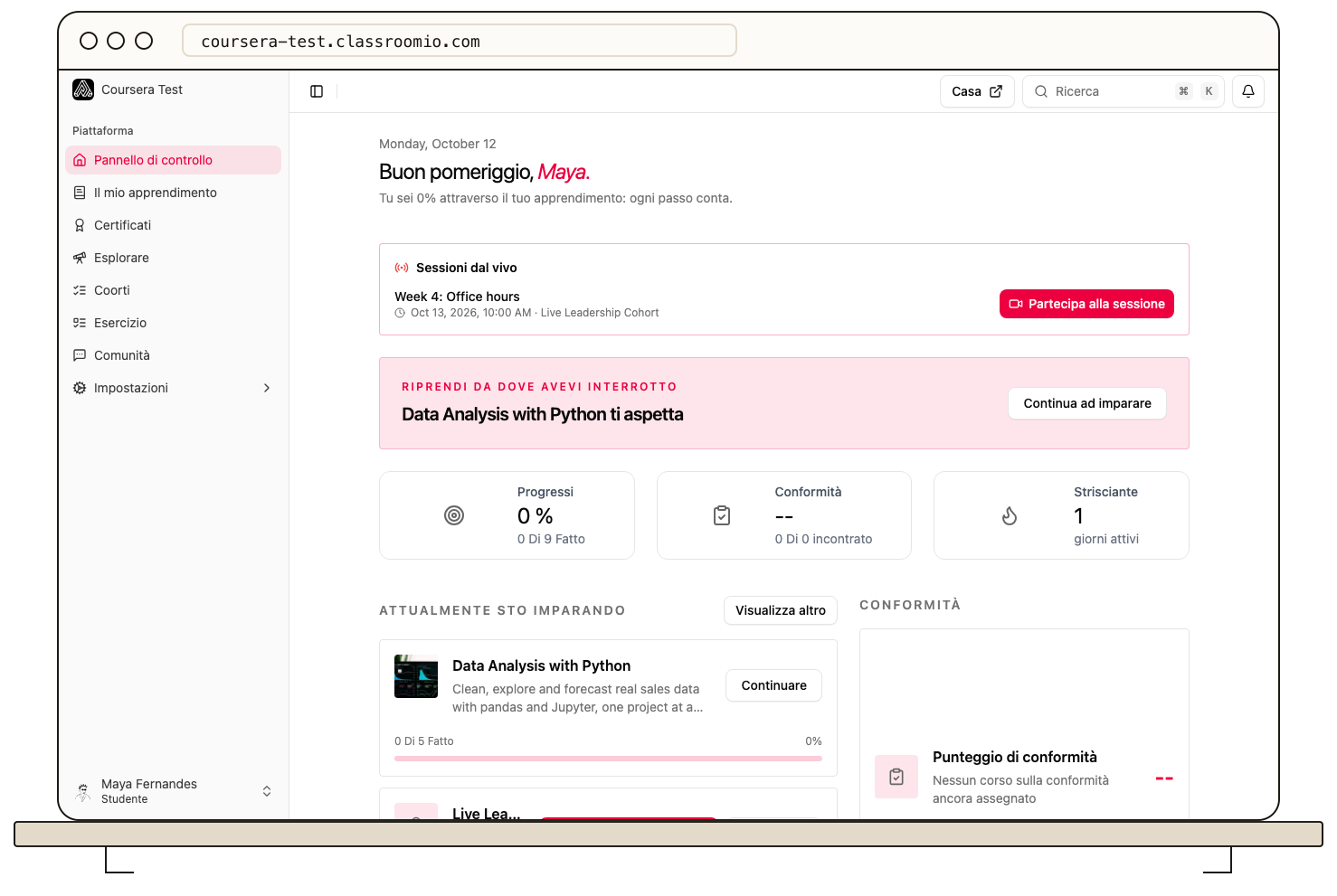
ClassroomIO is now available in Italian. Choose it in Settings > Account > Language, or set it as your academy's default language in Settings > Customize LMS. If you enforce Italian for your students, the emails they receive, from course invitations to completion messages, go out in Italian too.
Fixes and improvements
-
Courses created from a template save their settings again. Courses made from the AI Fluency, ChatGPT Work, HubSpot Sales Hub and Salesforce CPQ templates could not save Course Settings. They now save normally. (#1248)
-
Feedback on graded exercises is easier to read. Your feedback now sits in its own block under the score, keeps its line breaks, and long feedback opens in full with Show more. (#1250)
-
Clearer video upload errors. A video that is too big now shows your actual upload limit instead of 30 MB, and an unsupported file gets its own message. (#1257)
-
Forms react as you type. Buttons enable and errors clear while you type, not after you leave a field. Clearing a number field no longer snaps it to 0, and percentage fields in Course Settings only accept values from 0 to 100. (#1251, #1259)
-
Collapse the course content tree. The arrow next to Content in the course sidebar now shows or hides the list of lessons and exercises without leaving the page. (#1253)
-
No more empty reviews on landing pages. Reviews you leave completely empty are dropped when you save the course landing page. If a review is only partly filled in, the editor takes you to it so you can fix it. (#1256)