
YouTube + AI Chat, bulk student actions, Vimeo embed and more

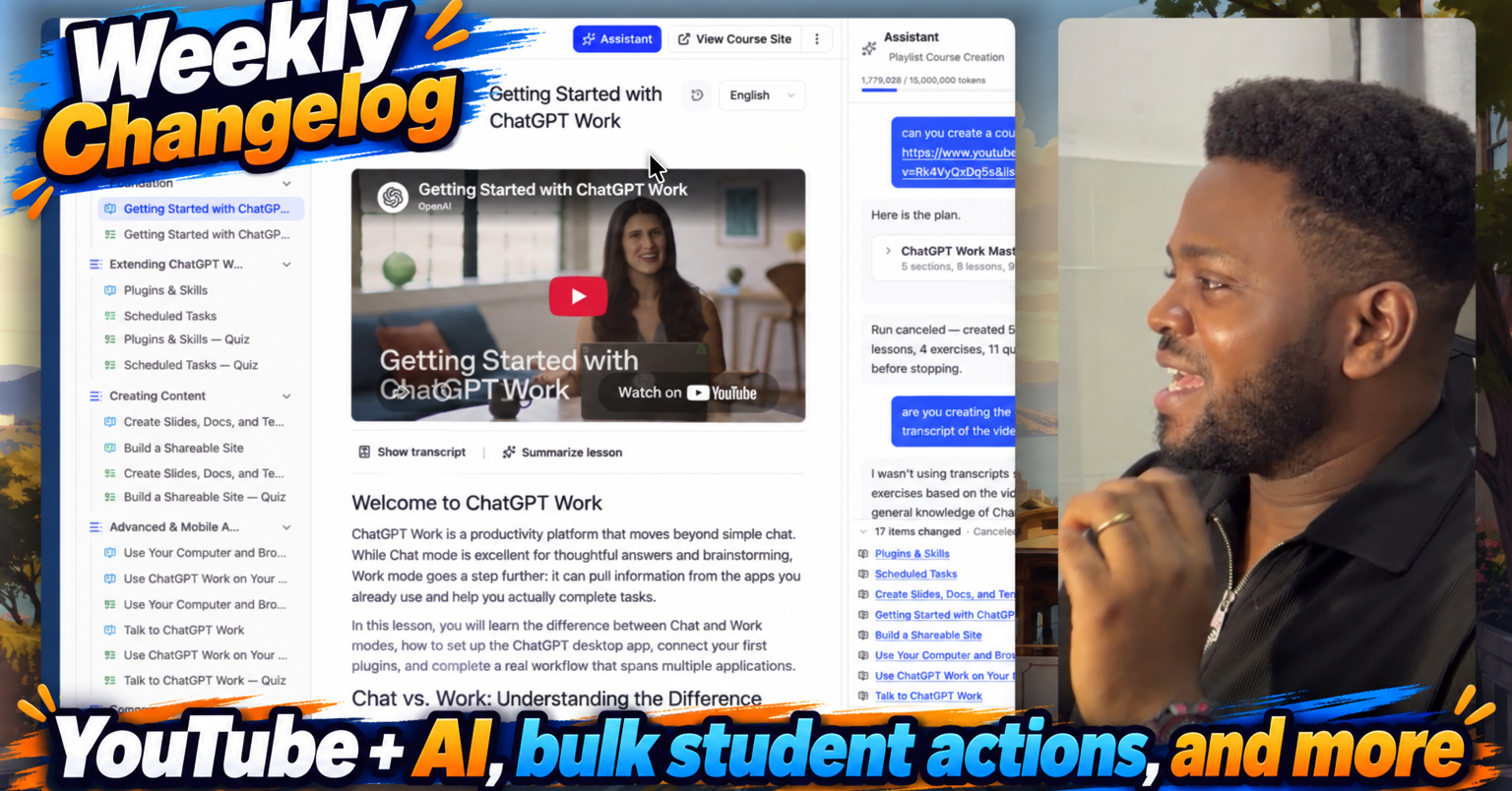
You can now paste a YouTube link into a lesson and the Assistant will know what the video says. That is a game changer if you already teach from YouTube. You keep the videos you use today, and you get 10x the leverage: a transcript, an Assistant that can help you build from the spoken content, an AI tutor students can ask about the video, and no need to upload or re-record the file.
Audience also covers a full admin loop this week: filter, export, act in bulk, and upload students from a CSV.
YouTube + AI: paste a video, get a lesson 🚀
Most teams already teach from YouTube. Until this week, ClassroomIO could play the video and that was it. The Assistant could read your notes, but it could not use the video. Students asking the AI tutor "what did they say about X?" got a guess, a refusal, or an answer from the notes alone.
That gap is closed. When you embed a YouTube video, captions are fetched and stored. They show up in the same transcript panel as uploaded videos. The Assistant can work from the spoken content, and so can the AI tutor on the student side.
The 10x is the workflow you no longer need. You do not upload the file. You do not transcribe it by hand. You do not rewrite the lesson so the AI has something to read. You paste the URL you were going to use anyway, and the video becomes something students can search, quote, and ask questions about.
This is available on paid plans. Free organizations see an upgrade prompt when the AI needs a YouTube transcript. Transcripts that were already fetched stay available if you later move to a free plan. Uploaded-video transcripts are unchanged for every plan. If a video has no captions, we do not invent one.
Filter Audience by usage 🔍
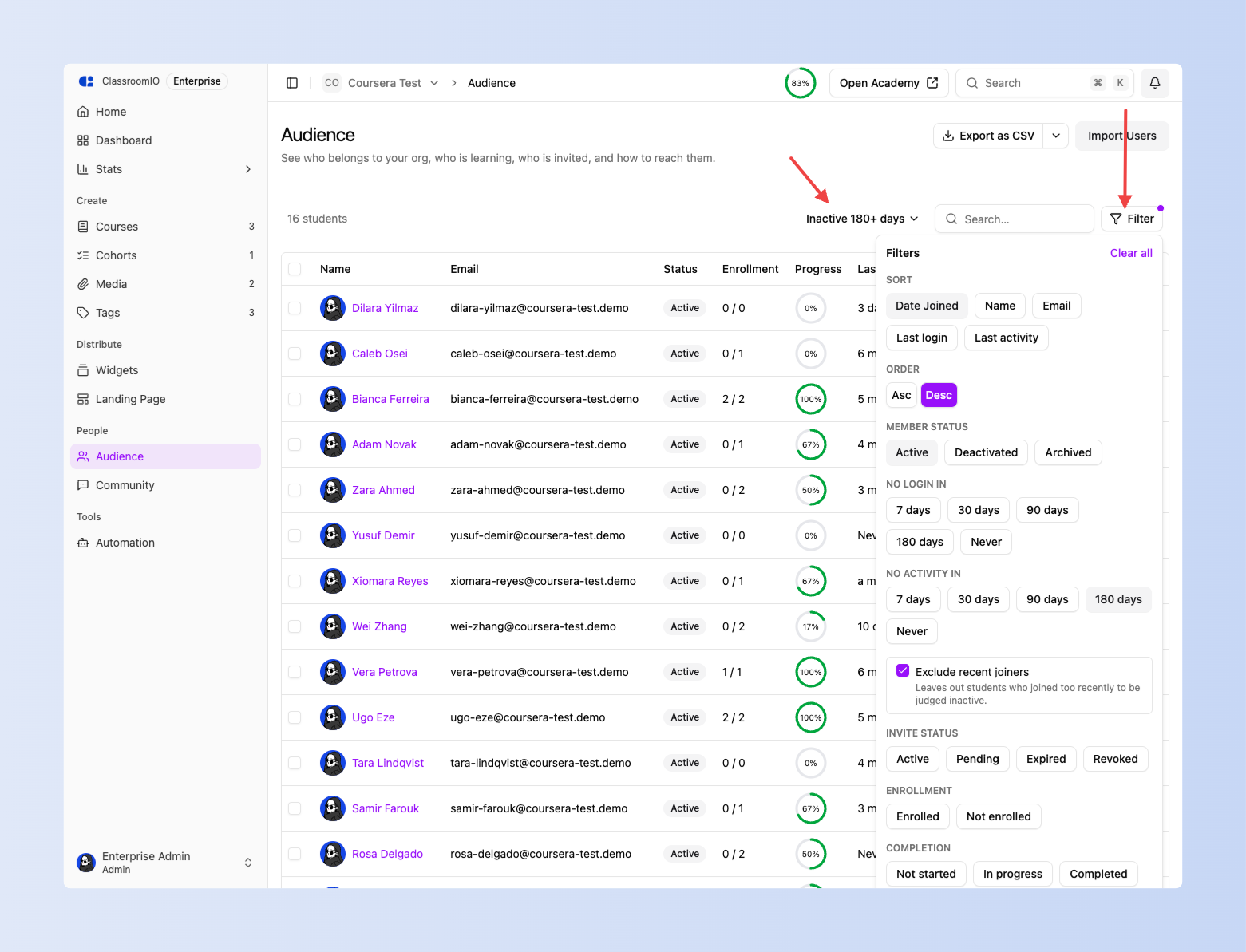
Audience now shows last login, last activity, enrollment, and progress for every student. You can filter by those columns, plus membership status and invite status. Filters combine, and the current view lives in the page address, so you can bookmark it or send it to a colleague.
Saved views cover the usual questions in one click: never logged in, inactive 90 or 180 days, enrolled but never started, and archived.
Time filters find people you have not heard from. No login in 90 days means no login in 90 days, not people who were recently active. Recent joiners are left out by default, so a batch of invites you sent last week will not appear in a 90-day list. You can turn that toggle off when you want the newest people included.
Export the list on screen 📤
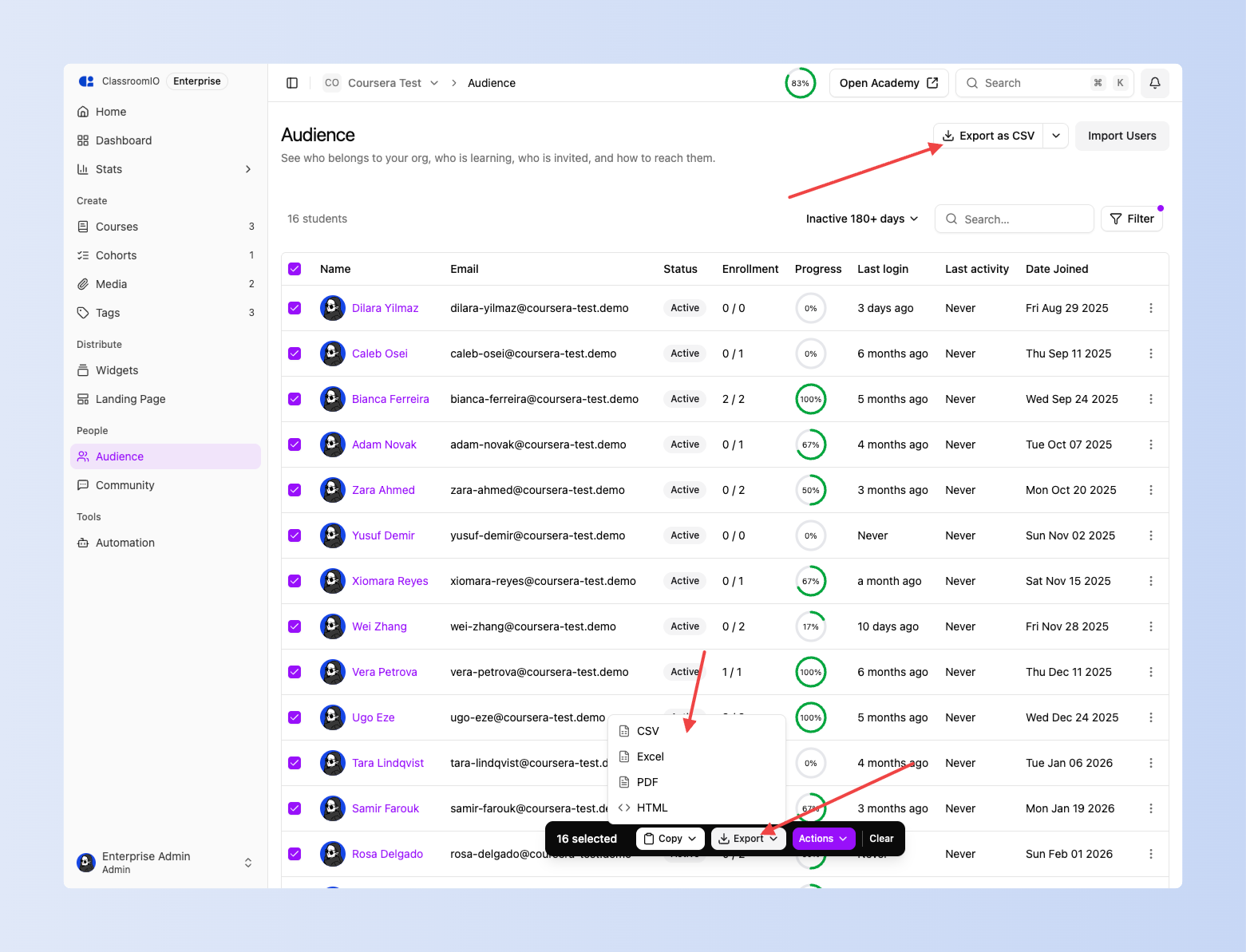
Once you have the right list, export it. Export as CSV is the default. The dropdown also offers Excel, PDF, and HTML.
The file follows what you have on screen. Filter first, then export, and you get that exact set. Tick specific rows and you get only those. The Audience export includes name, email, status, courses enrolled, courses completed, progress, last login, last activity, and date joined.
PDF is available up to 2,000 rows. Above that, use CSV or Excel. Audience export is capped at 20,000 students.
The same export control is also on a student's profile (one row per course) and on course Marks.
Bulk deactivate, archive, and delete 🗄️
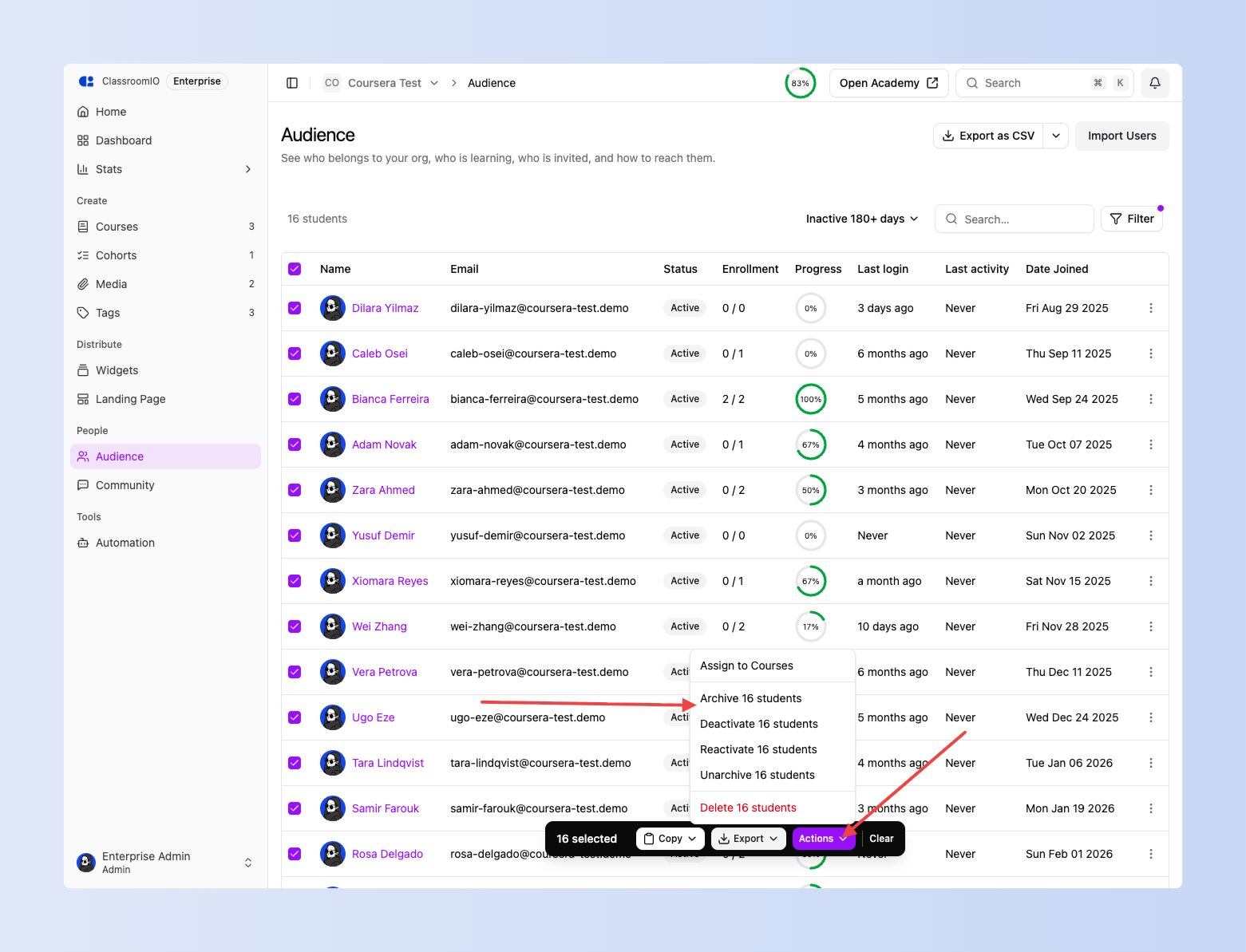
After you review the list, you can act on the people you ticked, or on everyone matching the current filter, including when that is thousands of people.
Action Access Record kept Plan seat Deactivate Removed Yes Kept Archive Removed Yes Freed Delete Removed No Freed
Archive is the usual action when someone is no longer using the platform. It is reversible and it gives you the seat back. Deactivate is better when you expect the person to return, such as staff on leave. Delete is permanent, only works on students who are already archived, and asks you to type the count to confirm.
You can add a reason when you confirm. It is stored against every student in the run.
Undo is available for 15 minutes after an archive or deactivate, and it applies to the students who actually changed, not a re-run of the filter. Leaving or reloading the page clears the undo offer. Delete cannot be undone.
Runs of more than 1,000 students continue in the background. Keep the tab open to see the result. There is no undo on those larger runs.
Bulk upload students 📥
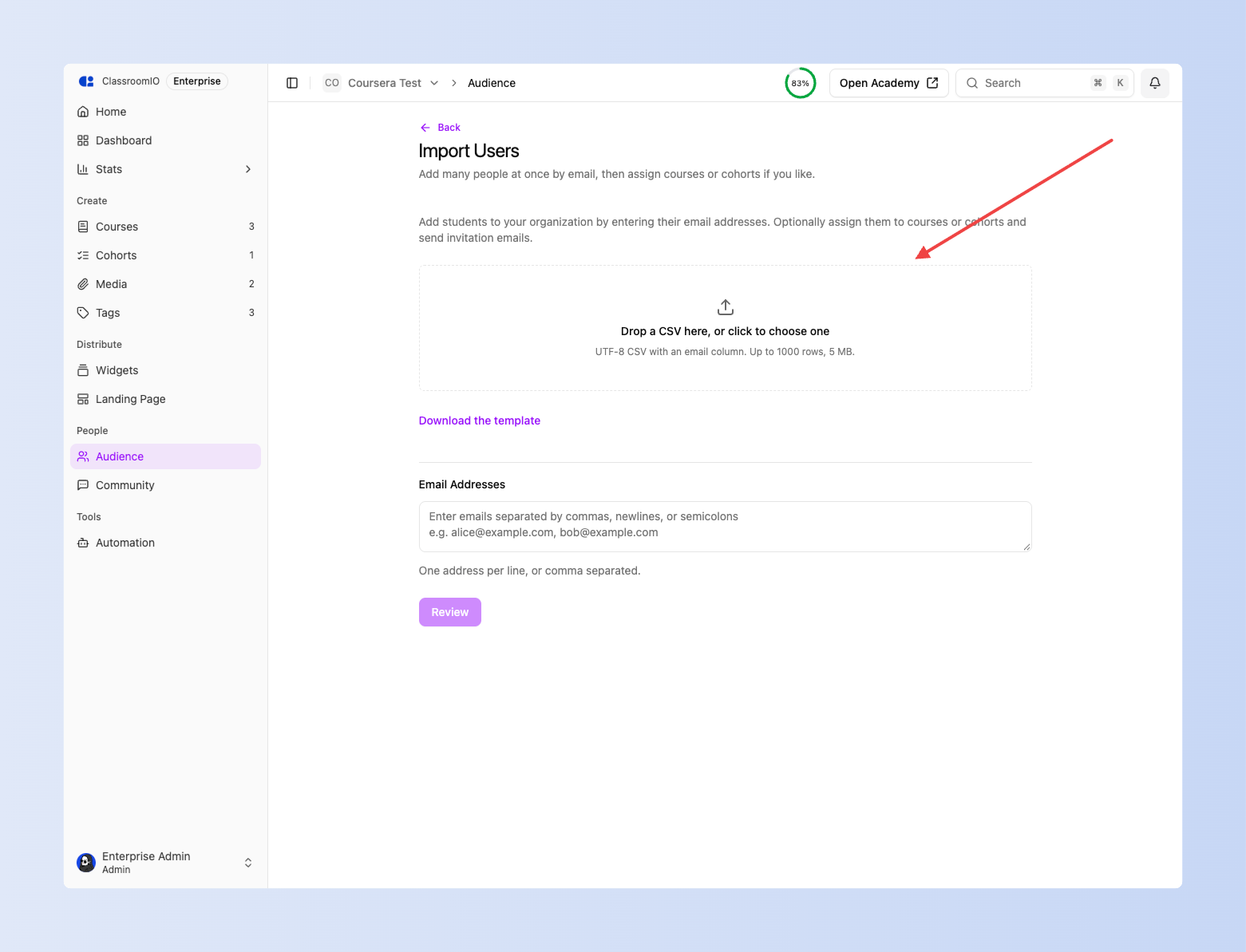
You can add students in bulk from Audience with Import Users. Upload a UTF-8 CSV, or paste addresses. There is a template to download on the import screen.
The file needs an email column. name is optional. The limit is 1,000 students and 5 MB per file, so split larger lists and run them in parts.
Nothing is created until you approve the preview. Each row is marked Ready, already in audience, invalid, or duplicate. You can also assign courses and cohorts on that same screen before you submit.
New students receive an invitation email. If some rows fail, you can download just those rows, fix them, and upload again. The button is disabled once you reach your plan's audience limit.
See a student's courses and grades 🎓
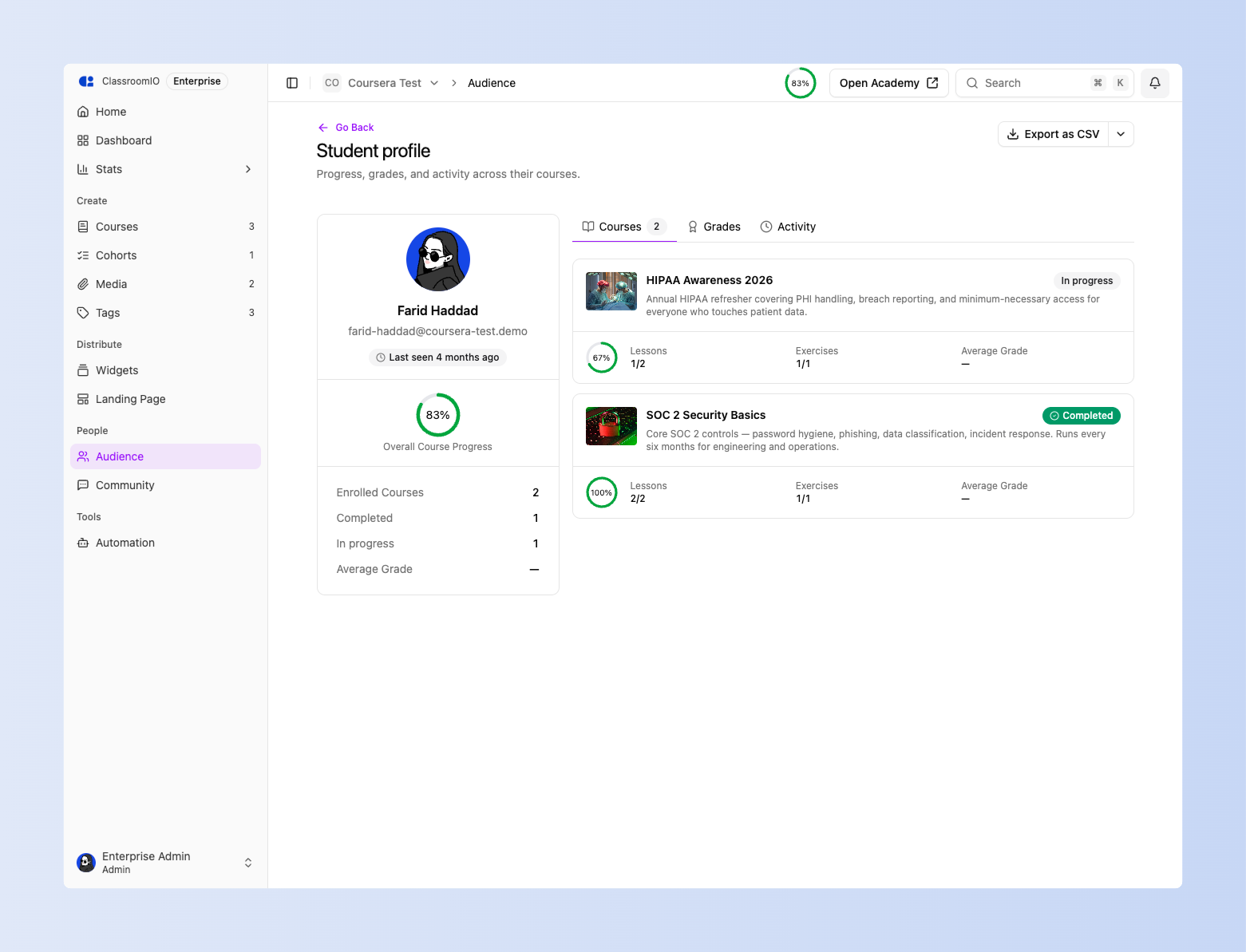
Opening a student from Audience or from course People now shows a profile with their courses and grades. You can export that student's progress as CSV. From a grade, you can open the exercise and land on that student's submission.
Average grades now only include work that has been graded and has points. A missing grade shows as empty, not as 0%. The Activity tab is visible but not filled in yet.
Embed Vimeo videos in lessons 🎬
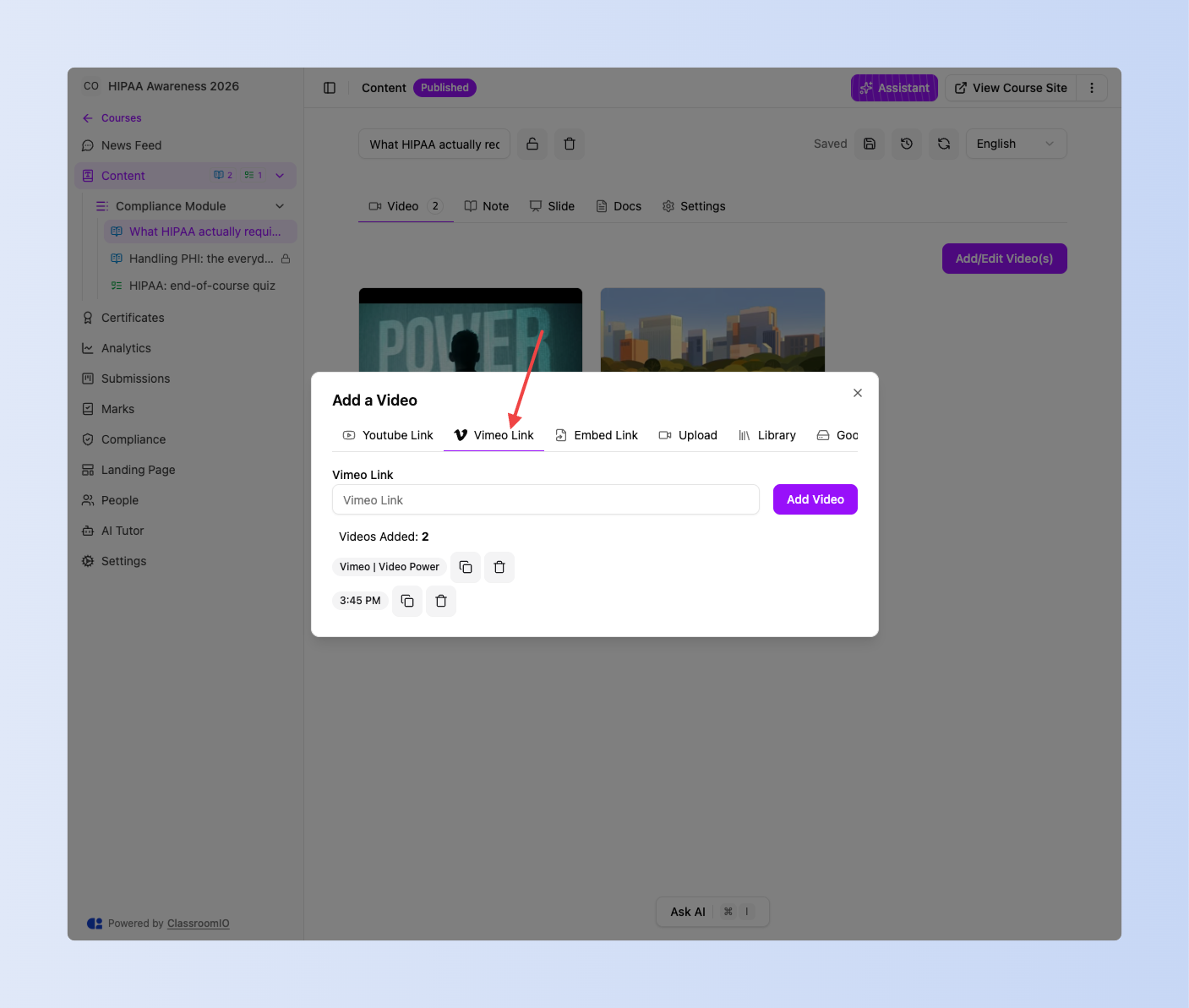
You can now add a Vimeo URL to a lesson the same way you add YouTube. The player uses the video's title, thumbnail, and duration when Vimeo provides them.
Fixes and improvements 🐛
-
Students who can open a course Marks page now see only their own scores. Tutors and admins still see the full gradebook.
-
Academy landing-page links no longer accept unsafe URL schemes.
-
Public academy pages no longer expose billing details or other internal organization settings.
-
Callout button links on the academy landing page no longer turn into page fragments when you paste a full URL.
-
Course cards on the Quartz academy theme now show a cover image, including on the public courses list.
-
You can click the Courses section to edit it on every academy landing-page theme.
-
The Open Academy button in the dashboard header now opens your academy.
-
Creating a course now takes you straight to the courses page.
-
Checkboxes on the compliance Students tab now stay in sync with the selected count.
-
After you archive or deactivate students, you can dismiss the undo banner without losing the change.
-
Dashboard notifications now have a close button.
-
The sidebar upgrade prompt now shows current student usage against your plan limit, and turns red at 80%.
-
Signed-in visitors hitting the default academy hero button now go to the learning home instead of the login page.
-
A cancelled or past-due subscription no longer removes access until the subscription is actually revoked.