
Introducing Webhooks and a flexible course outline

This week ClassroomIO learned to talk to your other tools. Webhooks send an event to any URL you choose when something happens in your organization. Course outlines also got more flexible: put a lesson or exercise outside any section, and drag things into place right in the course sidebar.
Webhooks
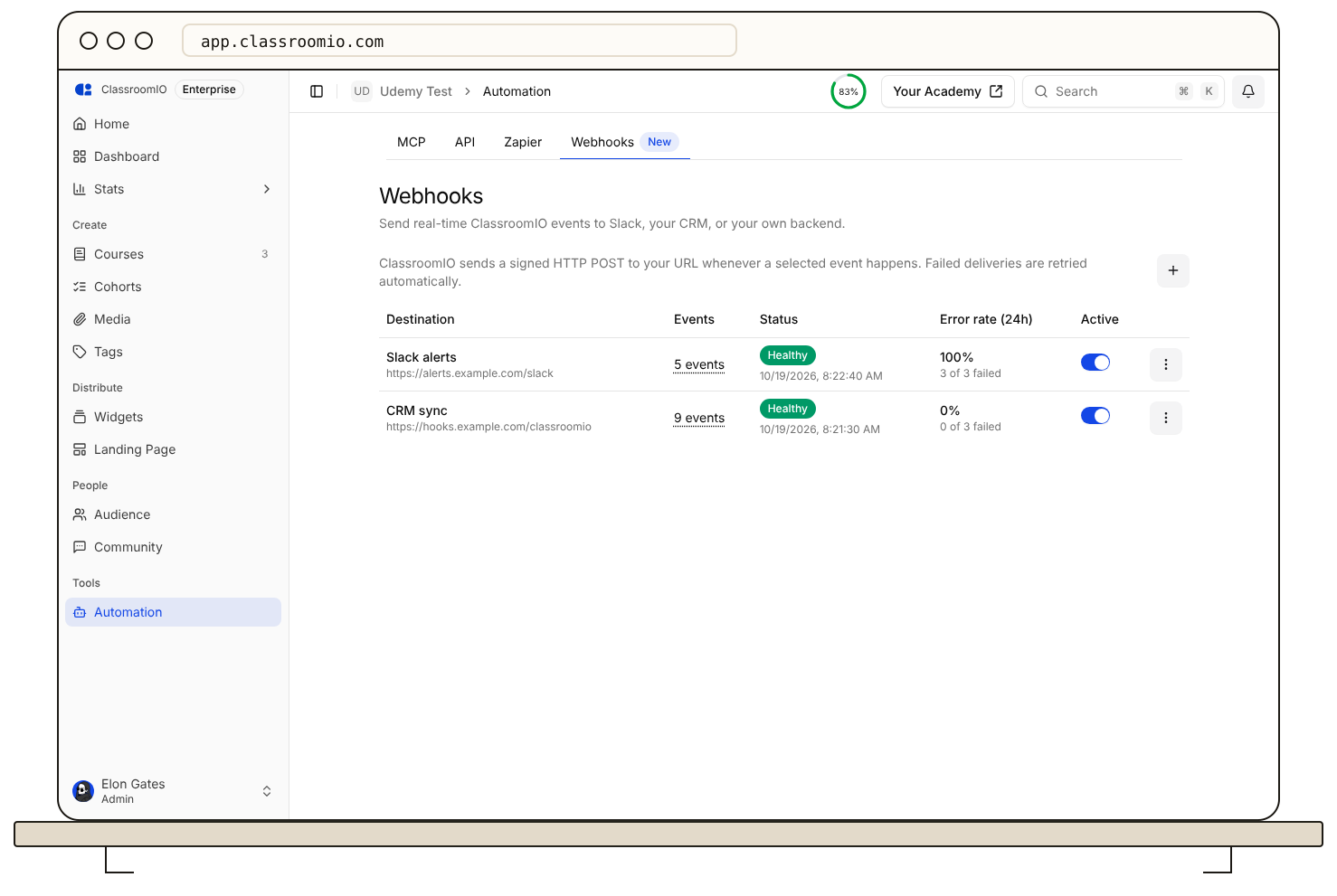
Getting ClassroomIO activity into your other tools used to mean exporting it, polling the API or building a Zap. If you wanted your CRM to know the moment a student finished a course, there was no direct way to tell it.
Now there is. Open Automation, then the Webhooks tab, and click New webhook. Give it a name, paste a Payload URL, and choose Send me everything or Let me select individual events. Events come in three groups:
-
Organization: invites to your organization created, accepted and revoked.
-
Courses: course invites, students added or removed, courses completed, certificates issued, new submissions and submission status changes.
-
Learning progress: lesson and exercise completion.
When you save, ClassroomIO shows your signing secret once. Every request carries a signature made with it, so your server can check that the event really came from ClassroomIO. Use Send test event to check your endpoint before real events arrive.
See what was delivered
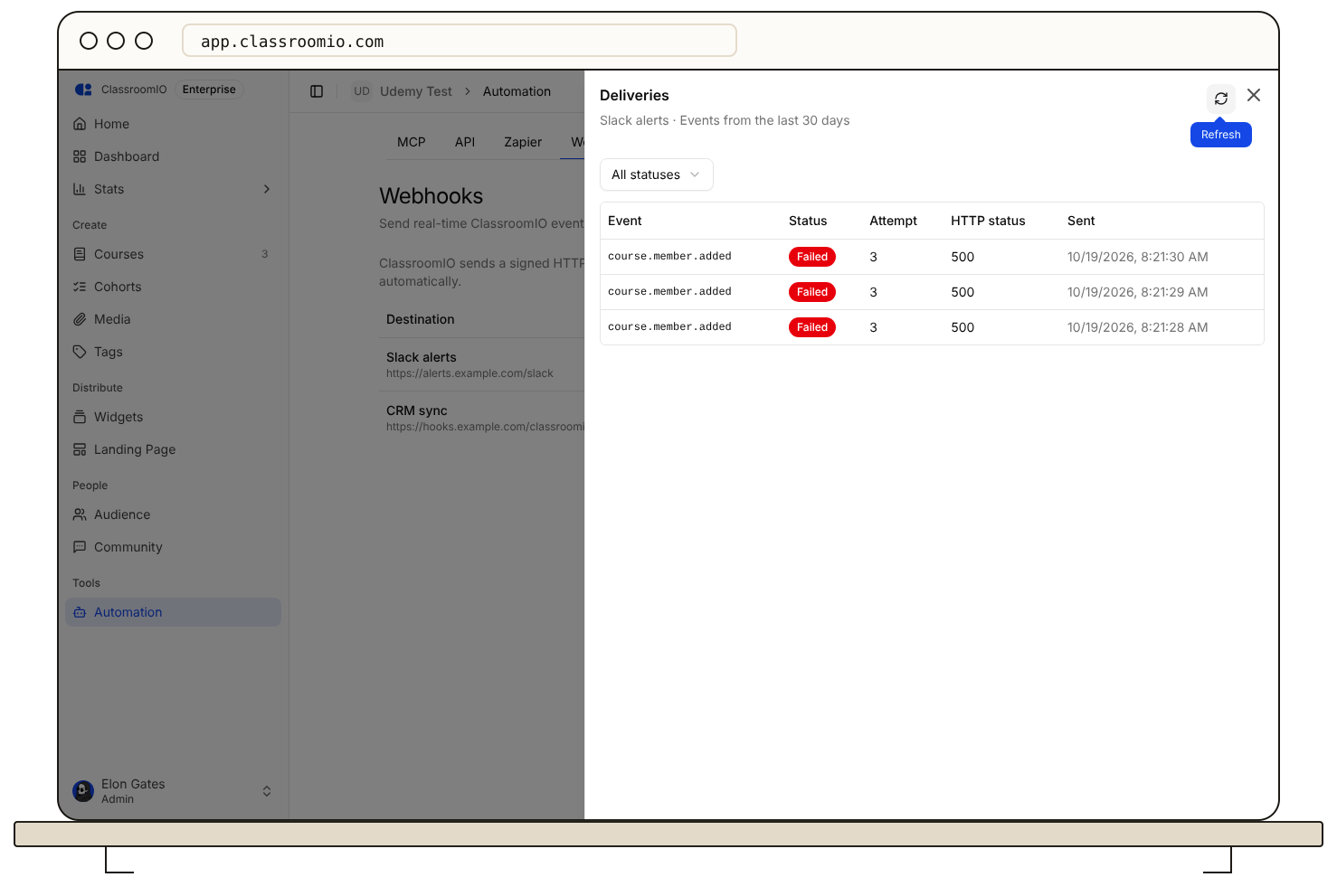
Click View deliveries on any webhook to see the last 30 days of events, with the HTTP status, the payload and your server's response. A failed delivery is retried twice, after 10 seconds and after 1 minute. Once you fix your server, click Redeliver to send the same event again.
The webhooks table shows each destination as Healthy, Retrying, Failing or Auto-disabled, with its error rate over the last 24 hours. If 20 deliveries in a row fail, every admin gets an email. After 100 in a row, ClassroomIO turns the webhook off and emails you again. Fix the endpoint and switch it back on.
Webhooks are available on the Early Adopter and Enterprise plans, the same as the public API. The course completed event is sent when a student earns the course certificate, so it needs certificates turned on. The Help Center guide walks through setup, and the developer docs list the payload of every event.
Flexible course outline
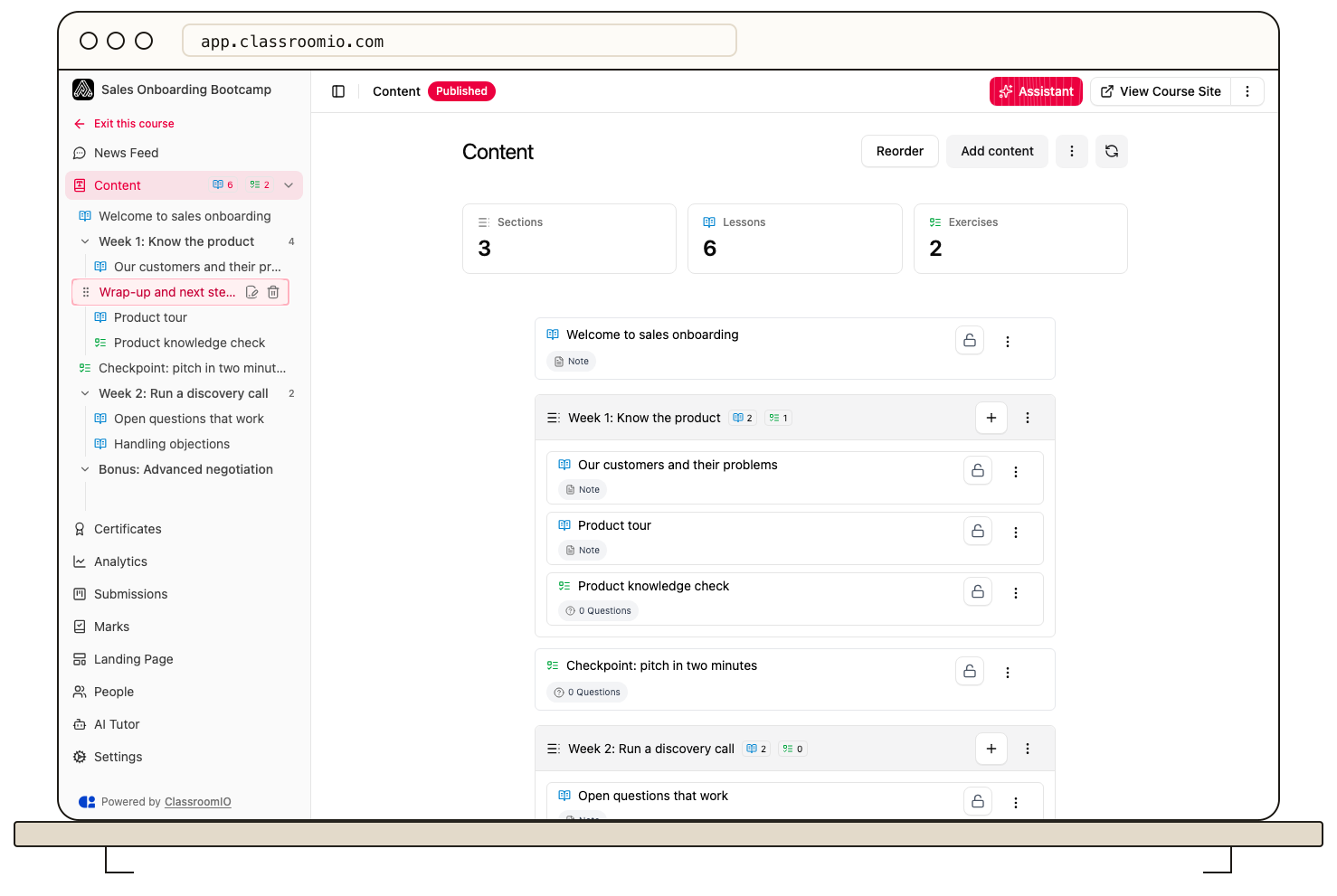
Once a course used sections, every lesson and exercise had to live inside one. A welcome lesson or a final quiz needed a section of its own, and changing the order meant opening a separate reorder view.
Now a course outline can mix sections with standalone lessons and exercises, in whatever order you like. In the course sidebar, grab any section, lesson or exercise and drag it:
-
Move a section up or down. While you drag, sections fold up so you can see where it will land.
-
Drop a lesson or exercise into a section, between sections, or out of a section to stand on its own.
-
Drop content into an empty section. Empty sections start collapsed but still take drops.
Hover a lesson or exercise in the sidebar to edit or delete it. Hover a section to add content to it or delete it. These controls only show for your team, never for students.
Add content outside a section
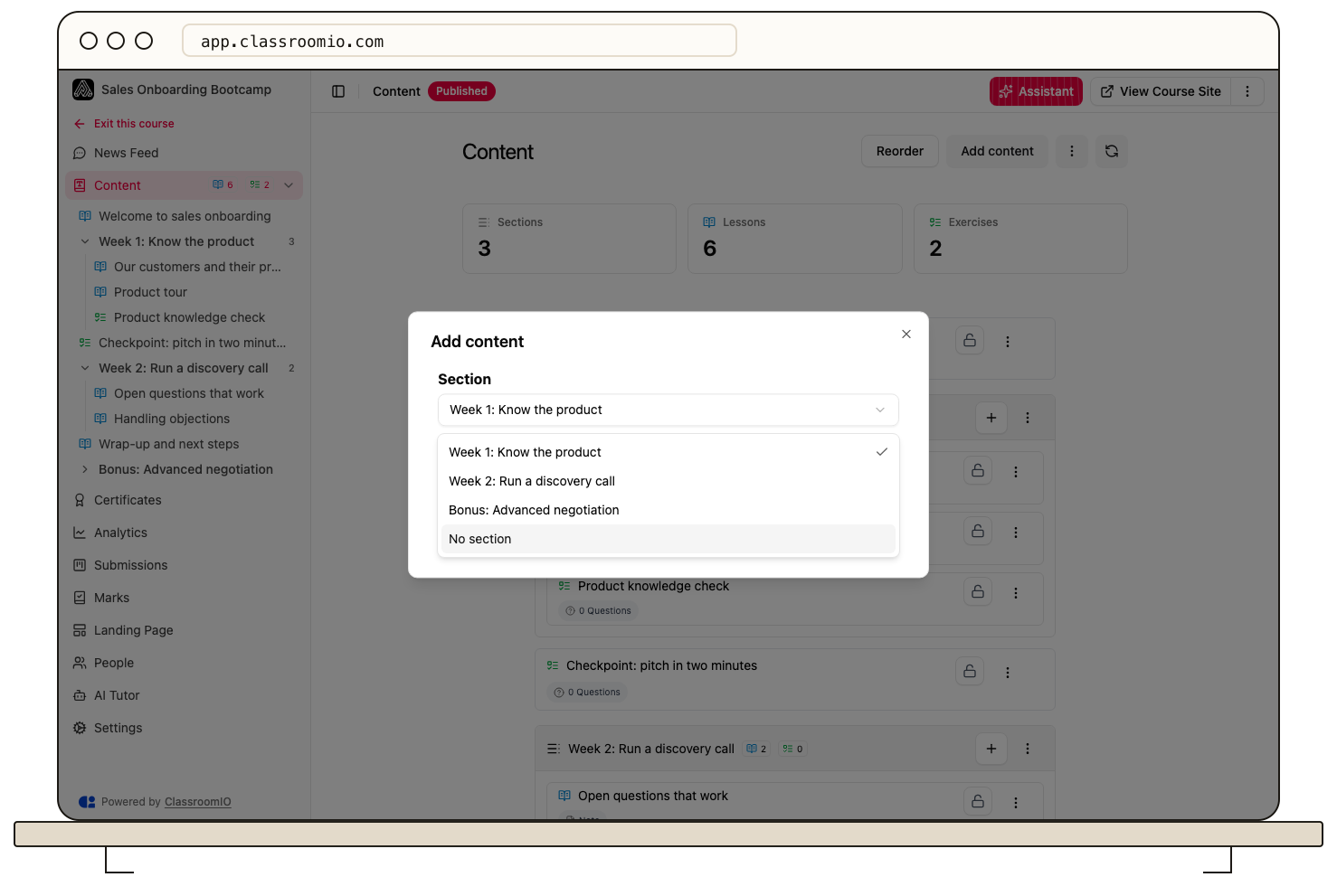
When you add a lesson or exercise, the Section menu now ends with No section. Pick it and the new item sits in the outline on its own.
Students see the same order everywhere: the course sidebar and content page, the Next button, locked content that opens in sequence, the public course page and the curriculum on your landing page. On the landing page, each standalone lesson or exercise shows as its own module.
More in the API and MCP
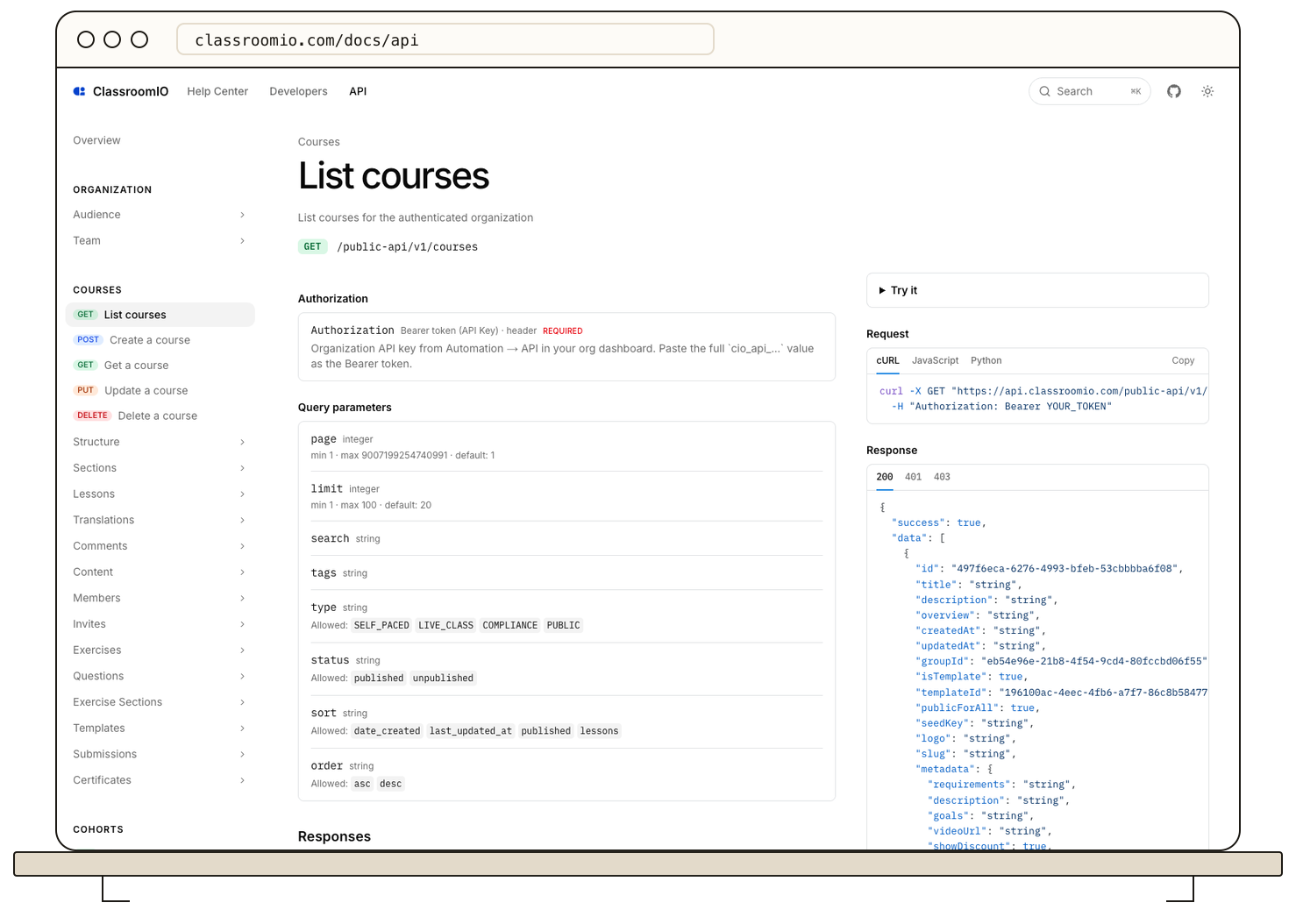
The public API gained 40+ new endpoints this week. If you build on ClassroomIO, or let an AI tool like Claude Code or Cursor work in your organization through MCP, here is what you can do now:
-
Course outlines: list, create, rename, move and delete sections. Read lessons with their translations, version history and comments. Reorder, lock, unlock or delete many lessons and exercises in one call.
-
Exercises and grading: create exercises and edit single questions, list and grade submissions, and read marks.
-
Student activity: mark a lesson complete or submit an exercise for a student.
-
Audience and team: list your audience and team, add audience members, and change a member's name or role.
-
Videos: upload a video file and attach it to a lesson.
Deletes that would remove student work, such as a lesson with completions, are refused unless you confirm them. The MCP package is now at version 0.2.0 with 117 tools. Update your MCP client to 0.2.0 to get them.
Fixes and improvements
-
Dashboard stat cards link to their lists. Click Certificates issued, Number of courses or Total students on your dashboard to open the list behind the number. Audience has a new Certificate filter for students who have or haven't earned one. (#1322, #1329)
-
Last login is back. Student logins stopped being recorded in early September, so Last login in Audience showed Never. Logins are recorded again, and we restored recent logins where we could. (#1325)
-
Removing a student who submitted work. Removing a student who had answered an exercise failed with an error. It now works and removes their course data with them. (#1320)
-
Inviting an existing student to your team. Inviting someone who was already a student showed success but sent nothing. ClassroomIO now asks you to confirm, sends the invite, and keeps them a student until they accept. Team invite links are now separate for each role, so copying the Admin link no longer hands out the Tutor link. (#1336, #1355)
-
Deleted courses disappear right away. A deleted course used to stay on the Courses page until you reloaded, and the delete dialog could stay stuck open on a second delete. (#1363)
-
Copy new API and MCP keys from a dialog. When you create or rotate a key, it opens in a dialog with a Copy button and a How to use this key link, instead of a banner that stayed on the page until you left. (#1372)
-
Filter your widgets. The Widgets page has search and a Filters popover for status, layout type and selection mode. (#1249)
-
Check my answers on public exercises. The button now works for star rating, word bank, matching and hotspot questions. (#1324)
-
Public course pages show every lesson. Lessons and exercises from some course templates were missing from public course pages. They all show now. (#1324)
-
Previous and next on short pages. On a short lesson or exercise, the previous and next links show without scrolling. (#1324)