
Set Academy Language, Exercise improvements and more

You can now enforce one language across your organization. Your academy and every email your students receive use that language, and you can rewrite those emails in your own words. Exercises got a lot of attention too: students can see your screenshots properly, get back to your instructions at any point, and ask the AI tutor to explain a result.
Academy language
Students used to see ClassroomIO in whatever language their own account was set to, and every email they received was in English. For an organization that teaches everyone in one language, that meant a mix of languages no matter what you did.
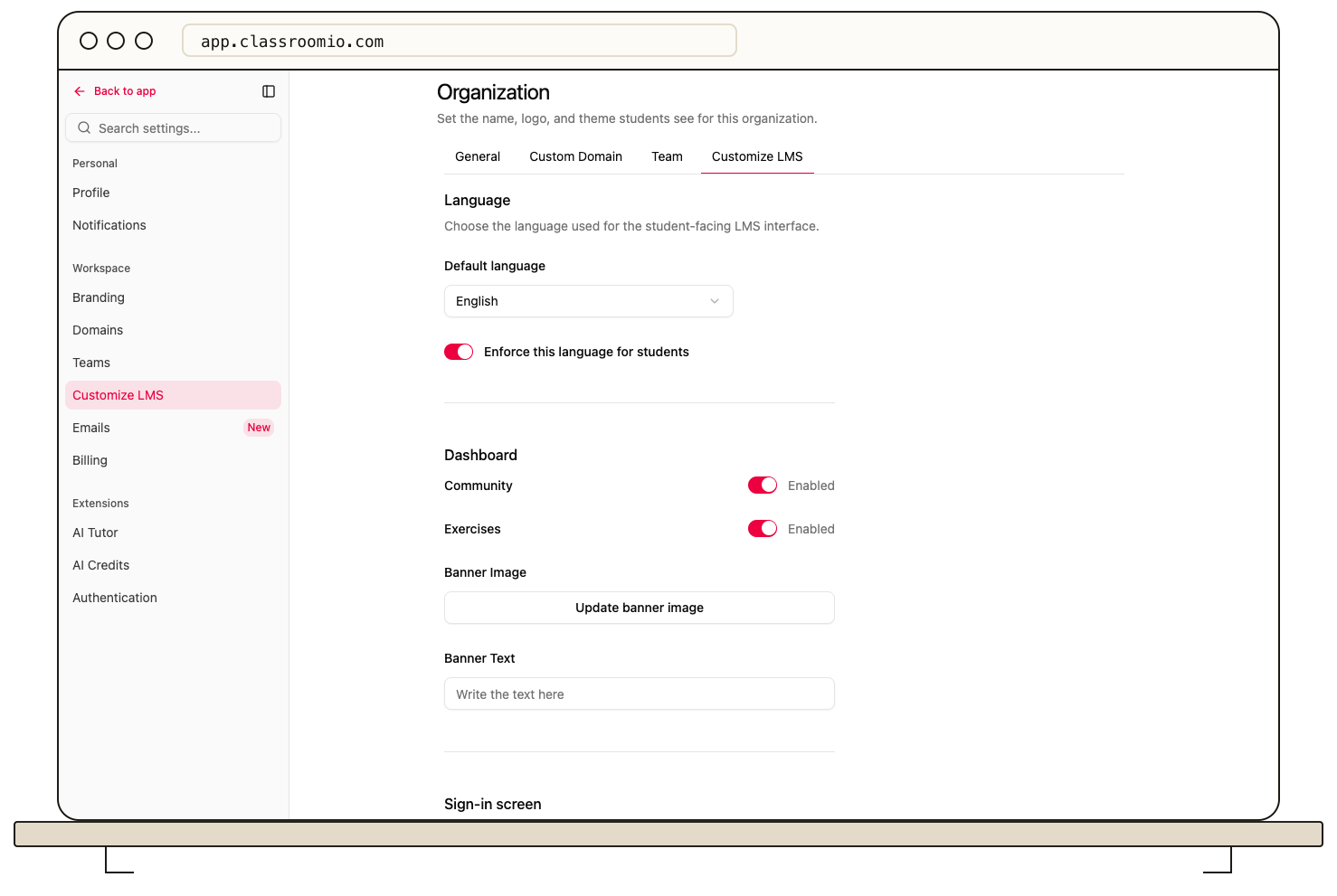
In Settings > Customize LMS, a new Language section lets you pick a default language for your academy. Turn on Enforce this language for students and every student sees that language, including sign-in, restricted pages and course landing pages. The emails they receive, from course invitations to grading updates, go out in that language too. Your course content stays exactly as you wrote it.
With enforcement off, students keep their own language preference in the academy, and their emails go out in English. Emails to admins and tutors stay in English either way. Turkish is also now available across the dashboard and your academy.
Edit the emails your students receive
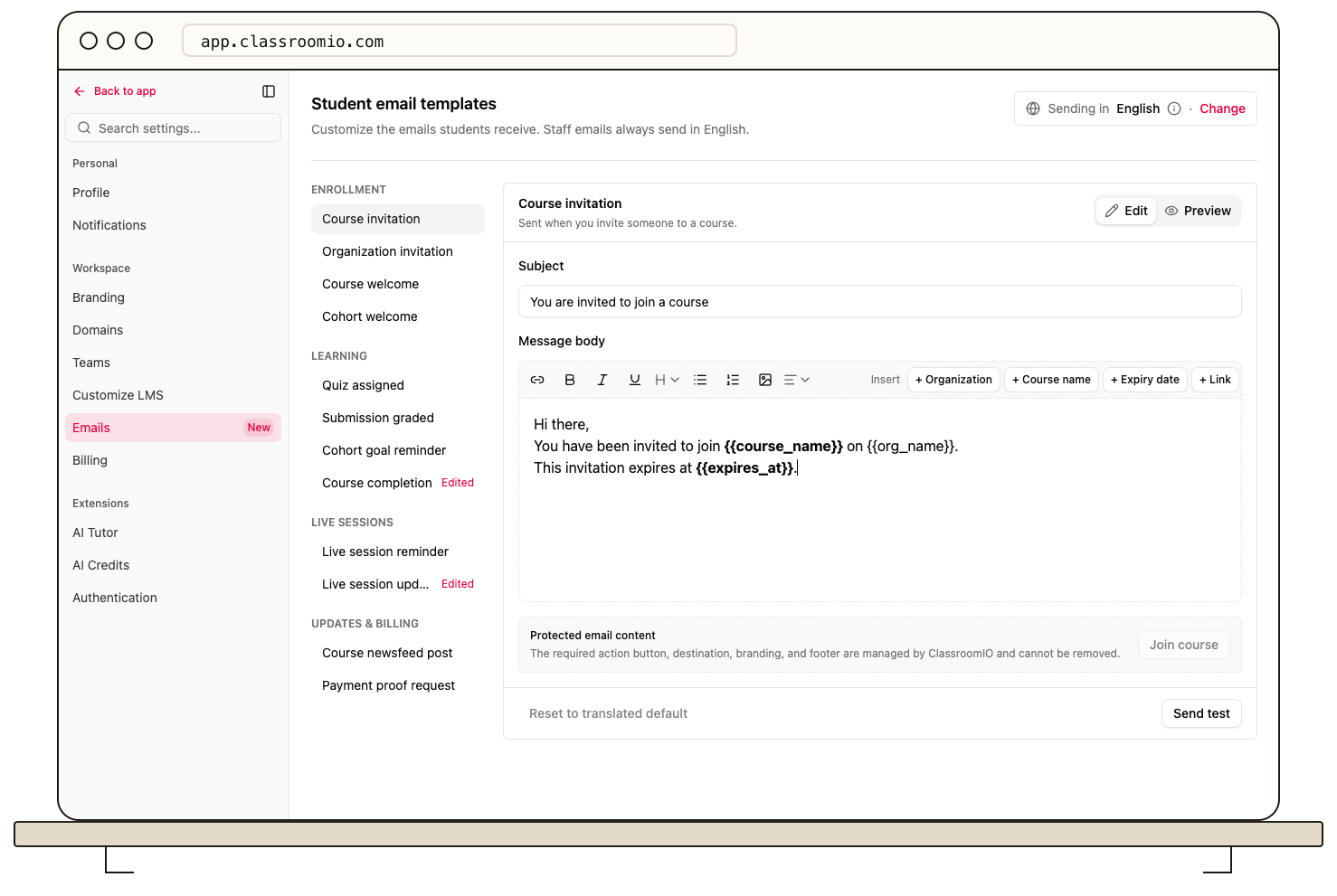
The default wording is a starting point. The new Settings > Emails page lists all 12 emails your students can receive, in your organization's language. Pick one to edit its subject and body. You can insert placeholders such as the course name or student name, add an action link on emails that have one, preview the result, and send yourself a test. Edited emails are marked Edited, and you can reset any of them to the default wording.
Translated and edited student emails are available on paid plans. If an organization moves to the Free plan, its students get the default English emails again.
Instructions are always one click away
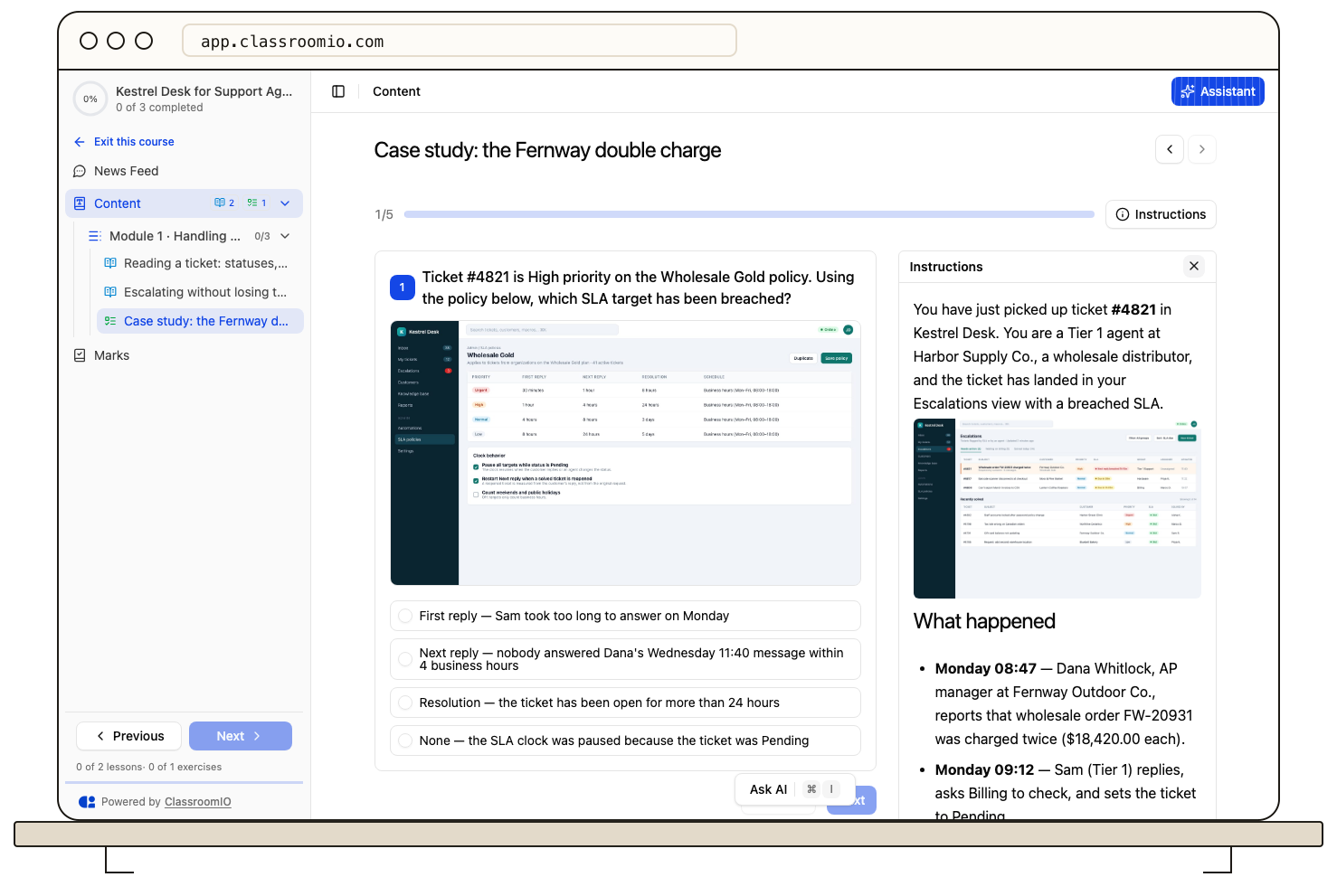
Many exercises start with a brief: a scenario, a few screenshots, and what the student needs to work out. Until now, that brief only appeared on the start screen. Once a student clicked Start, there was no way back to it.
Every question now has an Instructions button in the progress row whenever the exercise has a description. On a wide screen it opens beside the question and stays open as the student moves between questions. On smaller screens it slides in from the right.
Screenshots students can read
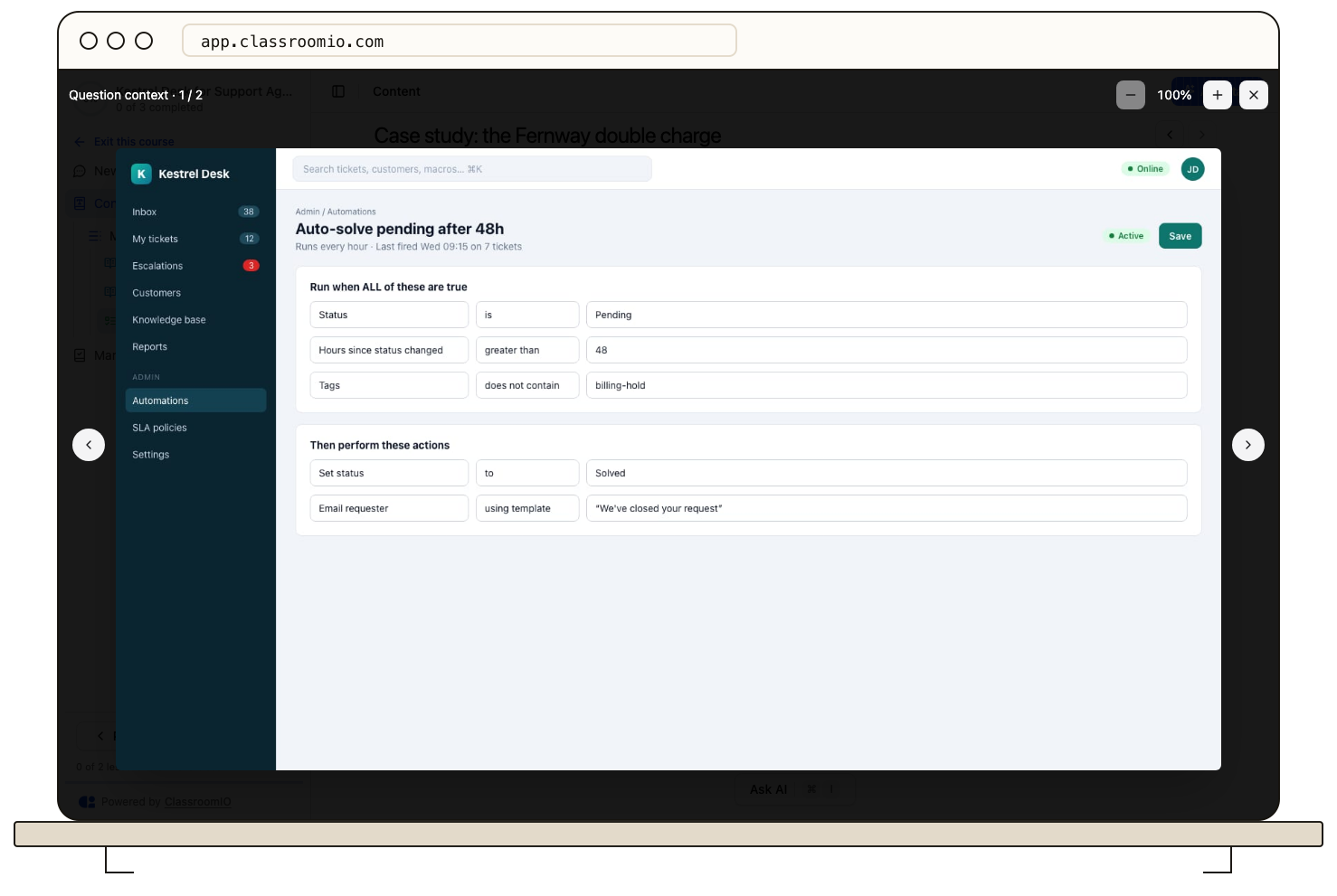
Question images used to show as small cropped squares, and so did images on multiple-choice options. That is fine for a photo, but a screenshot of the software you teach became unreadable.
Images now show in full without cropping. One image fills the width of the question, and several sit in a two-column grid. Students can click any image to open it full screen, zoom up to 300%, and step through the rest with the arrow keys. This works for images in the exercise description and question descriptions too.
Richer question descriptions for tutors
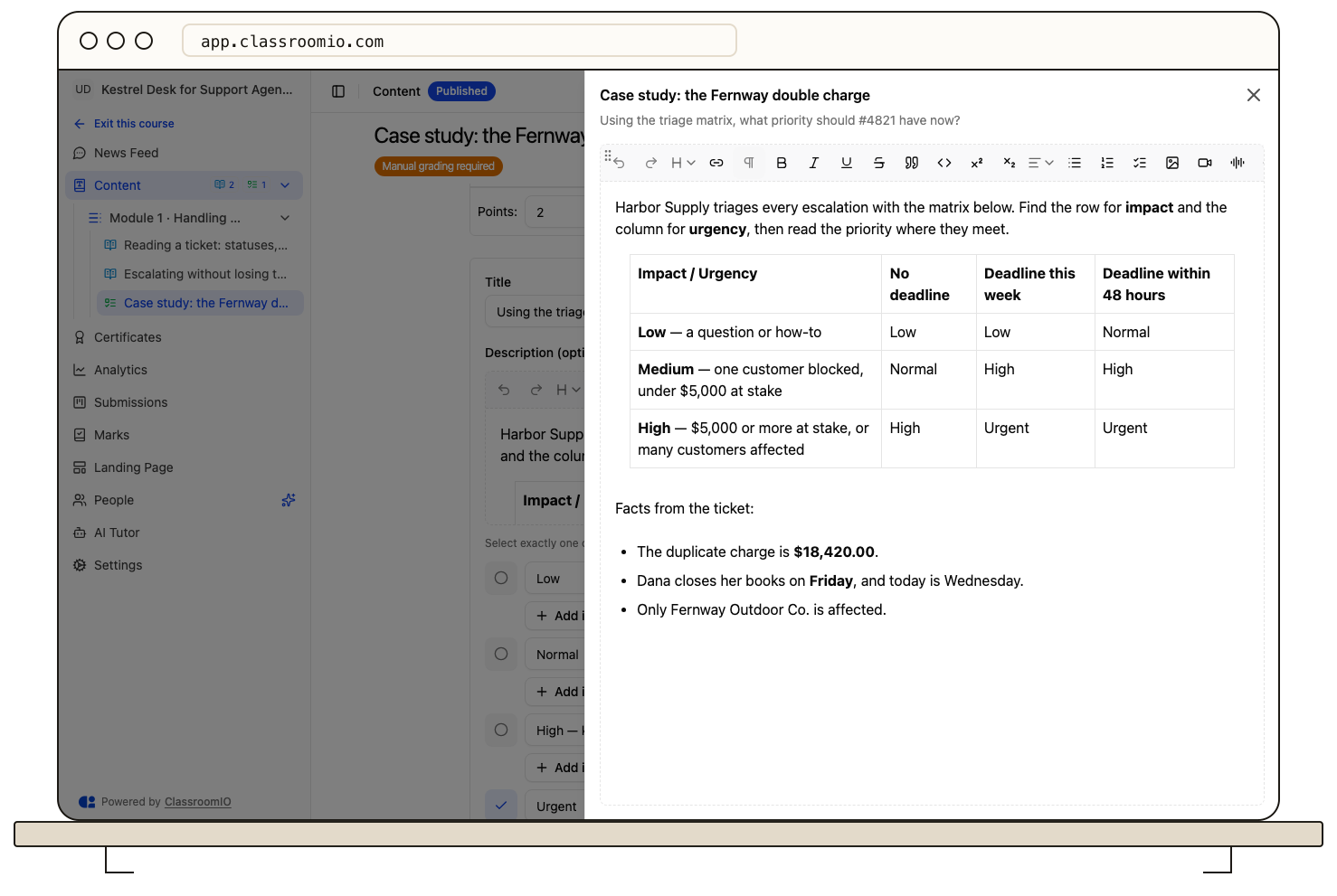
The question description used to be a plain text box. It is now the same rich-text editor you use elsewhere, so you can add formatting and images. An Expand button next to the Description label opens a larger editor when you have a lot to write. Descriptions you wrote before this change still show as they did, one paragraph per line.
The AI tutor can see exercise submissions
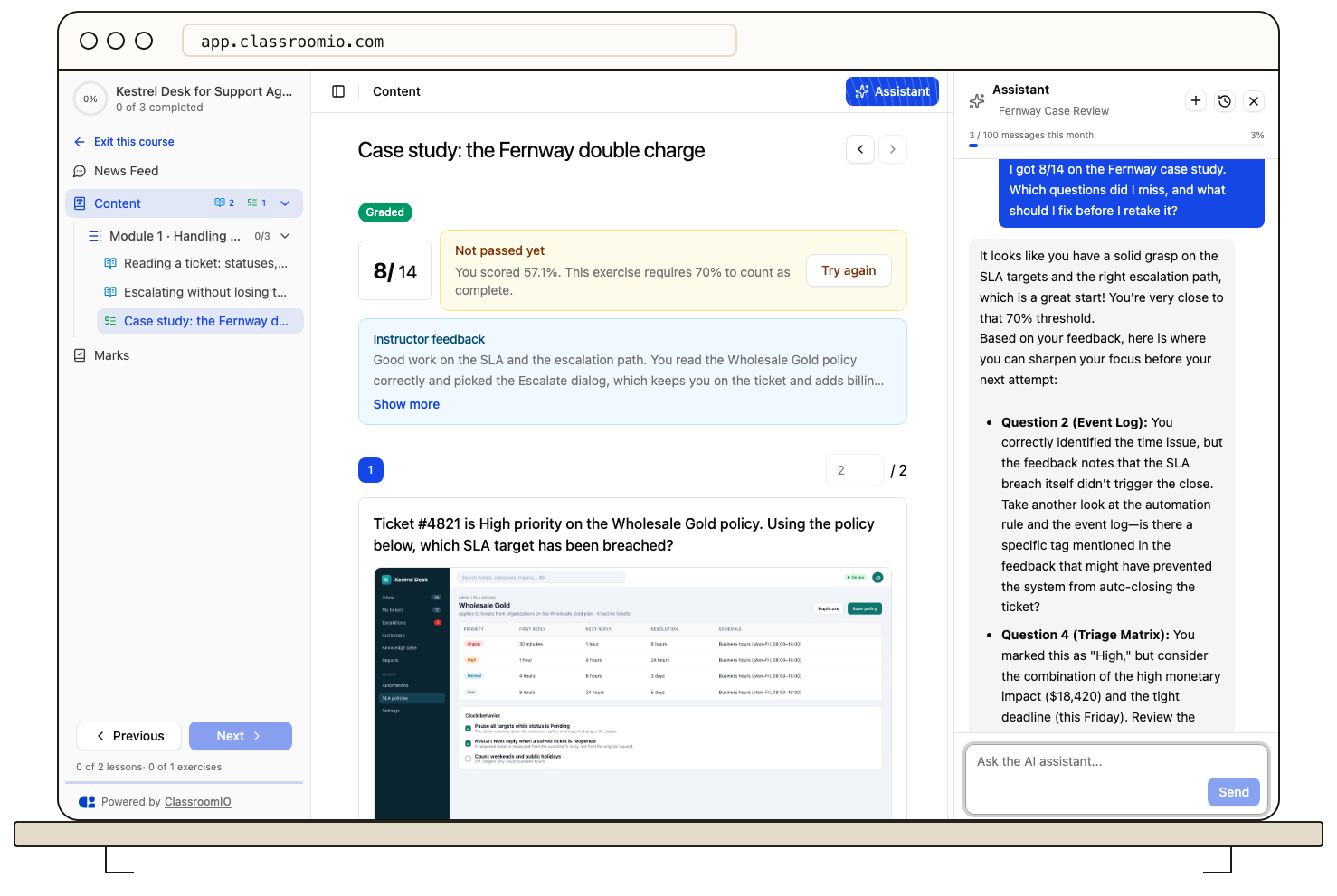
Before, a student who asked the AI tutor about their exercise result got a general answer, because the tutor could not see what they had submitted.
Now the AI tutor can read the student's own submissions: their answers, which questions they missed, their score, and your feedback once it is available. It uses the latest attempt by default, and the student can ask about an earlier one. On an exercise page, it already has the current submission, so "what did I miss?" gets a direct answer. Answers you haven't graded yet aren't treated as wrong, and the tutor never shows students the answer key.
Fixes and improvements
-
Questions no longer disappear after a reload. If a student reloaded the page partway through an exercise, they could see "No question added for this exercise". Their answers and place in the exercise now come back correctly.
-
Filter, sort and share people lists. The course People page now loads one page at a time and can be filtered by role, progress, certificate, last login and join date, with ready-made views such as Not started and Never logged in. Every column sorts, and the filters stay in the page address so you can share a view. The cohort People page gets the same controls.
-
A clear message when your academy is full. Students who can't join because your plan's student limit is reached now see your academy's name, a note that it is full right now, and that their account is fine. Before, they only saw "Failed to join the organization". The join page also no longer shows an error on first load.
-
Pressing Enter in the image viewer or instructions panel no longer skips ahead to the next question.
-
Clearer way out of a course. The sidebar now says "Exit this course" or "Exit this cohort".
-
Next lesson shows a loading state while it finds the next item you haven't completed.
-
Onboarding for new organizations. The setup questionnaire now shows your progress through each step. Going back to the first step and continuing no longer fails with "site name already exists" or creates a second organization.
-
New getting started guides in the Help Center. Six new guides cover what ClassroomIO is, comparing plans, usage limits, managing organizations, billing, and previewing your academy as a student.
-
Public API: the course students list is now paginated.
GET /courses/:courseId/studentsreturns 20 students per page by default, up to 100, with apaginationobject in the response. If your integration expects the full list in one call, passpageandlimitand loop through the pages.