
- new feature
- bug fix
- security update
Introducing lesson blocks, connected apps and a custom student home
Build lessons from blocks you can arrange around your teaching, send signed-in students straight to their learning, and connect ClassroomIO to Claude Chat or ChatGPT. This update also fixes several interruptions to uploads, playback and billing.
Lesson blocks
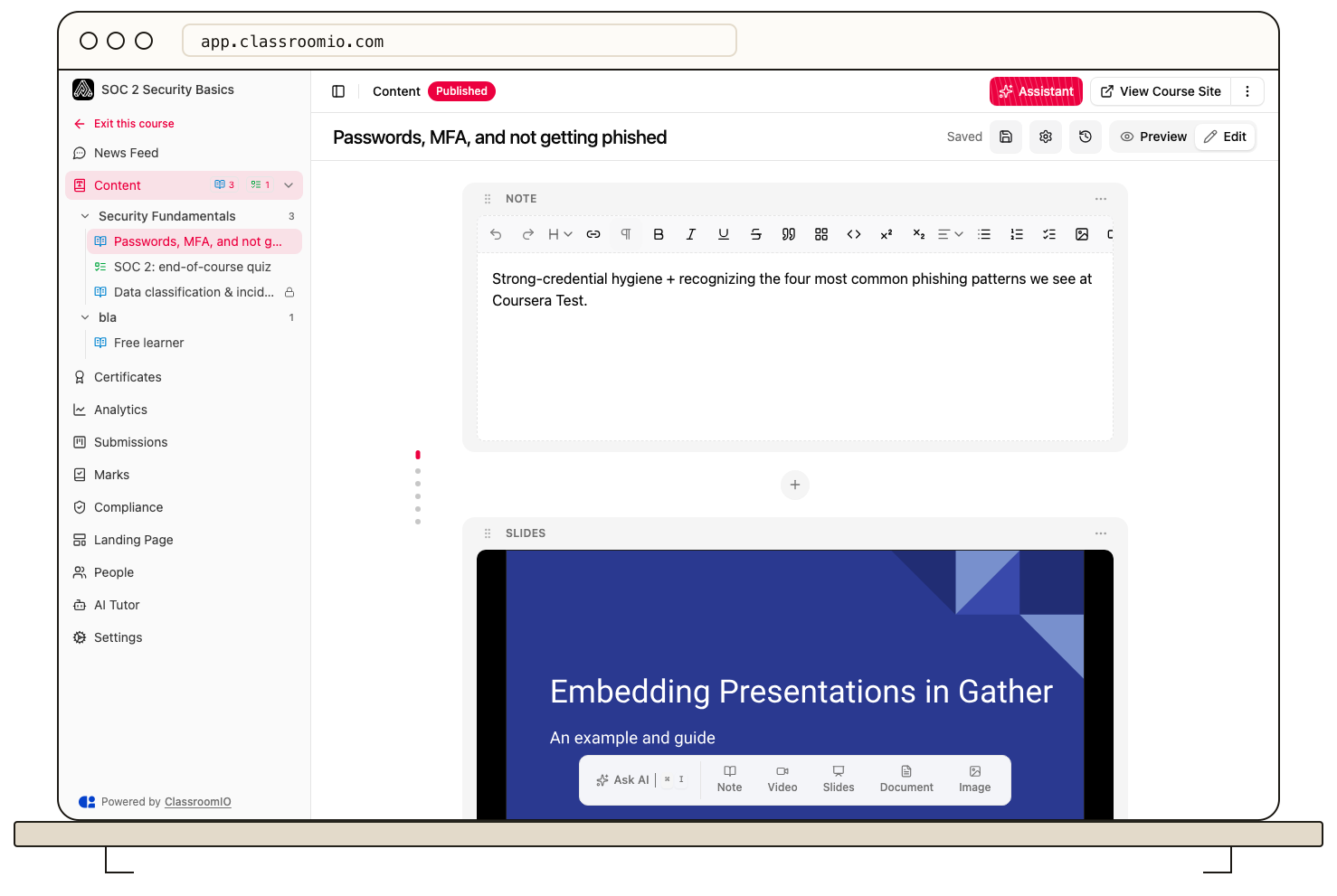
Your lesson no longer has to fit one fixed arrangement of text and media. You can now build it from Note, Video, Slides, Document and Image blocks, with as many of each as you need.
Start with an explanation, follow it with a video, then add another note and a downloadable worksheet. Add a block at the end of the lesson or use the plus button between blocks to put it exactly where you want it. Drag blocks to rearrange them, or use Move up and Move down in a block's menu.
Open Edit to work on the lesson and Preview to read it as students will. You can also switch between them with Cmd/Ctrl + /. Block changes save as you work, and note text saves shortly after you stop typing. These are changes to the current lesson, so check the preview before leaving a lesson students already use.
The Assistant understands your blocks
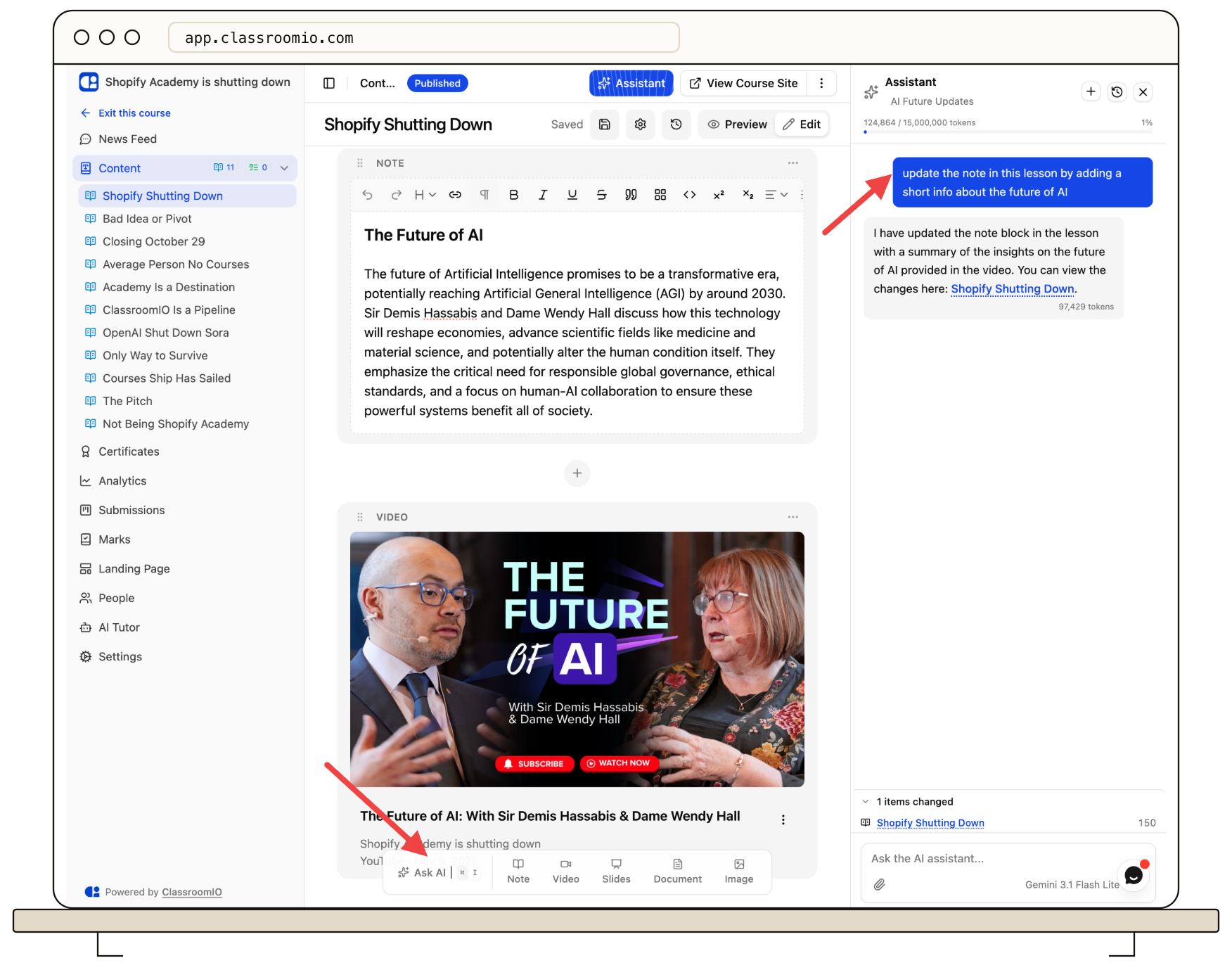
The Assistant can now work with the individual blocks in a lesson. Ask it to add a text introduction before a video, move a block, or put a document in the right place. It can also help with block settings and recent lesson history.
You can review the result in the lesson and ask the Assistant to undo its recent change. Adding an image or document does not mean the Assistant can read its contents.
Restore a block or a whole lesson
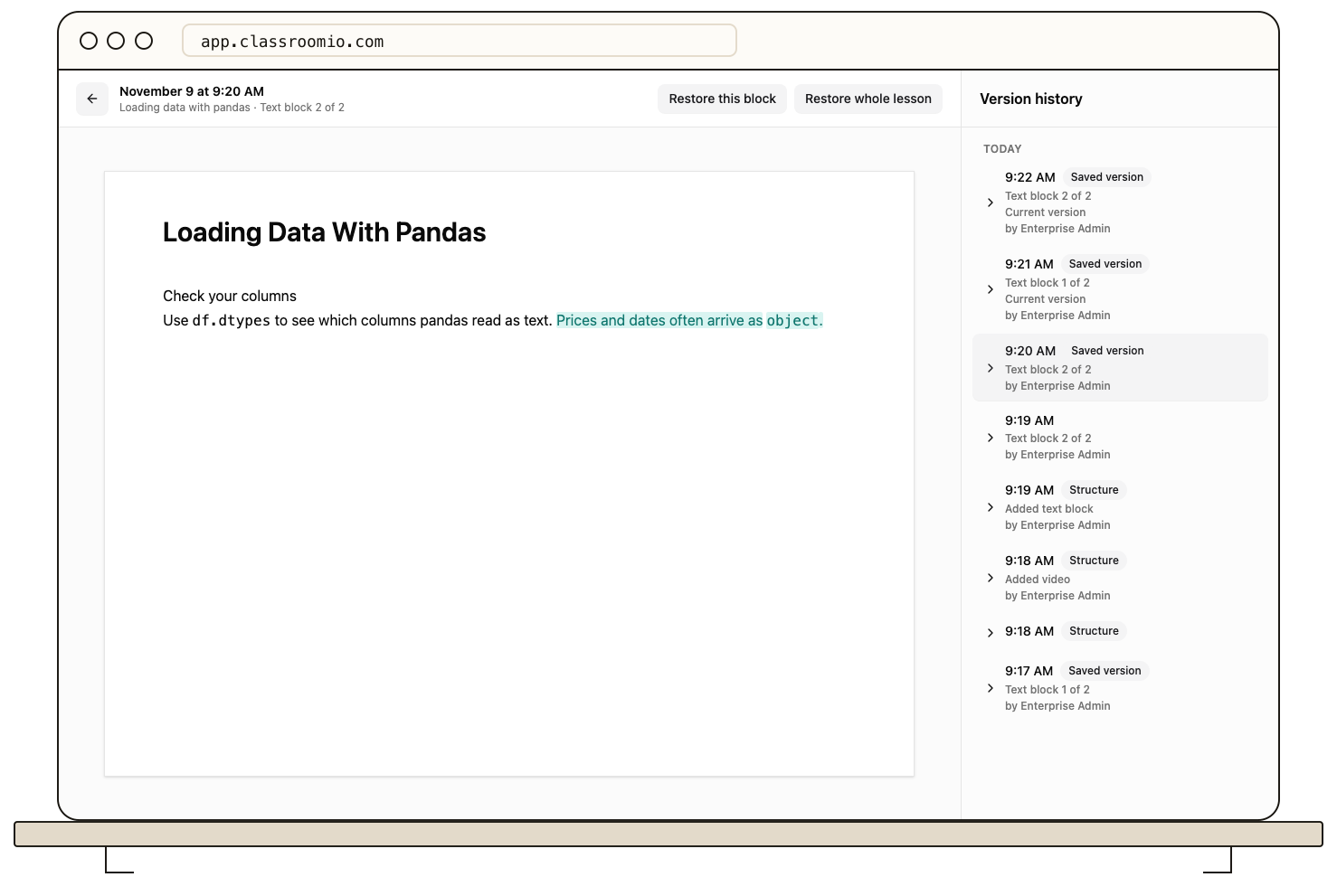
Version history now includes changes to each text block and changes to the lesson's block arrangement. Restore one text block when a paragraph was better before, or restore the whole lesson when you need an earlier arrangement and its content back.
Changes made by one Assistant request are grouped together, so Undo can revert that request. Undo will not overwrite newer edits; if later changes conflict, choose a version to restore instead. Whole-lesson restores cover the blocks and their content, rather than the lesson title or most lesson settings.
Custom student home
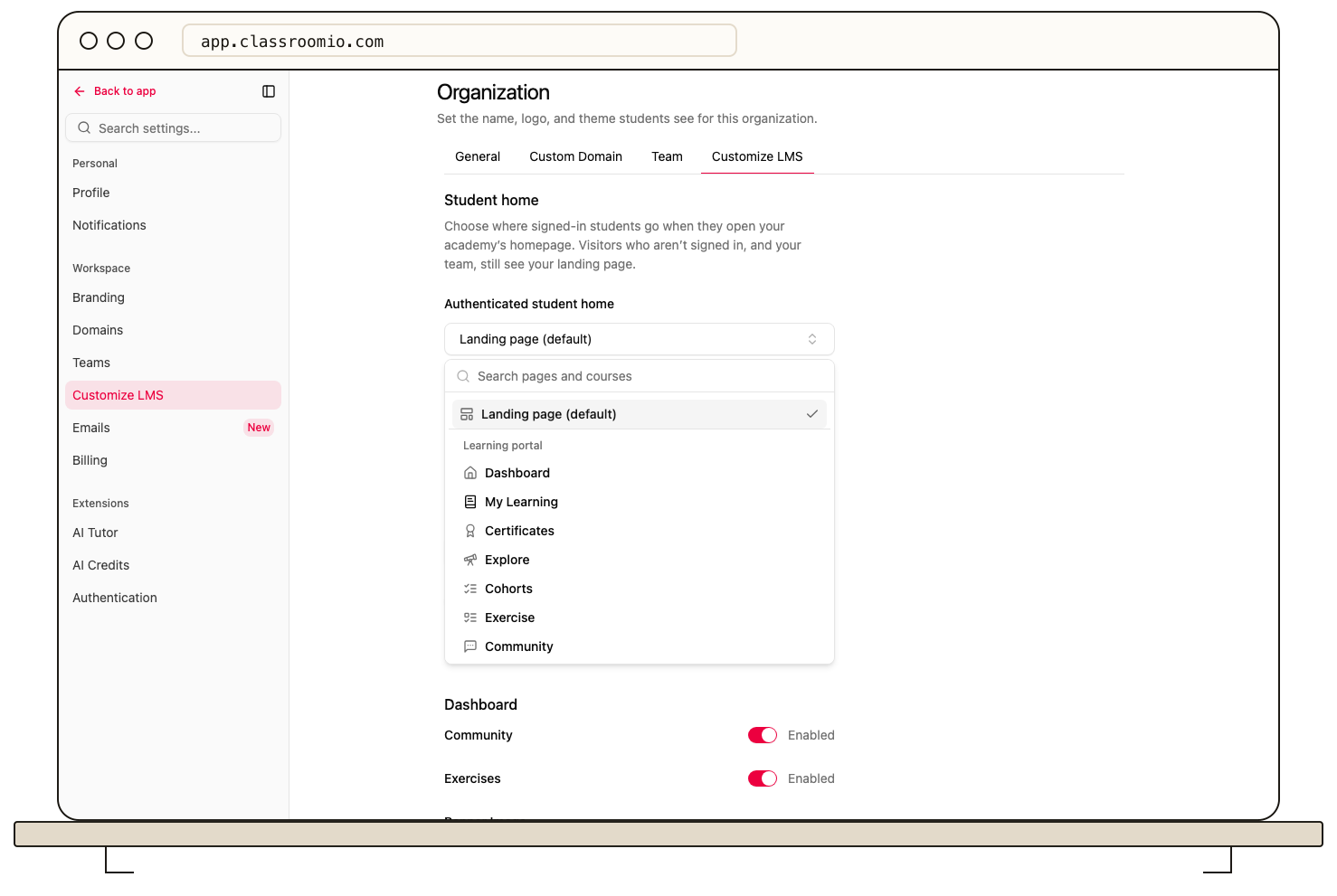
A signed-in student returning to your academy can now go straight to learning instead of passing through the landing page every time. In Settings → Customize LMS → Student home, choose a learning portal page or a published course.
Use My Learning for an academy with several courses, Dashboard for a general starting point, or a specific course for an onboarding program. Students already enrolled in the selected course resume at their first unfinished lesson or exercise. A student who needs to join a free course that is open for enrollment sees a Join course screen first.
Visitors who are signed out, your admins and tutors, and people who have not joined the academy still see the landing page. Direct links to accessible courses, lessons and portal pages still open those destinations. If your chosen home becomes unavailable, students fall back to the Dashboard, and the setting shows you that it needs attention.
Connected apps
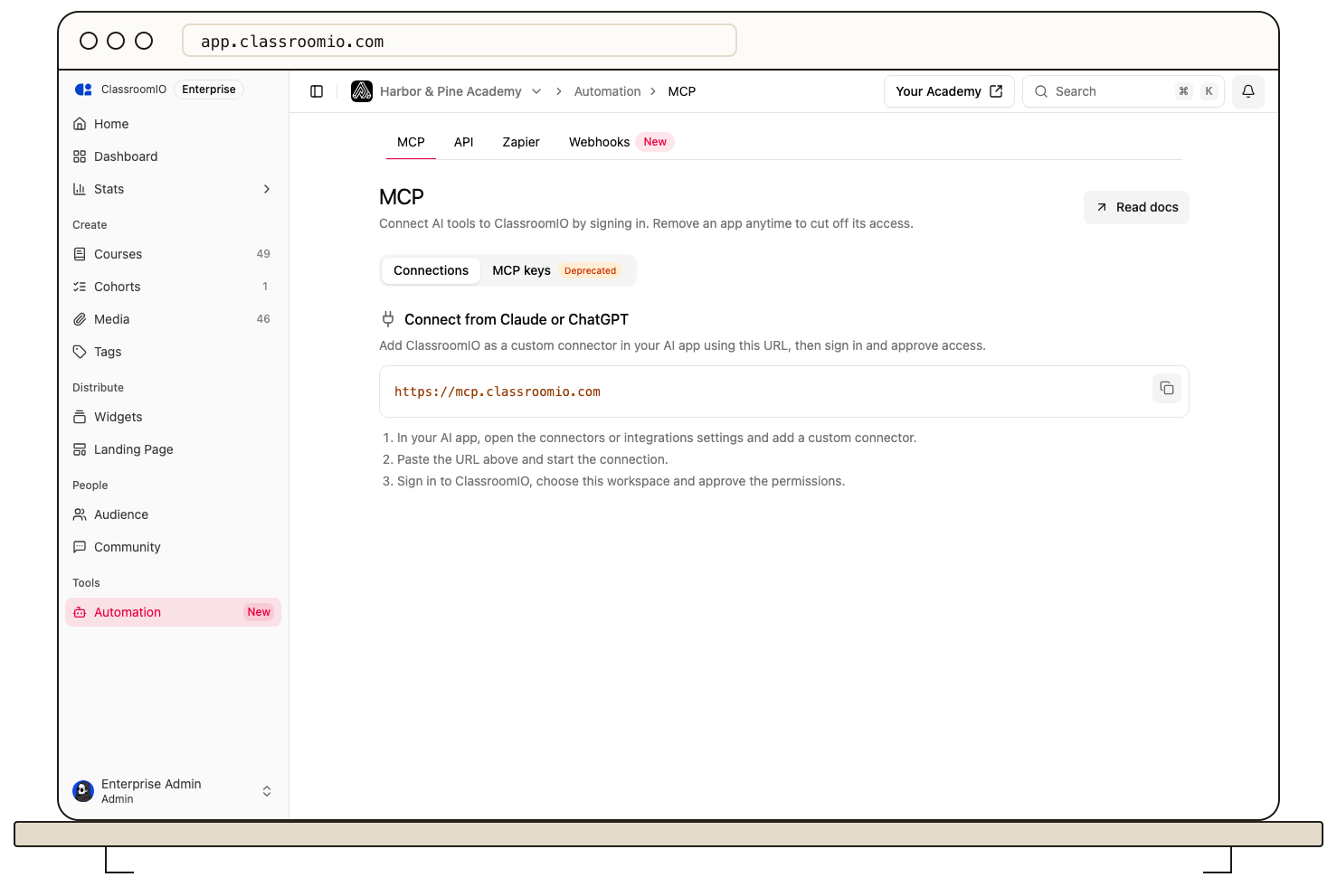
You can now connect a supported AI client to ClassroomIO by signing in, choosing your organization and approving its permissions. The hosted MCP connection removes the need to set up a local MCP server or paste an MCP key into a compatible client.
Open Automation → MCP → Connected apps to review connections or remove an app's access. Connections act with the approving admin's permissions, and plan limits still apply.
There is also more available through the public API and MCP: organization branding and customization, domains, tags and tag groups, course tags, related-course listings, student profile updates, and team management. The public API can update student status in bulk, and supported third-party API clients can use the new sign-in authorization flow. See the developer documentation for the supported operations and required permissions.
Fixes and improvements
-
Course and cohort access checks. Creating cohorts now requires an organization admin or tutor, and students can read only their own course progress. Reading another person's progress requires the appropriate teaching or admin role. (#1517)
-
Archive replaces Deactivate. Use Archive to remove a student's access and release their seat, then Unarchive when they return. Existing deactivated members become archived, and saved links to the old status open the Archived view. (#1508)
-
Uploads can finish without transcription. Video processing no longer depends on producing a transcript when transcription is not available or was not requested. (#1510)
-
Faster audience and course loading. Audience lists and course content queries do less database work, including when resolving exercises. Lesson lists also drop the old Note and No content chips. (#1509, #1498, #1484)
-
Longer videos keep playing. Uploaded video playback refreshes its access before it expires and can recover from an expired-access response without sending students back to the start. (#1506)
-
Optional exercises. Choose None — optional as an exercise's completion rule. Students can still open and submit it, but it does not block sequential progression or count toward course completion and certificates. Optional lessons are excluded from those completion totals too. (#1491)
-
Uploads recover from connection problems. Video uploads retry temporary network failures and stalled transfers, with more time for slow connections to finish. (#1503)
-
Invitations show your organization's logo. Invite pages now display the branding of the organization the student is joining. (#1497)
-
Billing opens correctly. Admins can open the billing portal from billing settings. People without billing access no longer see a button that leads to an error. (#1489)
-
Restricted invitations explain the mismatch. Email and domain restrictions also apply to people who are already enrolled. If a student is signed in with the wrong email, the invite page explains it and offers a way to switch accounts. (#1485)
-
More reliable connections. The API can stay running after a temporary database connection failure. MCP connections also handle a trailing slash in the server URL, newer protocol-version requests and partial Accept headers. (#1479, #1481, #1465, #1462)
-
Billing updates keep arriving. Payment-provider events no longer fail just because they contain an unfamiliar price format. (#1471)
-
MCP course lists are clearer. Listing existing courses uses the public API, and course-draft tools are labelled so they are easier to distinguish from live courses. (#1467)
-
New lessons do not start with a live-session date. A date stays empty until you choose one. (#1461)
-
More lesson documents, in fewer uploads. Upload up to 10 files together with progress for each file. CSV, XLSX, XLS, IPYNB and PY files are now supported alongside PDF and Word documents. Document uploads require a paid plan. (#1450, #1437, #1451)
-
Video covers appear in public lessons. Public lesson pages now use the video's thumbnail, including thumbnails generated after the video was attached. (#1431)
-
Media usage stays accurate. Videos attached to lessons through the API or MCP now appear as used in the media library, rather than incorrectly showing as unattached. (#1429)
