
- new feature
- documentation
- bug fix
- performance
- security update
New analytics for your academy, courses and cohorts, bulk uploads and a floating Assistant
This week brings full analytics to your academy, your courses and your cohorts, so you can see who is on track and who needs a nudge without opening every course. You can also upload a batch of videos and documents in the background, pop the Assistant into a floating window, and your students can resume uploaded videos where they left off.
New analytics for your academy, courses and cohorts
Until now, finding out how students were doing meant opening each course and reading submissions and marks one by one. There was no single view of who had stopped logging in, who was failing, or which cohort was slipping.
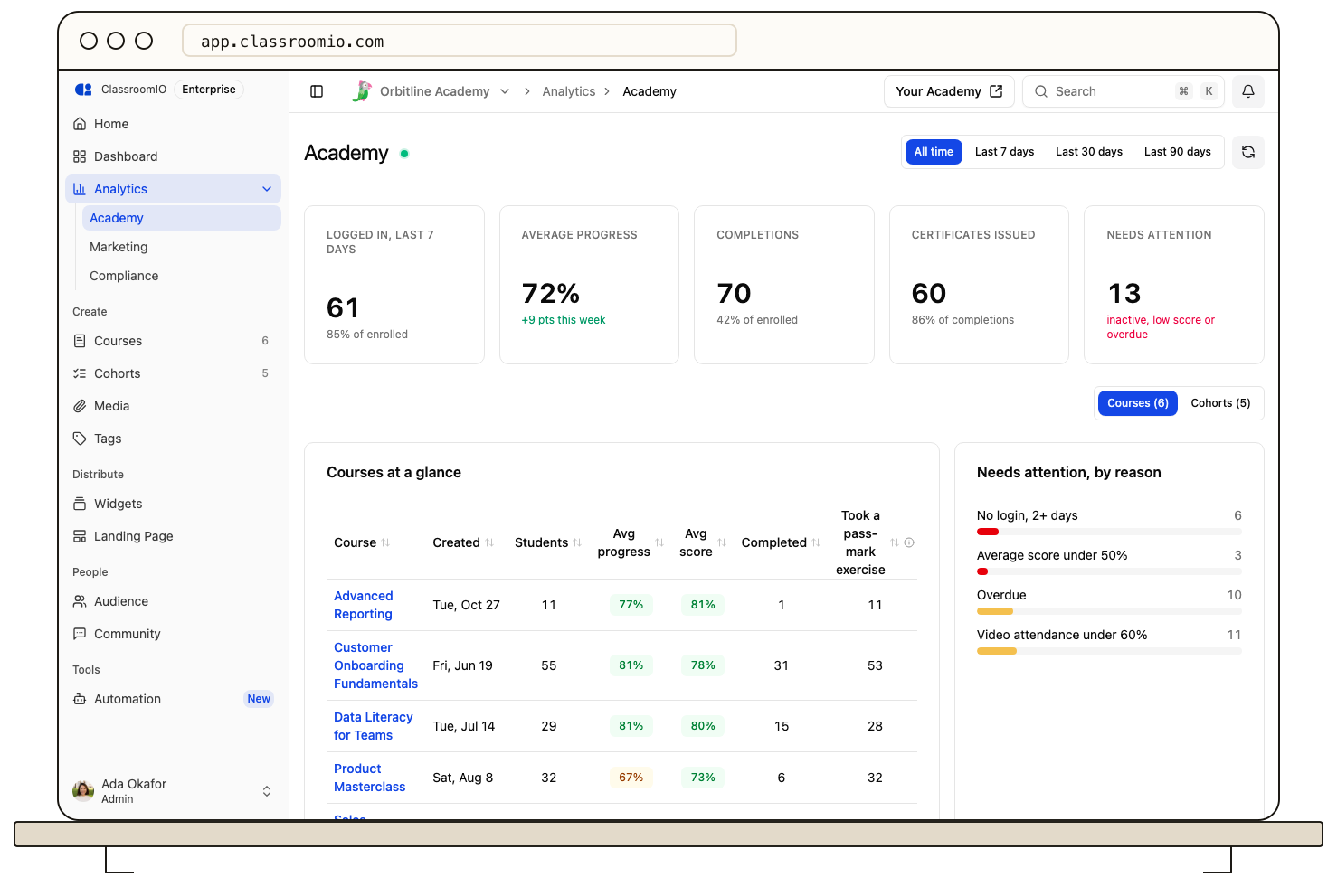
Now there is an Analytics page at three levels: your whole academy, each course and each cohort. Every page opens with summary cards, a list of students who need attention and the reason why, and a range picker for the last 7, 30 or 90 days or all time. Figures that describe where students stand right now, such as overdue work, carry a Now tag so you know the range does not change them.
A student needs attention when they have not logged in for 2 or more days, are averaging under 50%, or have overdue work. Every page uses the same rules, so a student flagged in a cohort is flagged the same way in the course and the academy.
On the Free plan, analytics cover the last 7 days. Paid plans unlock the longer ranges.
Your academy at a glance
Open Analytics > Academy in your organization sidebar. You get logins, average progress, completions and certificates across every course, plus a Courses at a glance table and a Cohorts at a glance table with a health rating for each cohort. Enrolled students vs target tracks your academy's growth against a target you set, alongside your plan's seat limit. Only organization admins can open this page.
Course analytics
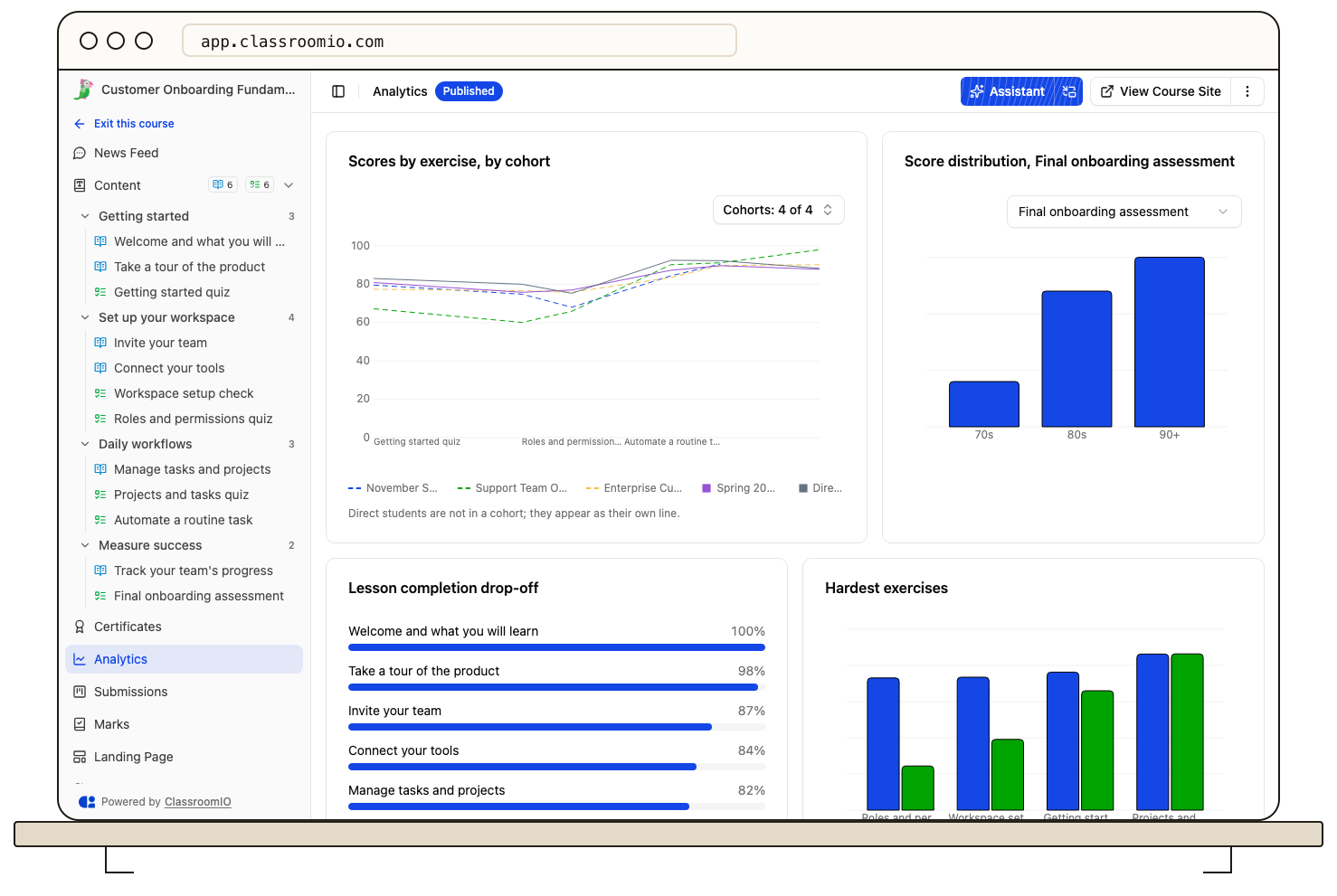
Select Analytics in a course's sidebar to see enrollment, completion rate, average grade, pass rate and how many days students take to finish. Charts show scores by exercise (for everyone or per cohort), the hardest exercises and questions, and the lesson where students drop off. A section-by-section scorecard and a searchable Students table, which you can export as CSV, round it out. Admins and tutors of the course can open it.
Cohort analytics and reminders
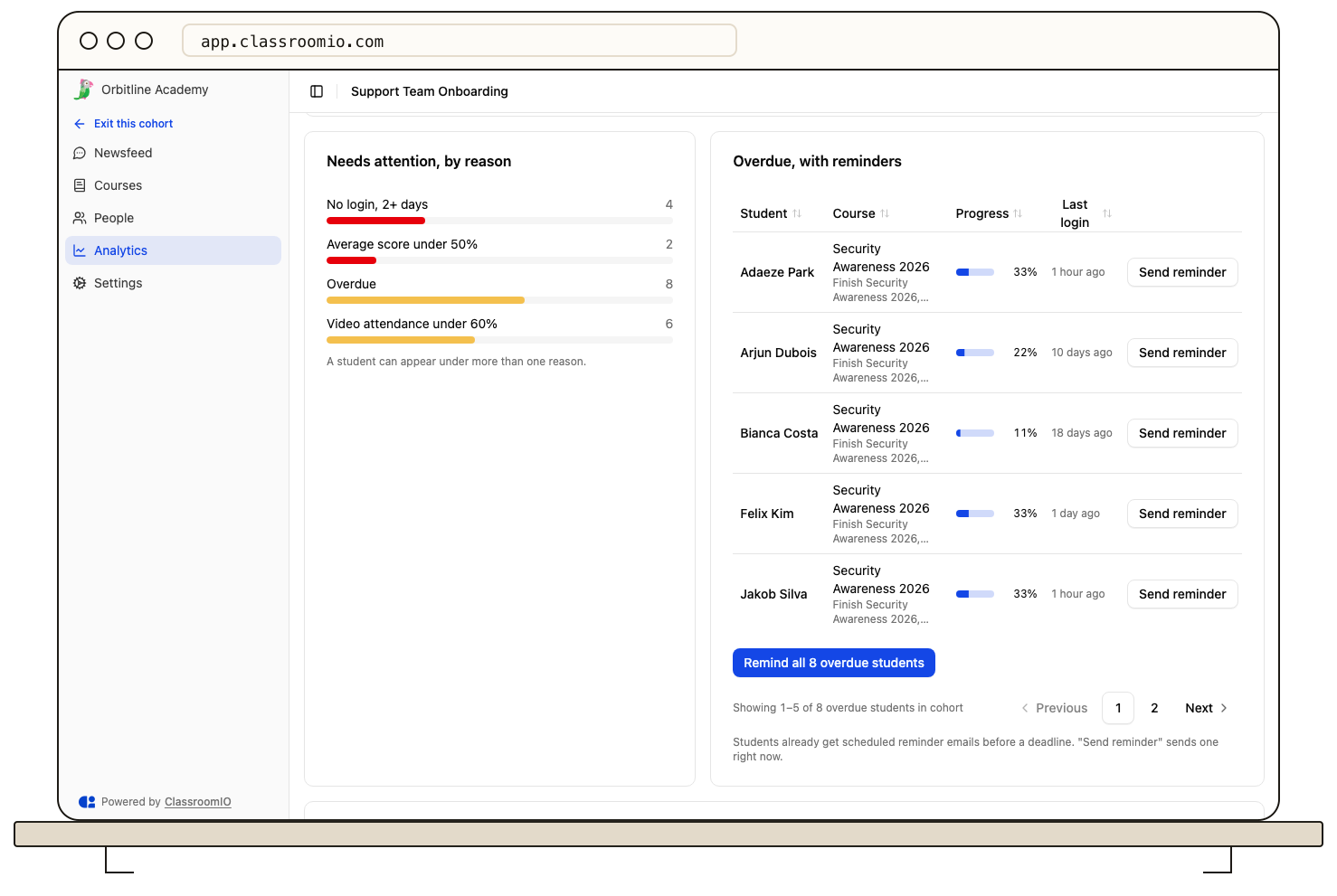
Select Analytics in a cohort's sidebar to follow its students across all of its courses, or pick one course. The Overdue, with reminders card lists students who have missed a goal deadline. Select Send reminder to email one student, or Remind all overdue students to email them all at once.
Marketing, and analytics through the API
The page previously called Analytics is now Analytics > Marketing. It still shows landing page views, visitors, enrollments and top courses, and its figures now refresh every two hours instead of once a day.
Analytics are also available through the public API and MCP. You can ask Claude which students in a cohort are falling behind, or pull course figures into your own reports.
Bulk media uploads
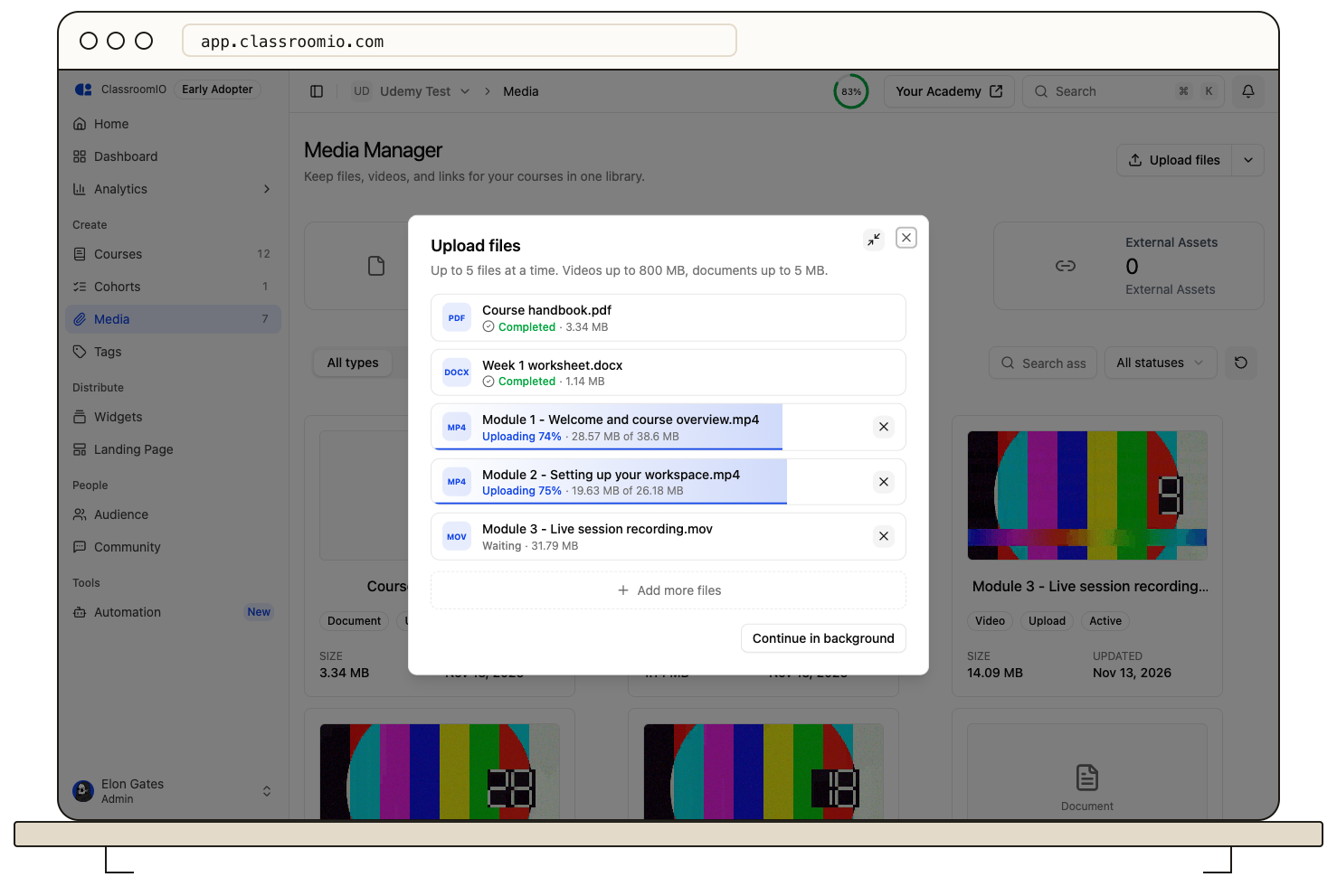
Adding a set of course videos to your media library used to mean uploading them one at a time and waiting on each.
Now Upload files on the Media page takes up to 5 videos and documents at once, each with its own progress bar. Select Minimize and the uploader moves to the bottom right corner of the dashboard, where it stays while you move between pages. If a file fails, select Try again on that file without restarting the others.
Videos can now be up to 1 GB each, up from 800 MB. You can also rename a library video from the lesson editor: open the video's menu and select Edit, and the new name shows in every lesson that uses it.
Uploading files requires a paid plan. Uploads run in your browser tab, so keep the tab open until they finish.
Floating Assistant
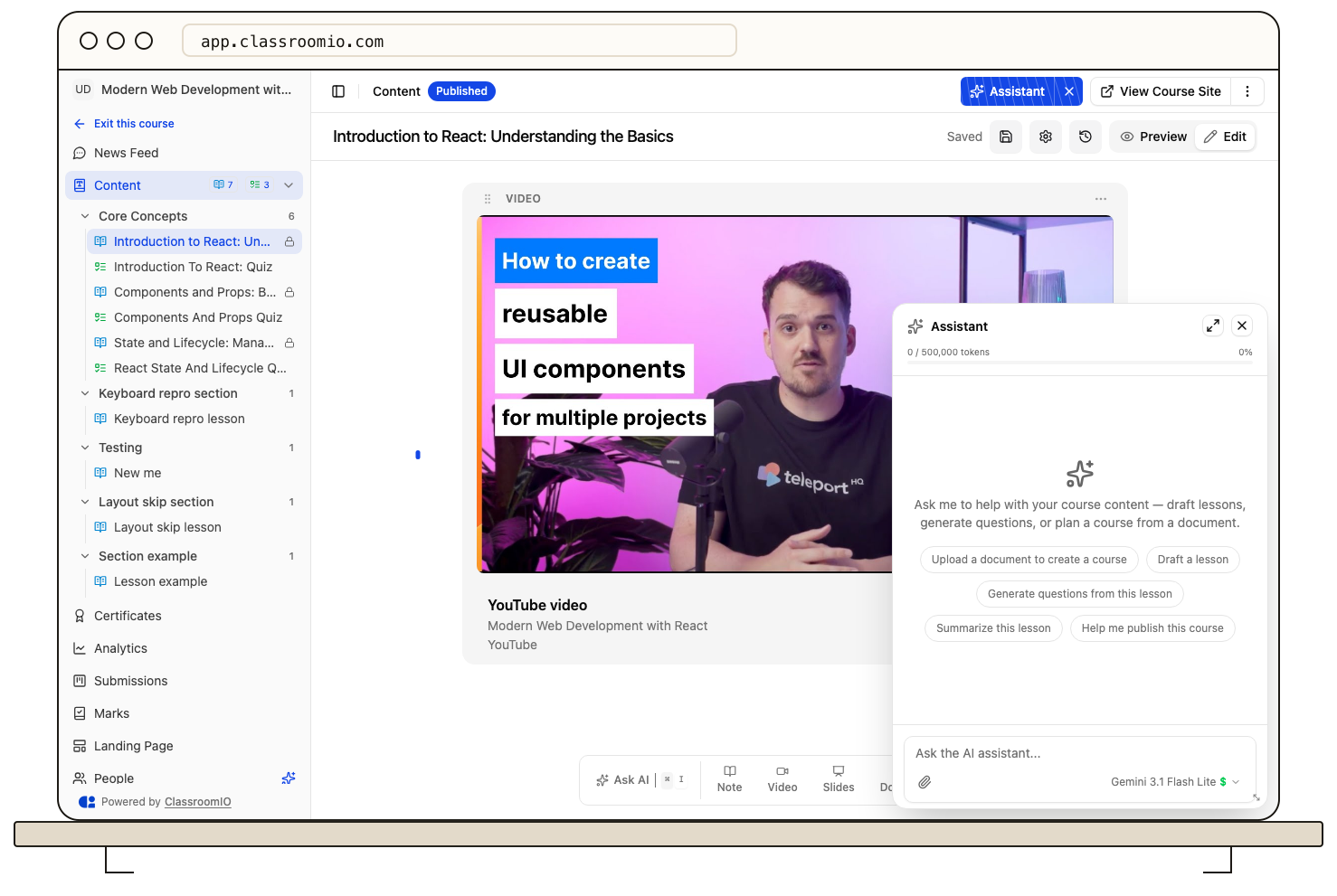
The Assistant used to take up the side of the screen, so you had to choose between chatting and seeing your whole lesson.
Now you can select Pop out chat beside the Assistant button to float it over the page. Drag it anywhere, resize it from the corner, and it remembers where you left it. To dock it again, drag it to the right edge or use the expand control. Pop out is available on wider screens.
Videos resume where students left off
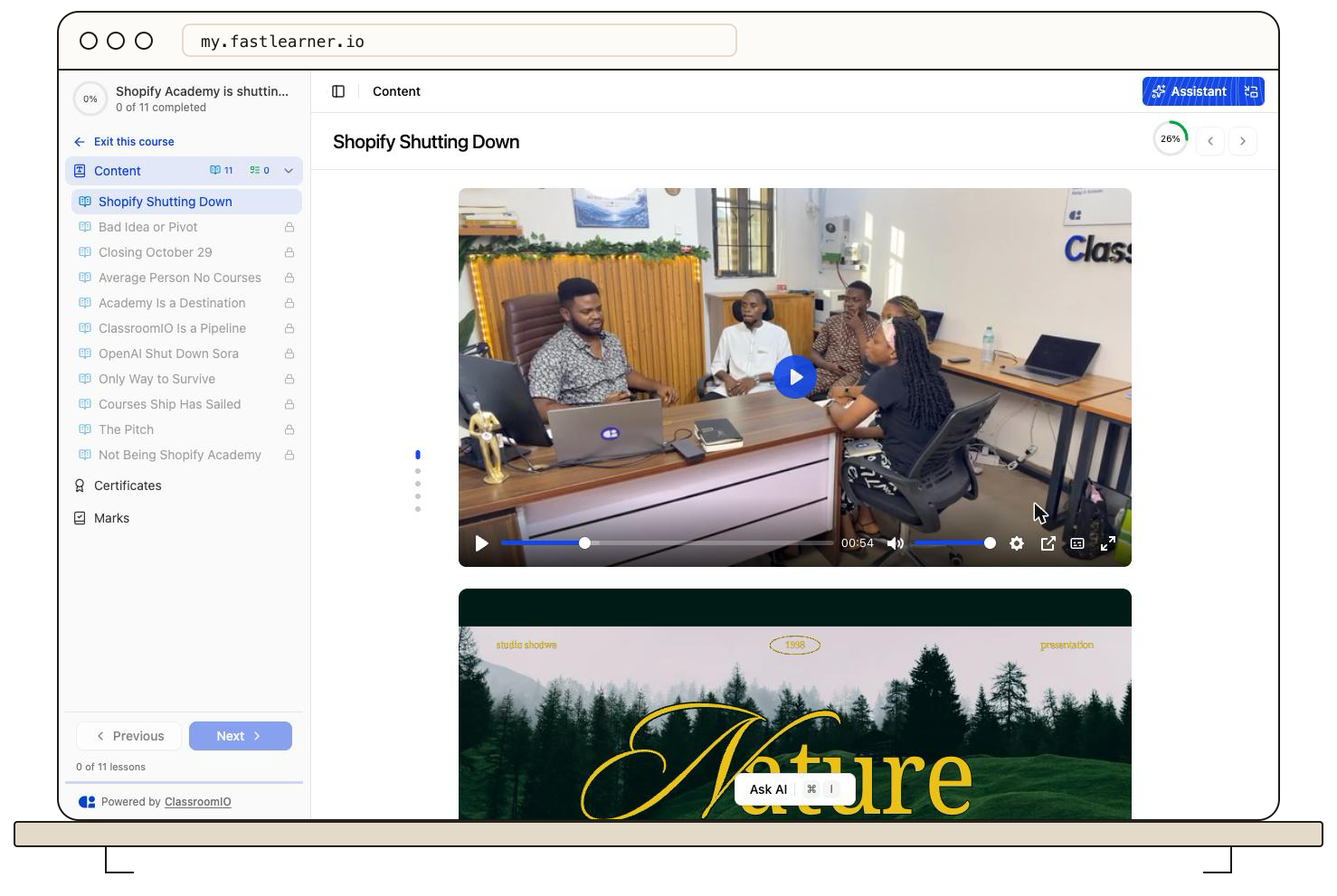
When a student left an uploaded lesson video partway through and came back, it started again from the beginning.
Now the video opens at the point they stopped, and the progress bar and frame show that position before they press play. This applies to videos uploaded to ClassroomIO.
A 404 page you can play
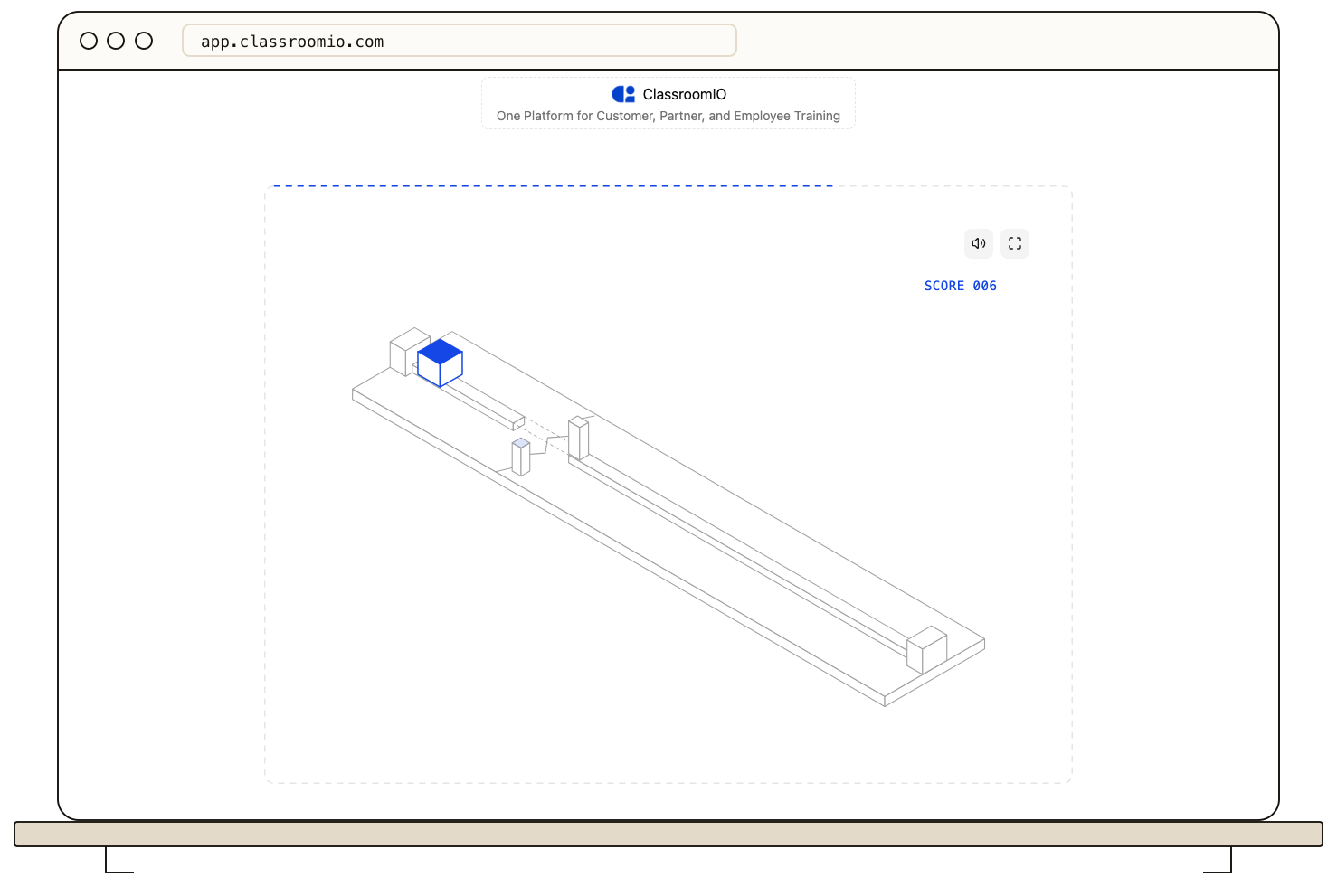
Landing on a missing page is never fun, so we made it a little more fun. The illustration on our 404 and error pages is now a small runner game. Press Space, the up arrow, or tap to start, then jump the obstacles. Your best score is saved in your browser.
Fixes and improvements
-
Free seats from revoked invites. Revoking a pending invite, or letting it expire after 7 days, now gives the student seat back. Sending, resending or re-importing an invite checks for a free seat first. (#1513)
-
Email verification on custom domains. Students who signed up on an academy with a custom domain could not verify their email, because the verification link was rejected. The link now works. (#1566)
-
Safer sign-in links. The one-click sign-in link behind View as student can only be used once and only sends you to a page on the same academy. (#1550)
-
Billing details hidden from students. Students can no longer see their organization's billing ids. (#1549)
-
Videos uploaded through the API. Choosing an API-uploaded video from the Library tab of a lesson video block now saves. If a block cannot save, you see the reason instead of the block quietly reverting. (#1552)
-
Unfinished uploads are flagged. A video whose upload never finished shows Upload not finished on the Media page and cannot be added to a lesson until it completes. (#1545)
-
Every organization in your switcher. The organization switcher now groups the organizations on your account, the ones you manage on other accounts, and the academies where you are a student. (#1553)
-
Edit rows before importing. In Audience > Import Users, you can fix each row's email and name in the preview, and the ready, duplicate and invalid counts update as you type. (#1542)
-
Role change emails. Team members get an email when their role changes, saying who changed it and to what. (#1542)
-
Featured course on your landing page. The Vibrant theme's featured course block now shows the course's cover image, and a new Show featured course switch hides it on the Vibrant and Editorial themes. (#1540)
-
AI edits in version history. Lesson changes made through MCP or the API show which AI client made them, such as Claude or ChatGPT. (#1557)
-
Create and publish courses from Claude. Claude and other MCP clients can now create, publish and unpublish courses directly. Course drafts are no longer part of MCP. (#1556)
-
Connect an app in one step. Connecting Claude, ChatGPT or another app now asks you to pick the organization and approve access on a single screen. (#1534, #1537)
-
Empty course content page. A course with no content now shows an Add content button for admins and tutors. (#1570)
-
Video guides in the dashboard. Short videos now explain lesson blocks, Claude and the student home right where you use them. (#1532)
-
Slides from another platform. Pasting a Canva embed while the Google Slides tab is selected now tells you it is a Canva embed and offers to switch tabs. (#1516)
-
Course type in General settings. Course type now sits in the General card of course settings, under the description. The course card menu also stays inside the card on wide screens. (#1519)
-
Firefox lesson crash. Lesson and exercise pages no longer throw an error in Firefox when the celebration confetti loads. (#1539)
-
Filters on small screens. The sort and filter menus on the Audience and Courses pages now scroll on short or narrow screens. (#1561)
